Enabling and Using Multifactor Authentication
Multifactor Authentication (TOTP) (Security Administration Administrators)
To enable multifactor authentication
An administrator must be assigned the Edit Account permission for the Manage Security Administration Account role in Security Administration to set up multifactor authentication.
- In Security Administration, open the account that will use multifactor authentication.
- Scroll to the bottom of the Account Details page.
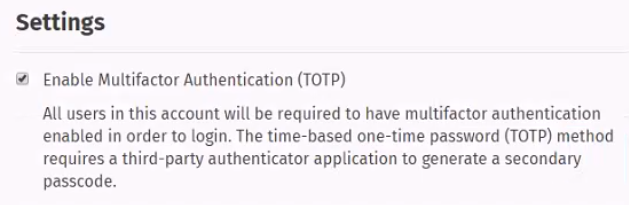
- Under settings, select Enable Multifactor Authentication (TOTP) and
select Save.
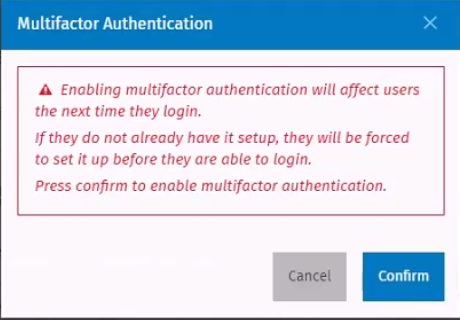
- Select Confirm on the confirmation message that displays.
Multifactor Authentication (TOTP) (Users)
After the multifactor authentication is enabled, a user must use a third-party authenticator application to generate a secondary passcode used during authentication. An IT administrator can provide information and recommend a third-party authenticator to use.
To use multifactor authentication
After multifactor authentication has been enabled in Security Administration, the Enable Authenticator page displays the first time a user enters a user name and password for a Wolters Kluwer application. The Enable Authenticator page will not display after the first time unless multifactor authentication is reset.
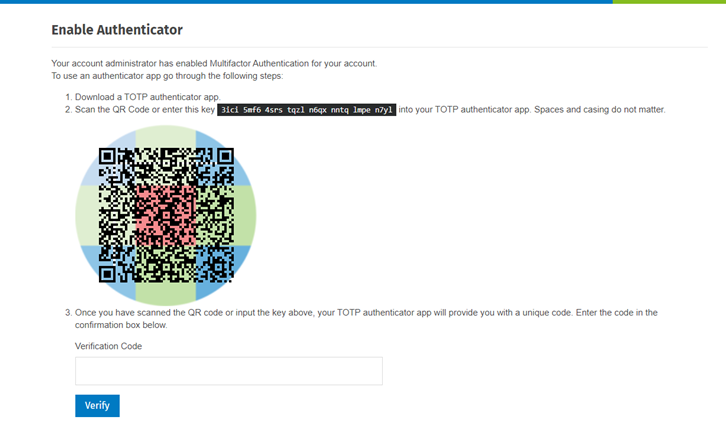
- Enter the TOTP code that displays in the authenticator app in the
Verification Code box on the Enable Authenticator page and select
Verify.
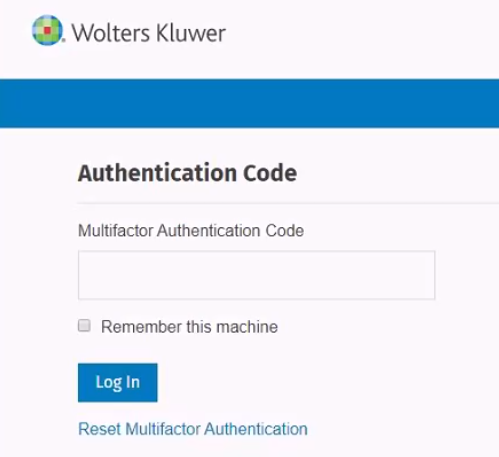
- Enter the code from your third-party multifactor authentication application and select LogIn on the Authentication Code page.
- The user logs in using a different browser.
- The user clears their cookies.
- Another user logs into the computer used by the previous user and selects Remember this machine. (The computer remembers the last person who selects Remember this machine.)