Download History Reports
Reports can be created that provide information about users who have access to materials and the materials downloaded by each user based on the criteria selected for the report.
Creating a Report
- On the Reports page, select Download History.
- Select report criteria.
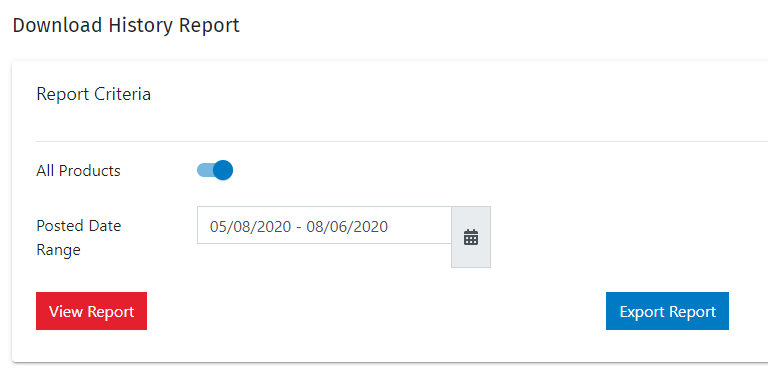
- All Products: The default view shows all
products. Selecting All Products creates a
report with user information about all products.
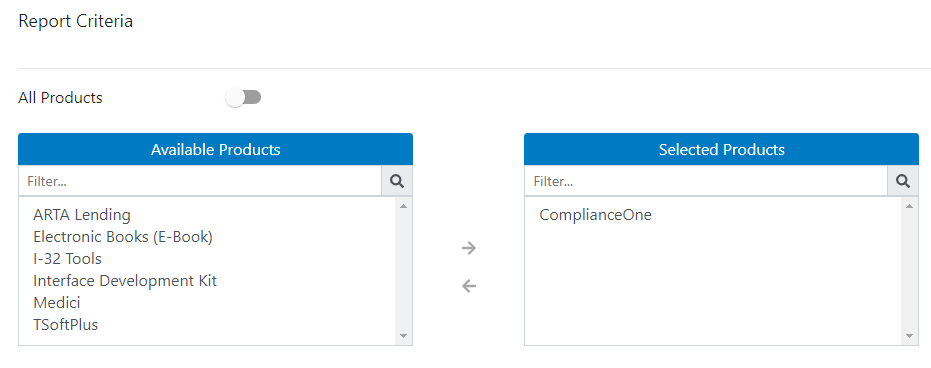
- Selected Products: To create a report for
one or more specific products, move the All
Products circle to the left to display the
Available Products section. Select one or more
products and use the arrows to add or remove the
items in the Selected Products list. Note:Enter a term in the Filter... box to filter the Available Products list.
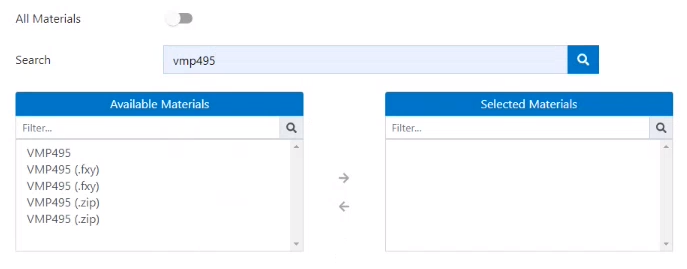
- Selected Materials: If you select a
specific product, move the All Materials
circle to the left to display the Available
Materials section. Enter a partial or complete
word in the Search box to search for a material.
Select a one or more materials and use the arrows
to add or remove the items in the Selected
Materials list.
 Note:Enter a partial or complete word in the Filter... box to filter the Available Materials list after searching for a material.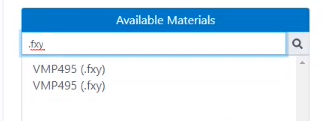
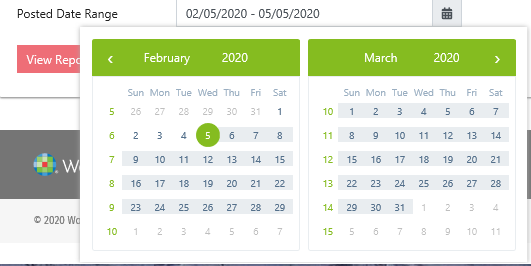
- Posted Date Range: The default date range
is 90 days. Select the calendar to change the
dates.
- All Products: The default view shows all
products. Selecting All Products creates a
report with user information about all products.
- To view the report online, select
 to display a report with data
based on the selected criteria.Note:The report can be sorted by the column headings. To find all notifications sent to a user, sort the report by the Sent To column heading.
to display a report with data
based on the selected criteria.Note:The report can be sorted by the column headings. To find all notifications sent to a user, sort the report by the Sent To column heading. - To view and save a report in an Excel spreadsheet format, select
 . The report can be saved and used
for retention or auditing.
. The report can be saved and used
for retention or auditing.