Security Administration Setup
Note: This section applies to self-hosted customers or Wolters Kluwer hosted customers being
set up within a CT environment. Hosted users in Production should contact Customer
Support to obtain their certificate.
Note: Repeat the following process steps for each account that requires authorization to
use Integration APIs.
- Log in to Security Administration with a user that has Administrator permissions.
- The list of accounts displays; click the account record for which the client ID / certificate / scopes will be created.
- Select the product(s) for the corresponding scopes that need to be set.
Note: The product must be licensed in order to set the corresponding product's scope(s) on the Client Authentication tab.
- From the Account Information page, click the Client Authentication tab.
- Click the Create Client button.
- A client ID is automatically generated.Note: The client ID is required for the token request.
- In the Secrets section, click the Create Certificate button.
- A certificate is automatically generated.
- In the Scopes section, select the scope(s) for each product to which the account
requires access.
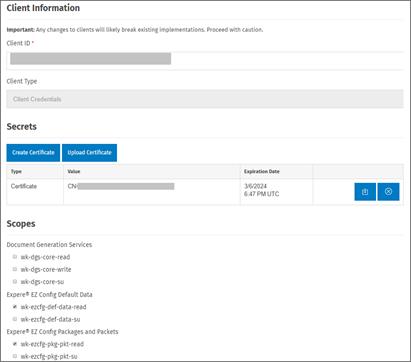 Note: Client secrets and scopes are completely independent; the secret does not have to be regenerated if the available scopes on the client change. However, review the API token request for that client to ensure the appropriate scope(s) are being requested.
 - Click the
 button to download the certificate. The
Certificate Download popup message allows you to select a download option.
Select Base64 Encoded as the API token request requires the certificate in
base64 format.
button to download the certificate. The
Certificate Download popup message allows you to select a download option.
Select Base64 Encoded as the API token request requires the certificate in
base64 format.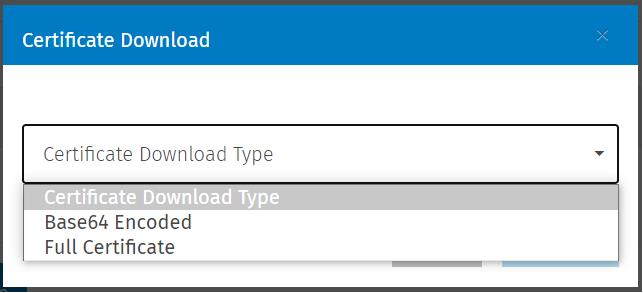 Note: The certificate (in base64 format) is required for the token request. If you download the Full Certificate (the original binary certificate), you may convert it to base64 format. Refer to Creating Base64 Encoded Version of Certificate for more information.
 - Click Download.
- Log off.