Security Administration - Create Client Authentication: Certificate/Scope/User
For each Account requiring a Certificate user, perform the following steps:
- Log in to Security Administration with a user that has Administrator permissions (Customer Support role).
- Locate the Account and click the account record to display the Account Information
page.
Verify the account has the products licensed for the requested scope(s):
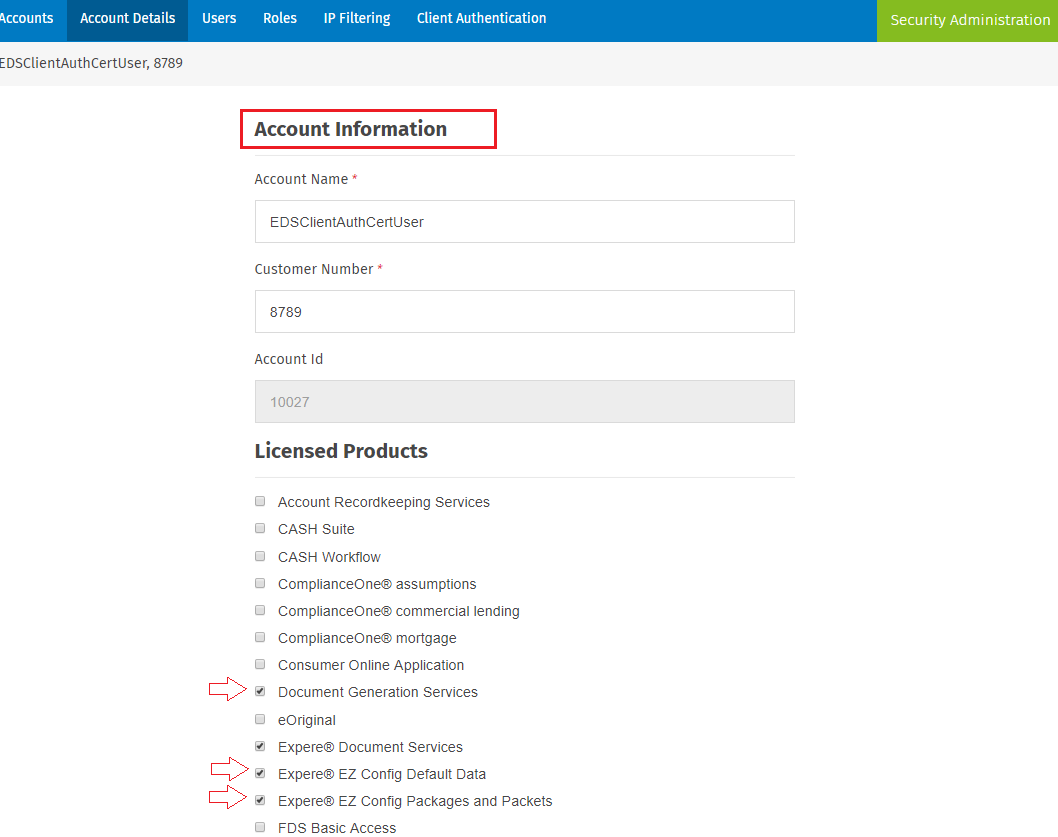
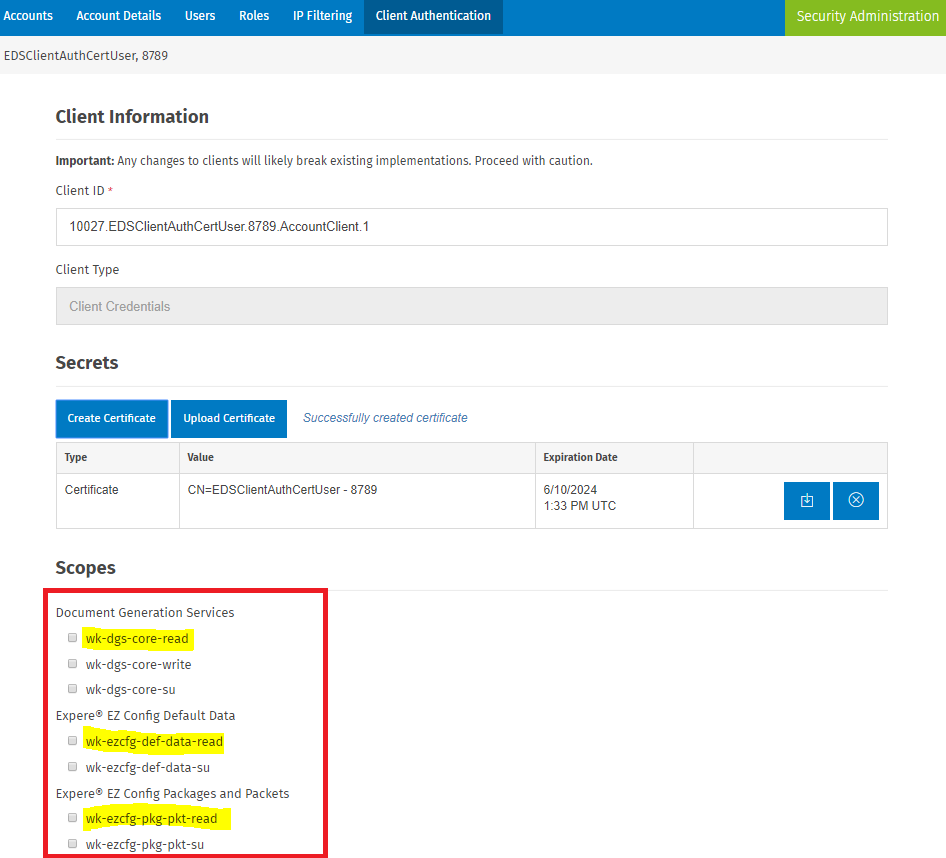
Account Product Licensed Scope Name Scope Description Expere EZ Config Default Data wk-ezcfg-def-data-read Read access to EZ Config Default Data API (Token with read scope returns data for the account the clientid/cert is created – cannot retrieve other account’s data) Expere EZ Config Packages and Packets wk-ezcfg-pkg-pkt-read Read access to EZ Config Packages and Packets API (Token with read scope returns data for the account the clientid/cert is created – cannot retrieve other account’s data) Document Generation Services wk-dgs-core-read Specifically needed if want to use the DGS Core GetAliases APIs (which are used by Default Data app as well) - Click the Client Authentication tab.
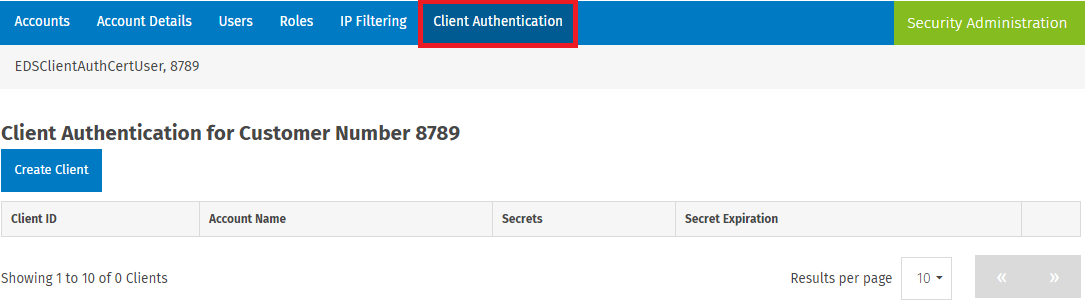
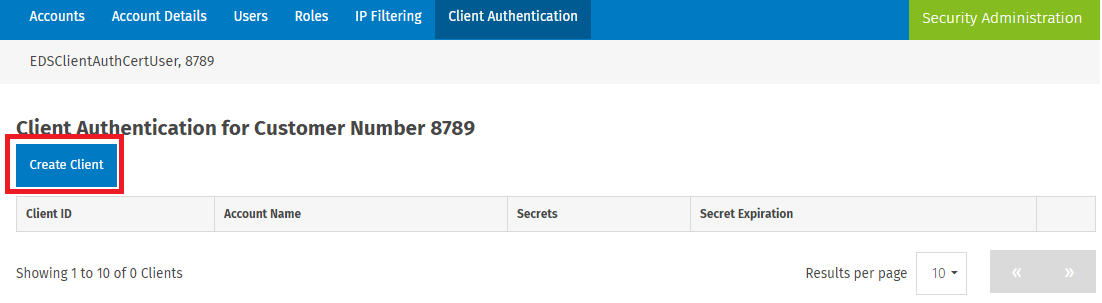
- Click the Create Client button.
- A Client ID is automatically generated:
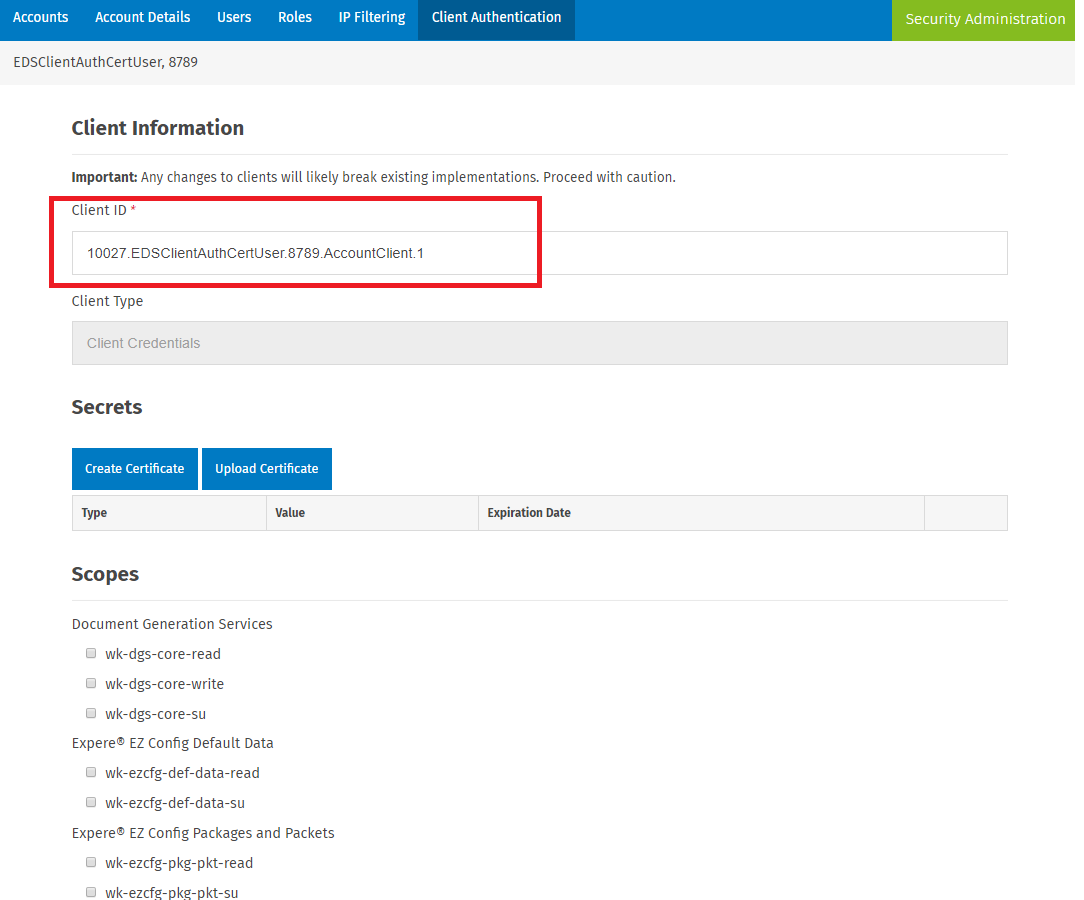
- A Client ID is automatically generated:
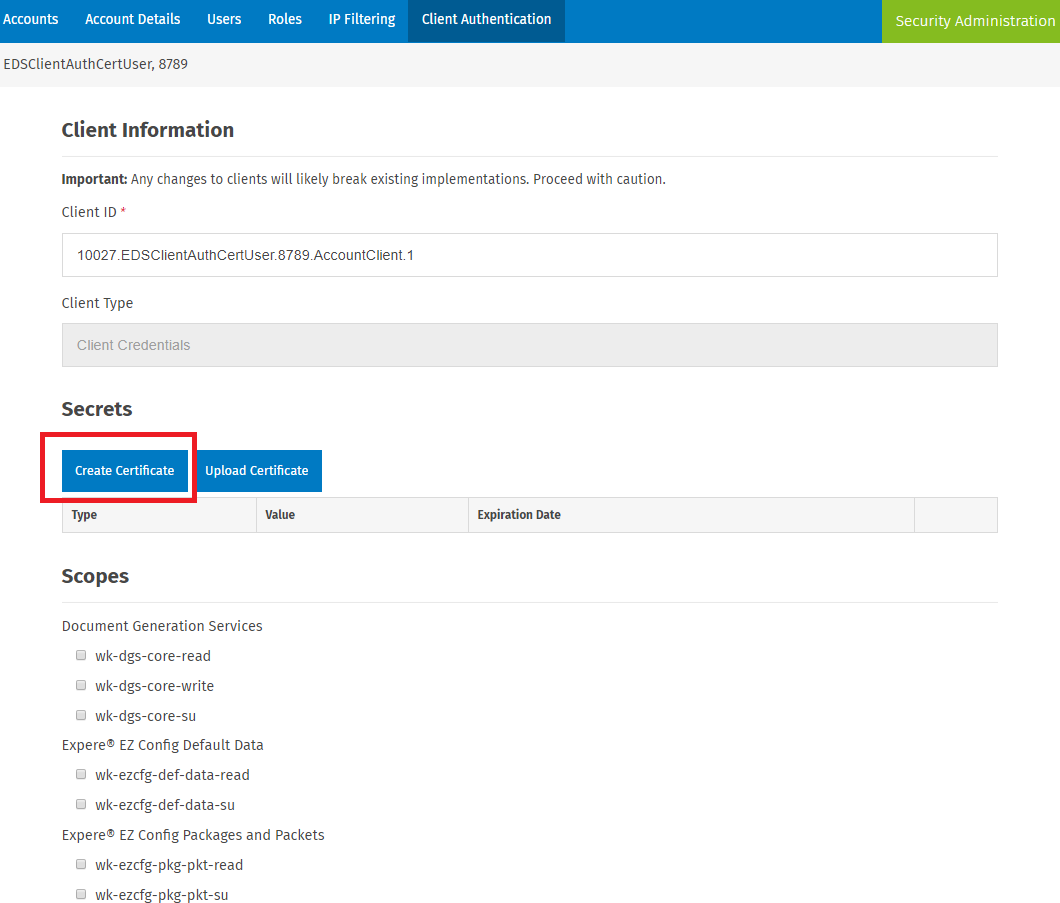
- Click Create Certificate button.
- A certificate is automatically generated.
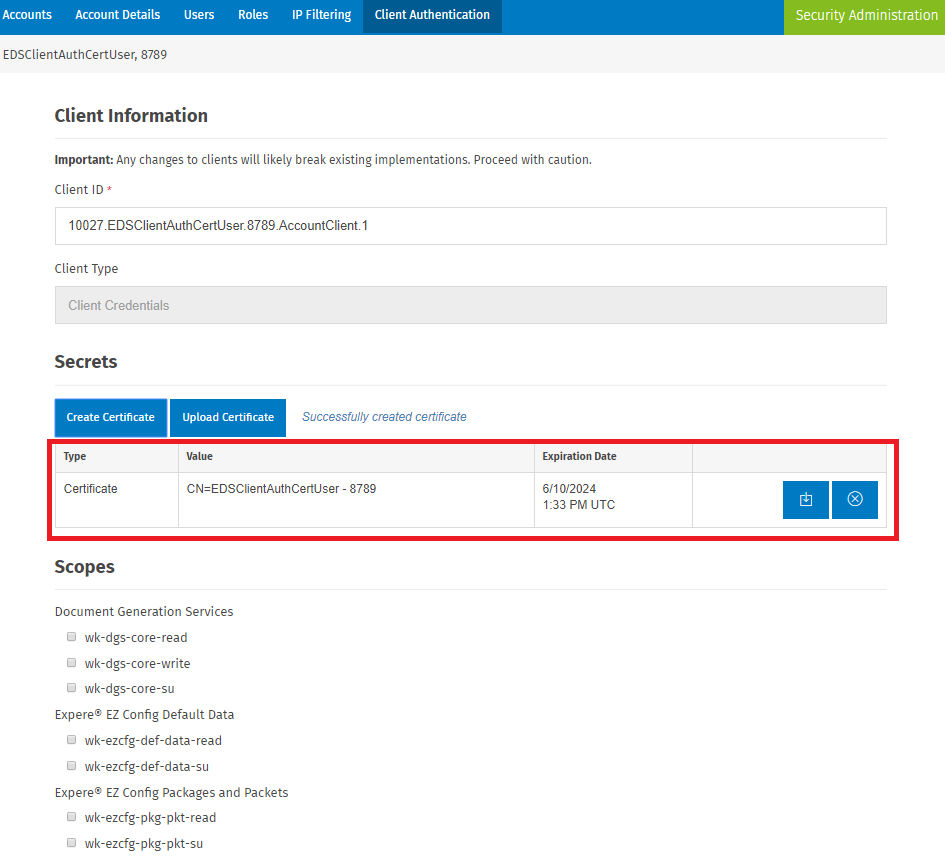
- A certificate is automatically generated.
- Select the checkbox for each scope that needs to be set for this account (the 3
scopes highlighted below are the only options available to add from the template):
- Click Save.
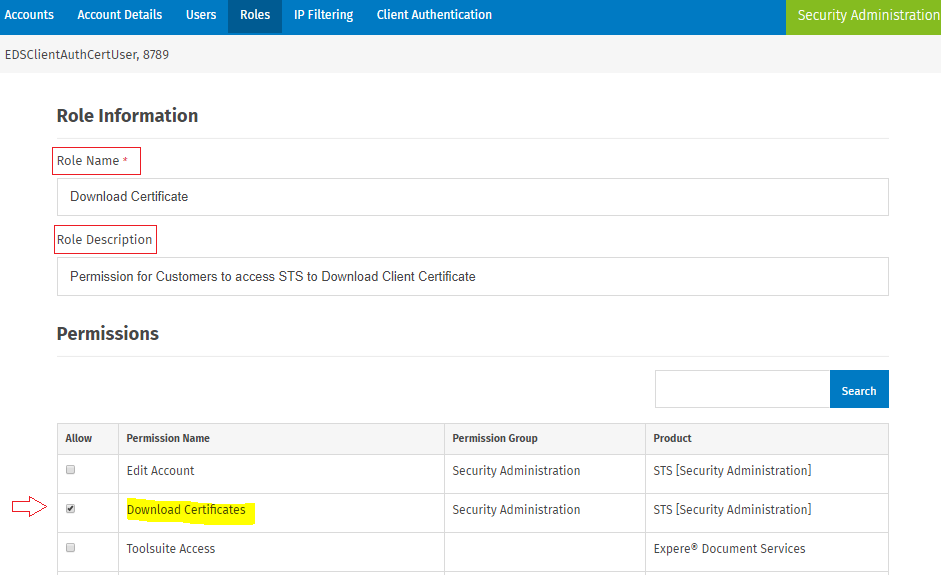
- Within the given account, create new Role that contains the Download Certificate
permission.
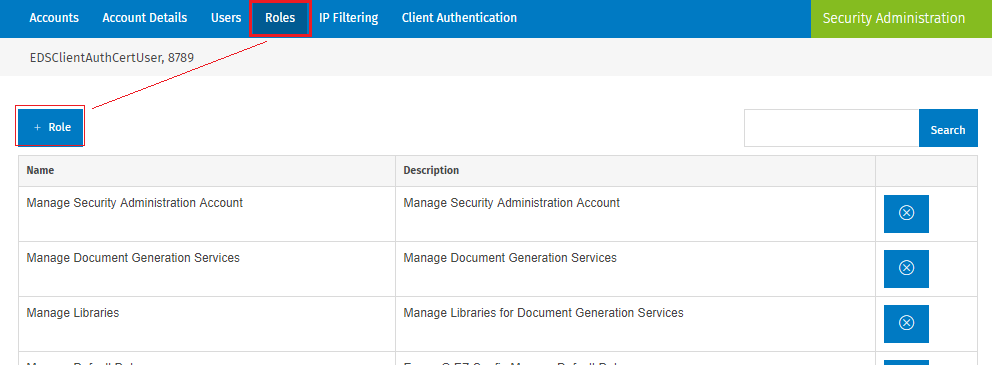
- Enter Role Name, Description and Select the Download Certificates permission:
- Click Save.
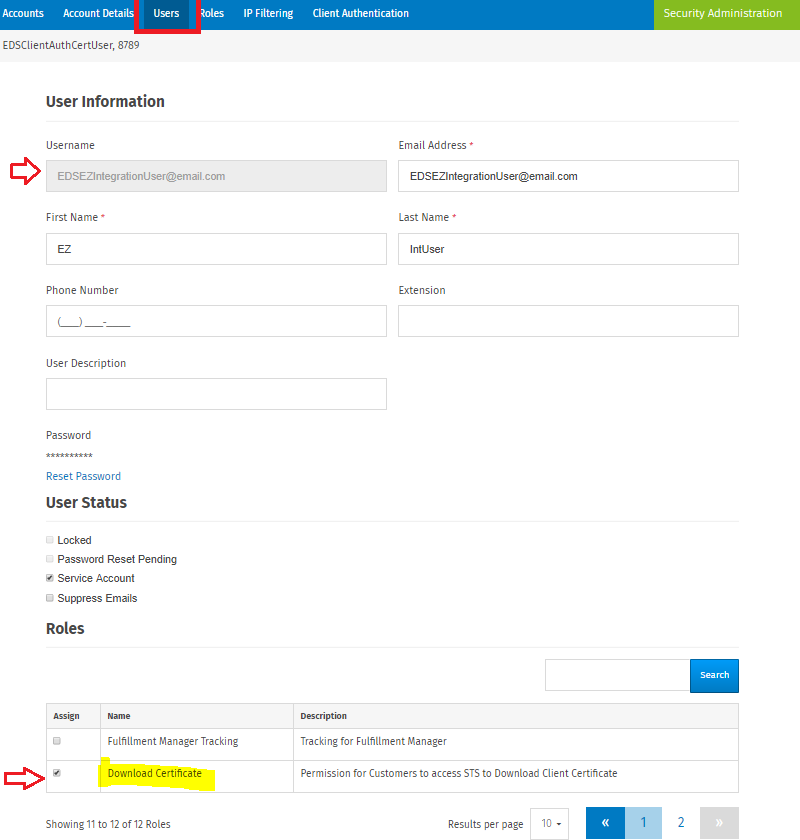
- Within in the given account, search for the ‘Client Authentication – Certificate
User’ and assign the Download Certificate Role:
- Click Save.
- Log off Security Administration application.