Setting Editor Options
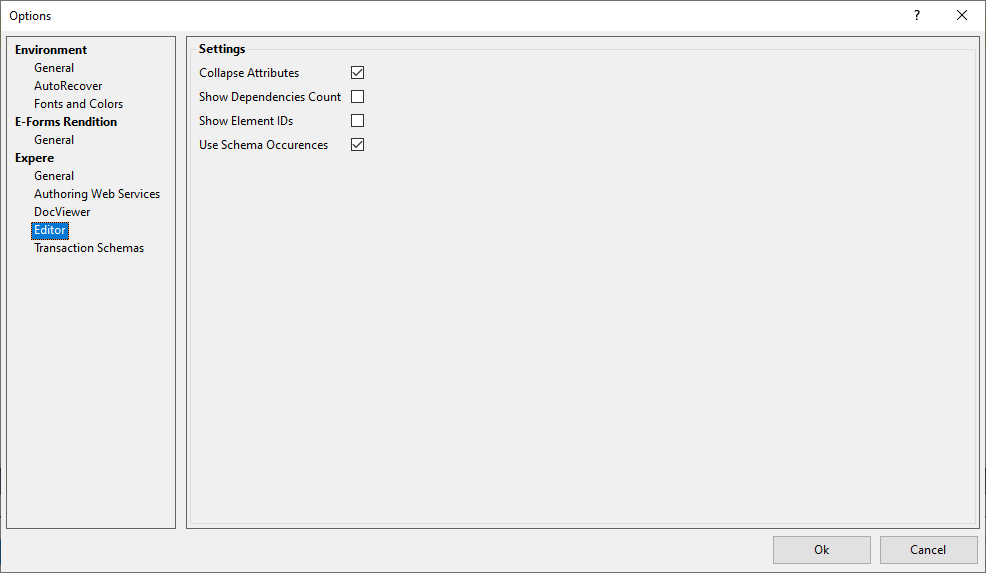
Collapse Attributes
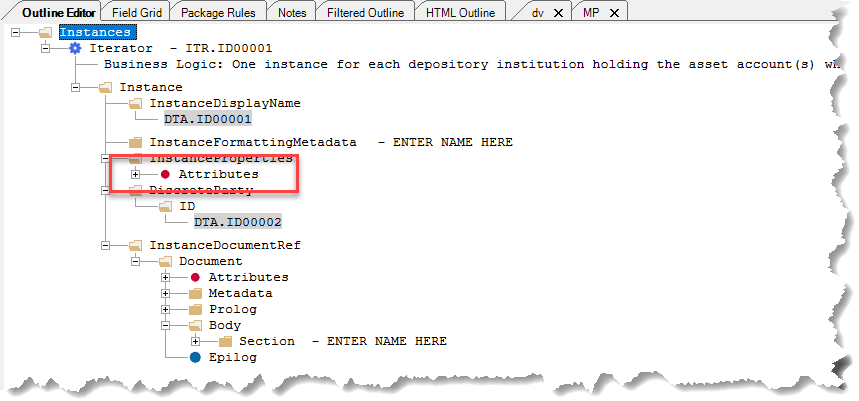
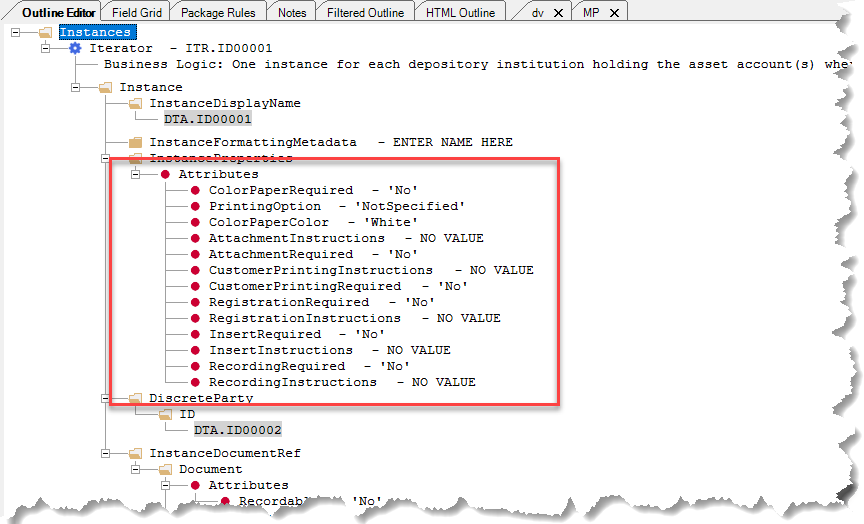
The Collapse Attributes option allows you to decide if attributes should be displayed within the Outline Editor as expanded or collapsed.
Show Dependencies Count
The Show Dependencies Count option provides the means to always show the number of dependencies for elements within the Outline Editor.
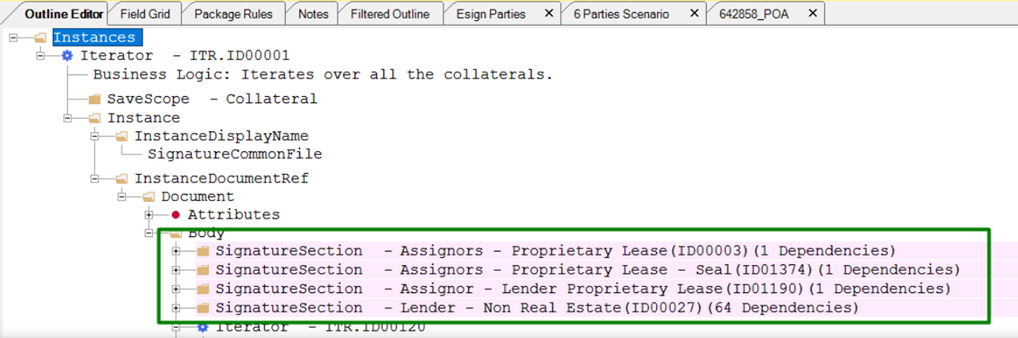
Selecting the option causes the dependencies count to show, while clearing the option causes dependencies to not be shown. The default value is cleared.
Show Element IDs
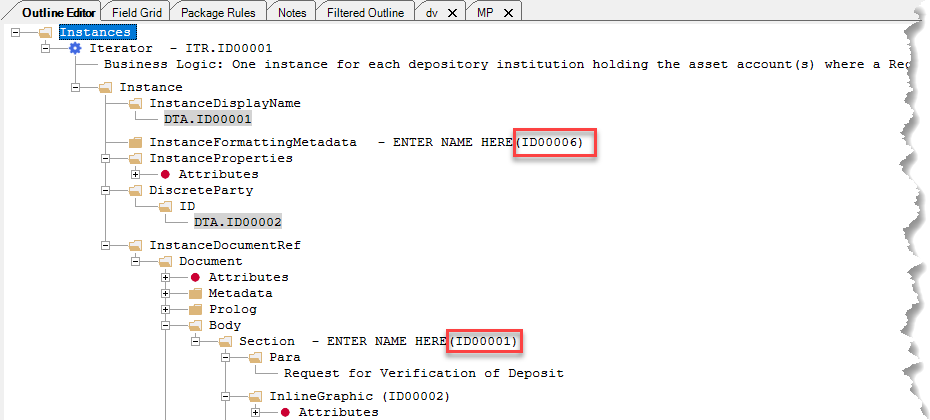
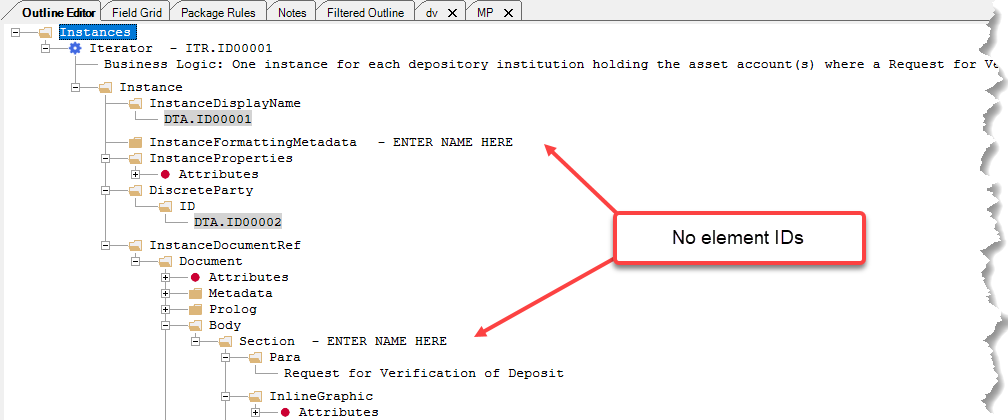
The Show Element IDs option provides a method of showing or hiding the element IDs when a requirements document is opened.
Use Schema Occurrences
The Use Schema Occurrences option allows you to enable or disable schema validation of element occurrences in order to create content with conflicting element occurrences. The default value for this setting is selected.
If there is a need when a different occurrence of elements is required, you can set this to cleared to turn off schema-based validation and continue creating content while reporting such cases to be updated in the schema accordingly. This essentially disables validation allowing you to add multiple duplicates of elements.