Tasks Graph
Customizing the Graph
The graph can be customized by selecting options in the lists. A tasks graph will not display tasks for an option if the option does not have transactions matching the option. For example, if the graph will not show Past Due tasks if SLA is selected and the list of tasks does not include Past Due tasks.
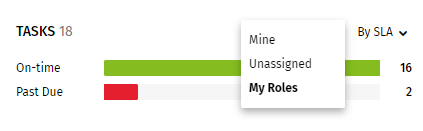
- In the first list, select My Roles, Unassigned, or
Mine.
- My Roles shows counts of tasks belonging to all users in the roles assigned to the signed-on user.
- Unassigned show s unassigned tasks belonging to the roles assigned to the signed-on user.
- Mine shows counts of tasks belonging to the signed on user.
- In the second list, select By Assignee, By SLA, By Role, ,
or By Stage.
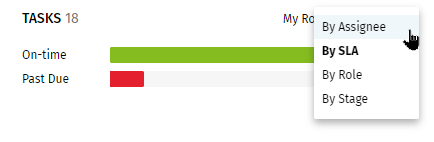
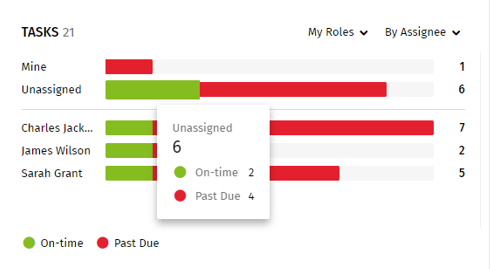
- Select By Assignee to display counts of
tasks by assignee/unassigned in time increments.
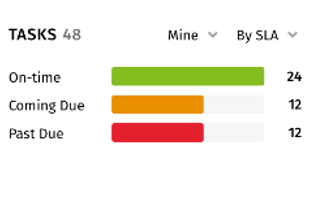
- Select By SLA to display counts of tasks
by On-time, Coming Due, and Past Due categories.
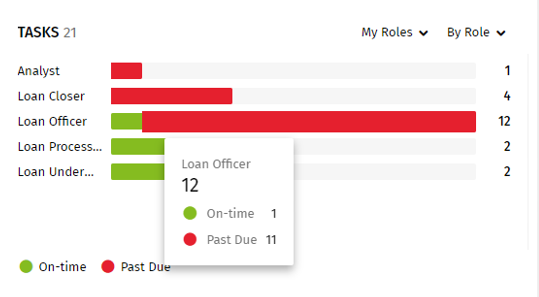
- Select By Role to display counts of tasks
by roles.
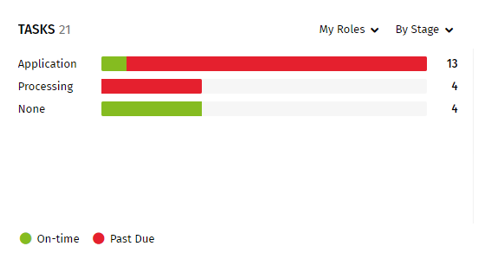
- Select By Stage to display counts of
tasks by stages.
- Select By Assignee to display counts of
tasks by assignee/unassigned in time increments.