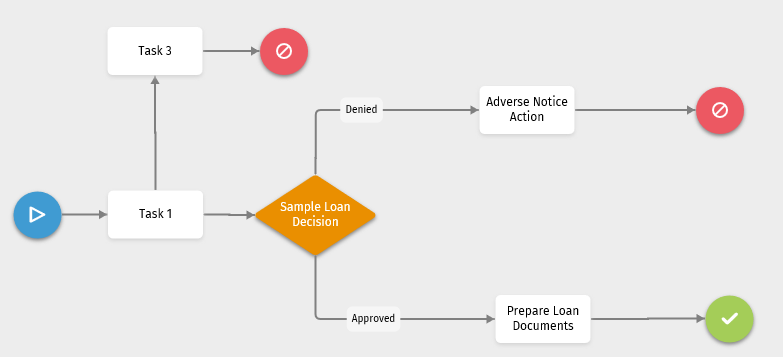
Stop
Adding  to a
template stops a workflow path from continuing.
to a
template stops a workflow path from continuing.
Adding a Stop
- Select and drag to the diagram.
- Connect the stop to other items in the diagram by connecting the arrows.
- Correct any errors. For Help information, select Errors.
- Complete the Properties Pane.
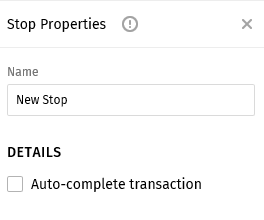
Properties Pane
- Name: Enter a name for the stop.
- Auto-complete transaction: Select this option if the stop initiates an automatic
completion of the transaction.
- If Auto-complete transaction is selected, the transaction will automatically be marked complete after a user completed the final task in the workflow process. The user who completed the final task will display as the user who completed the transaction.
- If the Auto-complete transaction is not selected, a user can manually mark the transaction complete if the user has the 'Complete Transaction' permission assigned in Security Administration.