| Options |
| Open reports in new window |
Allows the report to open in a new browser window. |
| Open reports in Excel |
Generates the report in Microsoft Excel format. If not selected, the report is displayed in tabular HTML format. |
| All Users In Group |
Generates a report including all users within the selected group. |
| User |
Allows you to generate the report for a specific user. Select this option and then click the Run Report button to display the Select User screen. Search for the desired user as described in Finding Users.
|
| From/To |
Allows you to enter a specific date range. Use the mm/dd/yy format. |
| Date Range |
Allows you to select a preconfigured date range for the report. Options are:- Yesterday
- Today
- This Week
- This Month
- This Year
|
| Reset |
Resets all options in the Options section to the default values. |
| Transaction Totals Report |
| Run Report |
Initiates the Transaction Totals report configured to the options selected in the Options section. |
| Transaction Summary Report |
| Sent Packages |
Allows you to search for sent packages |
| Received Packages |
Allows you to search for received packages |
| Search by: |
Select search by SDX Date or Application Date. (review note: clarification on what these distinctions are) |
| Paper |
Direct to - the package was sent directly to the paper fulfillment area to be printed and mailed. No electronic package was sent to the recipient. |
| |
Requested - the package was sent electronically to the recipient who failed to retrieve it before the expiration time frame. The package will be printed and mailed. |
| |
Completed - the package has been printed and mailed to the recipient. |
| |
Waiting (not viewed) - the package was delivered electronically but the recipient has not yet retrieved it. |
| |
Consented - the recipient has consented to receive the package and has viewed the message/package. |
| |
Declined - the recipient has declined consent to receive the package and has not viewed the message/package. |
| |
Signed - the recipient has consented to receive the package and has digitally signed the package (only valid for SDX sites configured for digitally sign). |
| |
Viewed (not signed) - the recipient has consented and viewed the message/package, but did not sign or reject the package (only valid for SDX sites configured for digitally sign). Note: Statuses that appear on the report may not exactly match the status selected on the report criteria screen. For example, the Not Signed package status in the report is actually the Viewed (not signed) option selected in the report criteria screen.
|
| |
Rejected - the recipient has consented and viewed the package and has digitally rejected the package (only valid for SDX sites configured for digitally sign). |
| Standard Packages |
Waiting (not viewed) - the package was delivered electronically but the recipient has not yet retrieved it. |
| Received |
Received (viewed) - the recipient has retrieved and viewed the package. |
| Recalled |
Allows you to search for recalled packages. |
| Archived |
Allows you to search for archived packages. |
| Deleted |
Allows you to search for deleted packages. |
| Purged |
Allows you to search for purged packages. |
| Show |
Select any of the options under this heading to include them in the report. |
| Show Meta Data |
Select any of the options under this heading to include them in the report. |
| Remove Number Duplicates |
Select Yes to remove duplicate number records. Select No to display all duplicates. |
| Run Report |
Click to initiate the report. |
| Reset |
Resets all options in the Transaction Summary Report section to the default values. |
| List All Users |
| Run Report |
Click to initiate the report, which generates in Excel format only. |
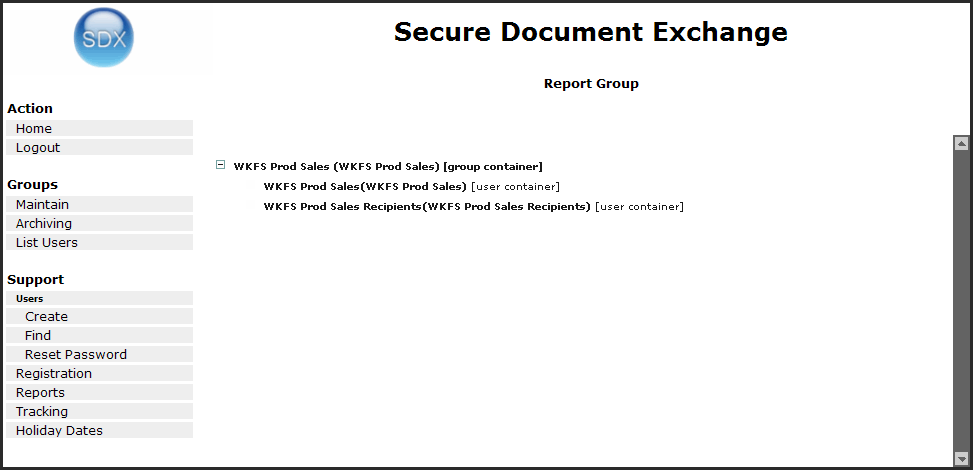 Note: You may need to expand group containers to view subgroups. The above image displays the top level group expanded.