This topic describes the SDX Home Page features.
Search for:
When you initially sign in to the System Administrator site, you can use the Search for: field to find user accounts. Use the wildcard (*) character with a partial email address and click Find to display a list of users with this name (or similar name if using wildcards).
SDX Menu:
The left-hand menu shows the functions that you, as an Administrator, are authorized to perform. If your role is that of Group Administrator or Helpdesk User, then you will only be able to carry out a subset of functions for the group that you are a member of. If you are a System Administrator, however, you will be able to carry out all functions for all groups in the system.
The home page within the Admin system allows for the easy look-up of user information. You can look up any registered user to which you have viewing rights. For helpdesk and system administrators, this means all users on the system; for group administrators, this means users within your group.
You can look-up via name or e-mail address, and you can provide wildcard entries for searching too.
The results page will display a split screen with all entries matching your search being displayed in the top half.
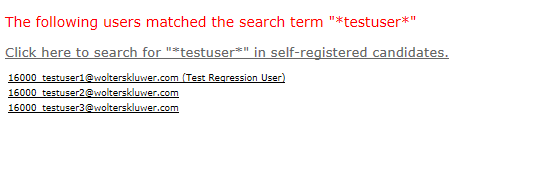
Click an entry in the top half to display a summary of user information in the bottom half of the screen.
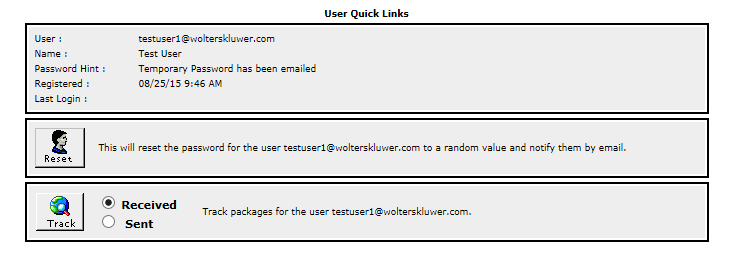
- The user name
- The full name
- The password hint
- The registration date
- SmartConsented (if applicable)
- The last login date
Click Reset to issue a password reset. Doing so emails a one-time password to the user. The user will be prompted to select a new password on subsequent login.
You can also track the packages sent or received by a user. Select Received or Sent and click Track. A list of packages associated with this user displays in the bottom half of the screen.
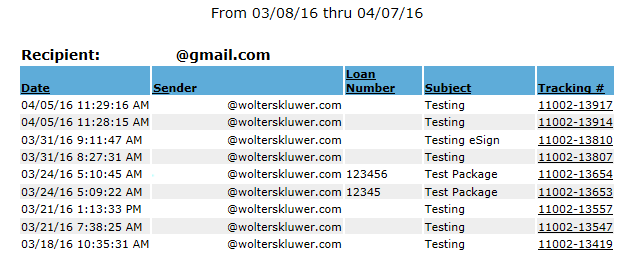
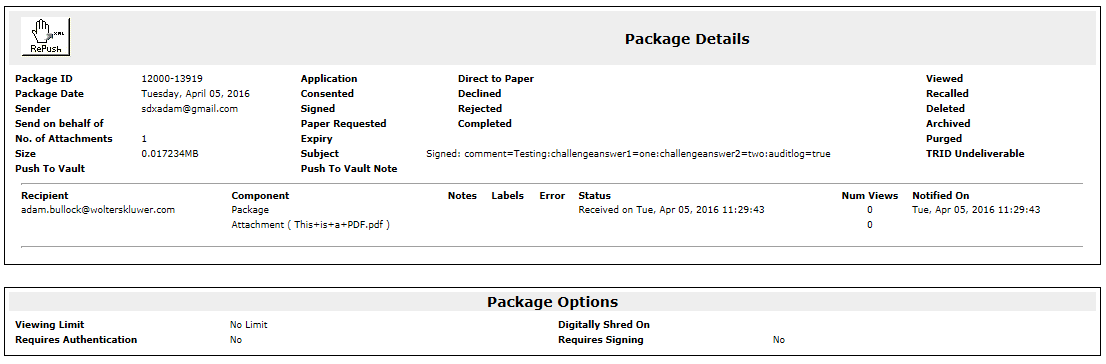
Select any package to display package detail information and attachments in a separate browser tab.
It is also possible to check on the status of a user who has partially completed the registration process.
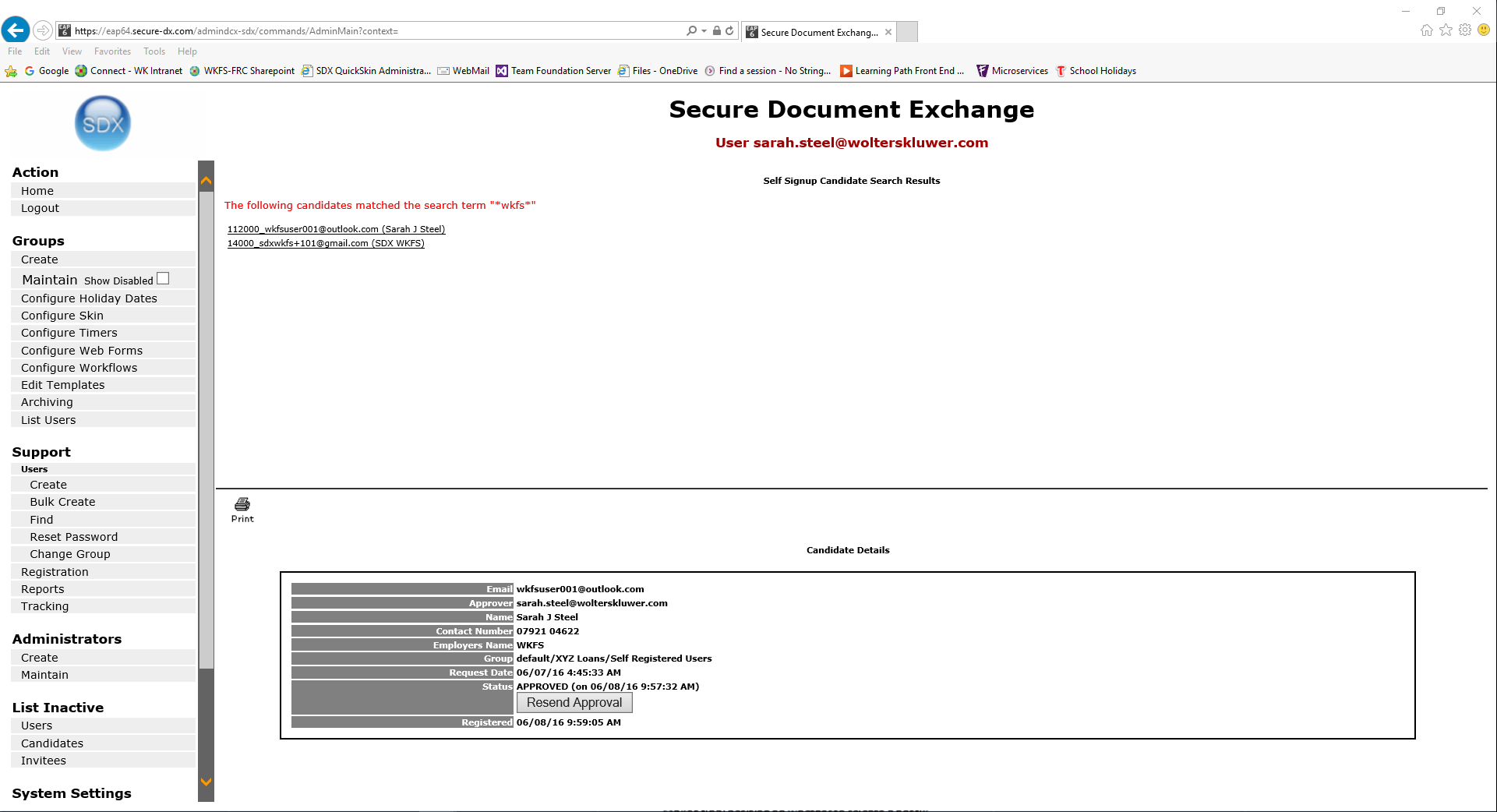
The Click here to search for “*xxx*” in self-registered candidates link opens a list of users who have partically completed the registration process. Click the link to display those users that match your search criteria but have not completed the registration process. The self-registered candidtate details display on the bottom half of the screen for the selected user.
For more information on self-registered users, see Self Signup.
