Customizing and Saving a Report View
Customize your report by selecting formatting and filtering options. After customizing your report, save it for future use.
- In the left pane, select Reports and Pipeline.
- Use the current view or select a saved view from the list.
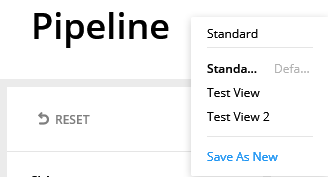 Note:To access a saved report, select the report in the list.
 - Select
 to
display the table format or
to
display the table format or  to display the graph format.
 - Apply filters to the report.
- Select options in the Split by and Display lists for the graph format and the Split by list for the table format.
- Select options for the filter types in the left pane. (SLA, Projected, Product Type, Process Type, Account Rep, Location, Due, Phases, Amount, Context, Progress, and Started) Select Filtering a Pipeline Report for Help information.
- After making changes to the report, select Save As New. Enter a name for the
report and select Confirm.
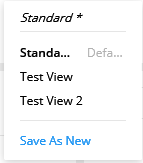 Note:After making changes to the report, the name of the report displays in italics with an asterisk behind it.Note:To update a report, select a report. Make your changes and select Update. The Update option displays in the list after you make changes to a report.