SETUP Page
The SETUP page is used to configure expiration settings in licensed Accounts.
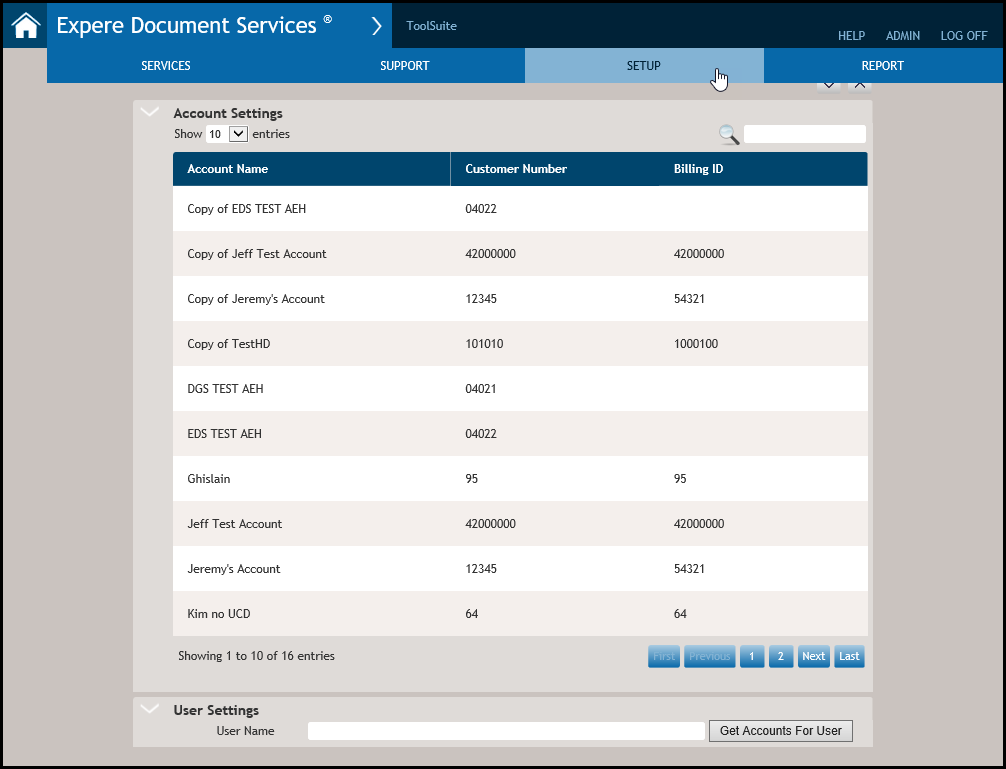
Configuring the Days to Expire Setting
- Wolters Kluwer will configure this value per customer request.
- The Days to Expire allows up to 255 numeric characters.

Hosted Expere users: REST Callback Credentials
The following fields contained in the REST Callback Credentials section are used to configure a DocumentService callback for a particular account.
- Authentication Type: select either a Username/Password or Token option
- URL: Enter the Callback URL field. Complete this field to receive notifications that documents have been posted to the document rendering engine as well as document status
- Username: The account level user name
- Password: The account level password
Enable Callbacks sub-section
Select any of the following checkboxes to receive callbacks for the corresponding REST API methods:
- Enable callback for all applicable transactionsNote: In order for the user to receive the
Package
                            ID "DocSetPackageIDRef"
, the Enable callback for all applicable transactions must be selected and authentication configured with valid credentials. - Generate
Additional Data (Generate) sub-section
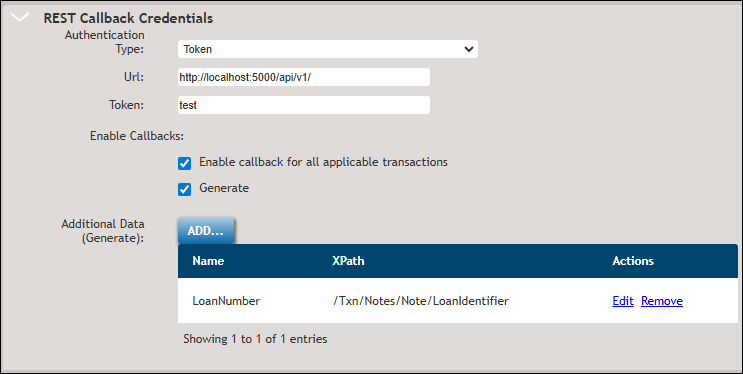
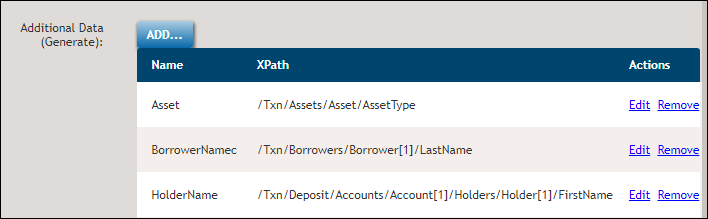
Users can specify names and XPaths to return in the REST callback; for example:
LoanNumber and /Txn/Notes/Note[1]/LoanIdentifier. Click the
ADD button to enter the desired name and XPath. Adding the Name
and XPath below will result in these values appearing in the REST
callback.
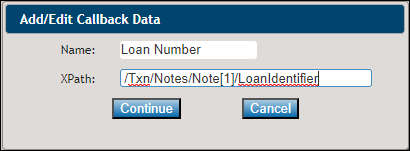
Users can Edit or Remove the desired Name and XPath. Clicking the Edit button displays the Add/Edit Callback Data dialog; however, clicking the Remove button removes the desired Name and XPath without prompting the user for removal.
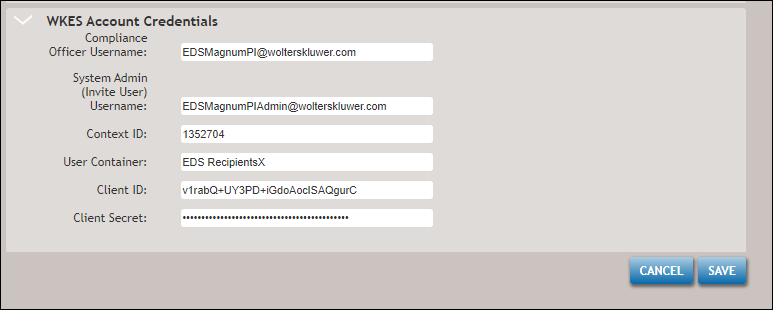
WKES Account Credentials
The following fields contained in the WKES Account Credentials section are used to log into Wolters Kluwer E-Sign.
- Compliance Officer Username: the username with Compliance Officer permissions in WKES for the account
- System Admin (Invite User) Username: the username with System Admin permissions in WKES for the account
- Context ID: the unique customer-related ID associated with the Wolters Kluwer E-Sign account
- User Container: the name of the container created in WKES for invite requests
- Client ID: this ID is used in the authentication process
- Client Secret: this unique API key is used when requesting an access token to Wolters Kluwer E-Sign
User Settings

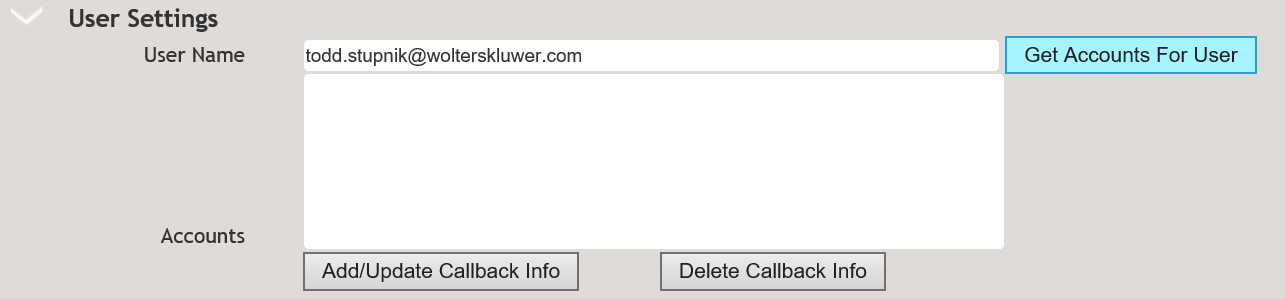
From the Callback Information dialog, complete the following:
- Username
- Password
- Callback URL
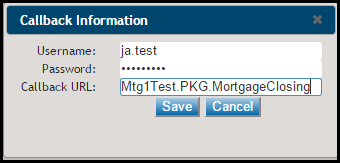
Click Save.
eOriginal login
This section allows users to enter their eOriginal credentials, for creation of an eNote through an Expere request. Complete the following fields:
- eOriginal Username: the unique username value for the eOriginal user.
- eOriginal API Key: this unique API key is used in the authentication process when connecting to eOriginal from Document Generation Services, for the generation of the eNote.
- eOriginal Org Id: unique identifier for the organization within eOriginal.