Managing a User's Roles
Assigning roles to a user
Roles are created to group users together for easier management of tasks in process templates.
Users can be grouped into roles such as analysts, appraisers, loan closers.
Roles are used in process templates to define the users who will complete a
task. A user can be assigned to a single or multiple role(s).
Note:
Roles
must be added on the Roles page before they are available to assign to
a user.
- Select Users under General Settings in the left pane.
- Select
 next to a user and
select Manage Roles.
next to a user and
select Manage Roles. - Select the role(s) to assign to the user in the Manage Roles list.
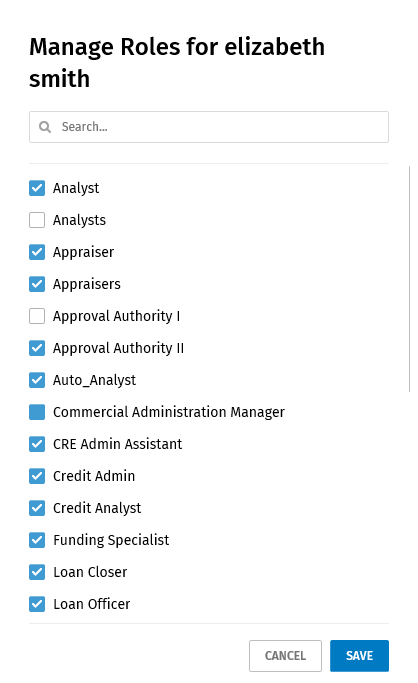
- Select Save to save the changes.Note:Search: Enter a user name or a few characters in the user name. The Users grid will display and highlight all matches in the grid. Clear the search term to display all users.
Removing roles from a user
- Select Users under General Settings in the left pane.
- Select next to a user and
select Manage Roles.
- Clear the role(s) assigned to the user in the Manage Roles list.
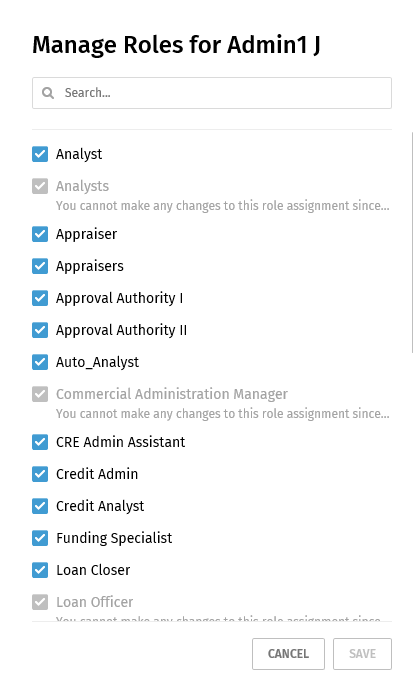
- Select Save to save the changes.
Note:
A role that displays in gray text cannot be removed if specific
circumstances apply. Pausing your cursor over the role will display
the reason the role cannot be deleted.
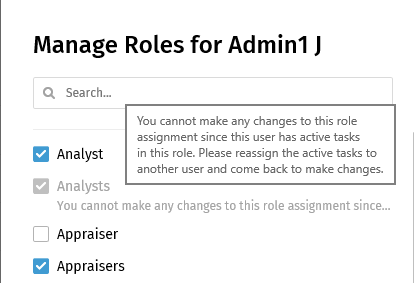
- If a user has active tasks for a role, the role cannot be removed until the tasks in the role are assigned to other users.
- If the user is the only user in a role and the role is used in an active template, another user must be added to this role before the role can be removed.