Selecting Tasks for Bulk Operations
Selecting Tasks
- Navigate to the Tasks grid on the Dashboard or the Transaction Summary page.
- Select
 next to the tasks that apply to the action.Note: Select a
 symbol in the
header to select or clear all tasks in the grid. If the Tasks grid is empty, the
symbols
do not display.
symbol in the
header to select or clear all tasks in the grid. If the Tasks grid is empty, the
symbols
do not display.- Indicates all grid tasks are currently
selected.
 Indicates some tasks are currently selected.
 Indicates not any tasks are currently selected.
After selecting the task(s), the supported actions for Bulk Operations and the number of the
selected tasks display in the left pane. (Example:  )
)
Note: When performing a bulk operation, the search and filter functions are not available for the
Tasks grid on the Dashboard.
Clearing Selected Tasks
Clear selected tasks by performing one of the following:
- Select
 in the left
pane.
in the left
pane.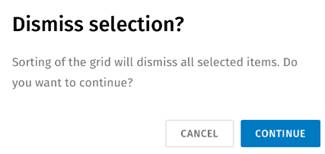
- Clear the column header check box next to the column titles.
- Sort a column on the Tasks grid on the Dashboard.
- Navigate from the page.
- Select the F5 key to refresh.
- Select the Transactions or Tasks summary graph on the Dashboard.