| Feature | Description |
|---|---|
| Extract Fields | |
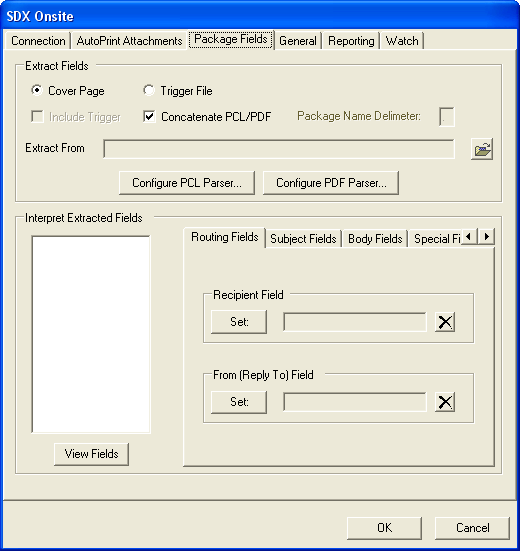
| Cover Page | This is a routing cover page that includes information to determine who to send a document package to and determines on how to handle the package if it requires authentication, eSign, etc. This should be the first page in a document set. During the implementation process, a Wolters Kluwer representative will assist you to work through the design to meet your needs. |
| Trigger File |
Similar to the cover page in which it includes routing information. This is a text file (.txt) file that must be created by the customer if the cover page route is not viable. Trigger files allow you to concatenate (combine) multiple PDF files into one. For more information, refer to Trigger Files. |
| Include Trigger | Allows you to include the Trigger File as part of the package |
| Concatenate PCL/PDF | When this checkbox is selected, all PDF/PCL files are merged into one file, allowing customers to set up multiple systems to write to the watch folder and have the various files delivered as one file. |
| Package Name Delimeter | The character used to distinguish the package content file. For more information, refer to Trigger Files. |
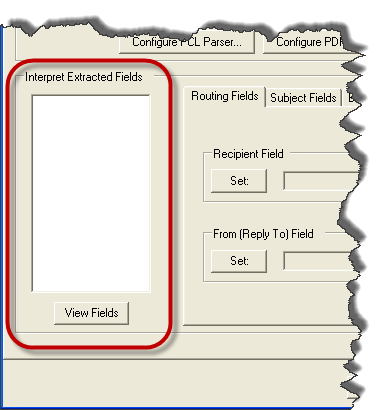
| Extract From | Populates Interpret Extracted Fields. |
| Configure PCL Parser | Allows you to add text-based symbol sets that the PCL parser looks for. |
| Configure PDF Parser | Allows you to supply a password for all encrypted cover pages and trigger files. |
| Interpret Extracted Fields | |
| View Fields |
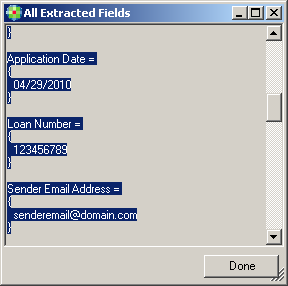
Allows you to quickly assess if fields are lined up properly on the cover page. If you see a value after the field name and between {} the data is being parsed correctly, as shown in the following example. |
| View Fields (cont'd) |
 |
| Routing Fields |
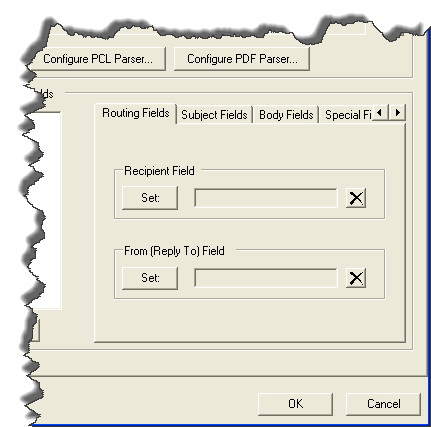
|
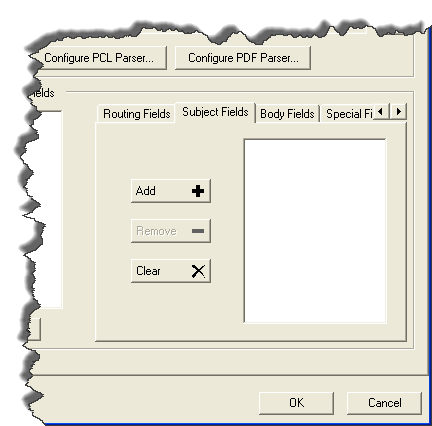
| Subject Fields |
Adding Fields into this section allows SDX-Onsite to pass this metadata to the SDX Central Systems and act upon the metadata as necessary for Challenge questions, eSignature, mailing options, email notifications, etc. The Wolters Kluwer representative can work with you to determine the necessary fields for your integration. |
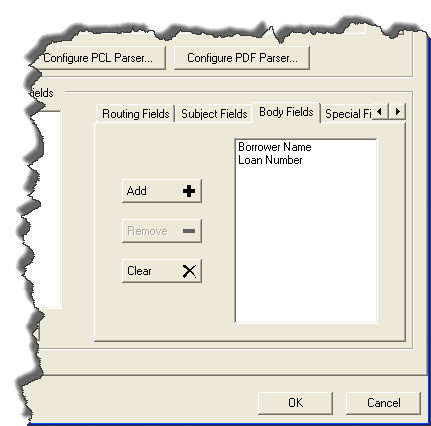
| Body Fields |
The selected fields will be inserted into the body of the SDX message and displayed to the recipient when the package is viewed. The example above is a sample workflow in which the Borrower Name and Loan Number will be included in the body of the email message. |
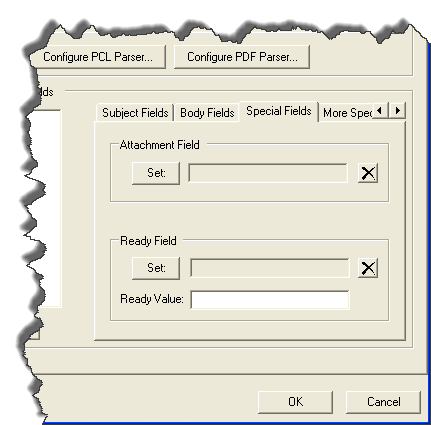
| Special Fields |
The Special Fields information is used with the Trigger file.
For more information, refer to Trigger Files. |
| More Special Fields |
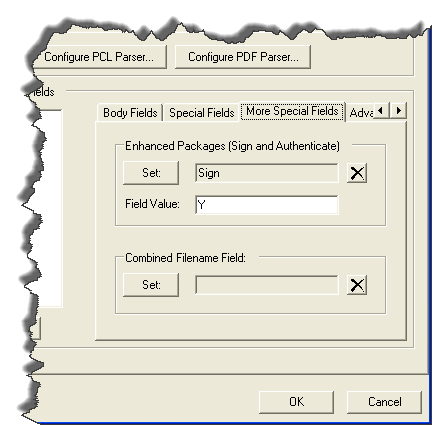
Use the Enhanced Packages (Sign and Authenticate) field to require a signature and authentication for a package: The sent package requires each recipient to answer a challenge question and eSign the document. For example, if the cover page being passed has a Sign field and the value of Y (see above), the recipient of the package must answer a challenge question and eSign the document. Select the appropriate value, then click Set. The Combined Filename Field is disabled unless Concatenate PCL/PCF is selected. Enter a value, then click Set. |
| Advanced eDisclosures |
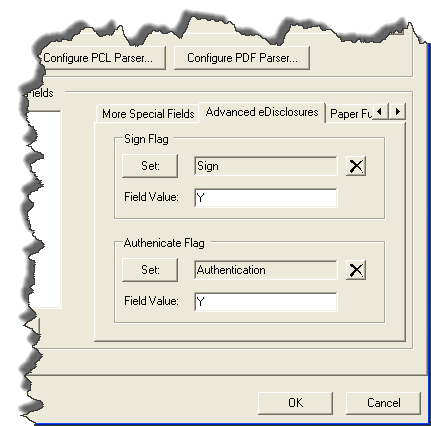
Similar to the More Special Fields tab, this tab allows you to specify
that a document requires eSign or eSign and authentication. You can also
accomplish the same thing in the More Special Fields tab by populating
both.
|
| Paper Fulfillment |
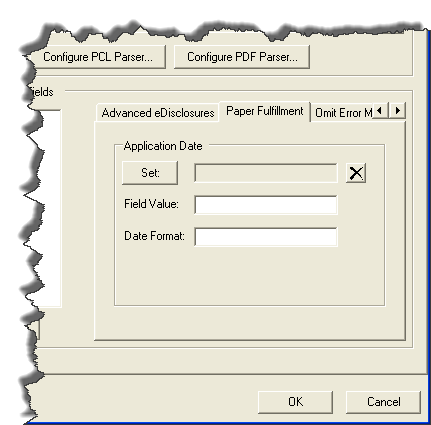
This feature is provided for those who use Wolters Kluwer optional Paper Fulfillment services and require packages to expire after a certain period of time. The application date on your cover page determines the timing of when a package times out, compared to the timers that are set for your site configuration. If this is not set, packages will time out according to the timestamp of when the package was sent successfully from SDX-Onsite. |
| TRID Paper Fulfillment |
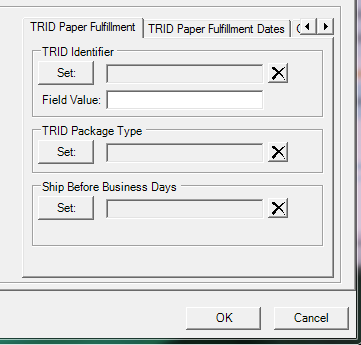
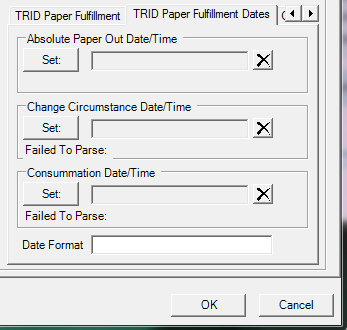
This tab is provided for those who submit TRID packages with the Paper Fulfillment option Enter information for the following fields:
|
| TRID Paper Fulfillment Dates |
Then, define the Date Format. |
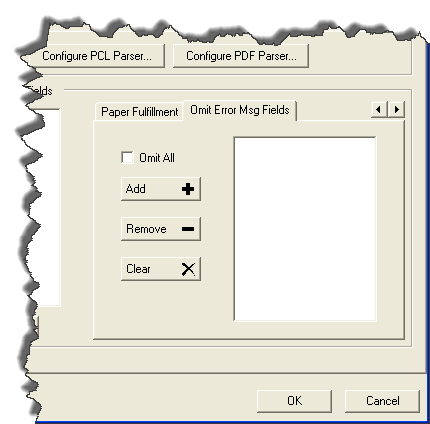
| Omit Error Msg Fields |
SDX-Onsite sends certain error messages when a package fails for one reason or another. When that occurs, it includes the fields that are part of the extracted fields. If you do not want the fields passed in the error messages you can omit them by adding them to this tab. |