Running Edge in IE Mode
The Microsoft Edge browser can be enabled to run in IE mode, allowing you to run OPPSA in
the Edge browser if IE is no longer supported and/or available to you.
Note: For more
information about running Edge in IE mode, refer to the following article provided
by Microsoft: https://docs.microsoft.com/en-us/deployedge/edge-ie-mode
To enable IE mode in Edge (v88 and above), create a shortcut to Edge (msedge.exe) on your desktop with the following arguments:
--flag-switches-begin --internet-explorer-integration=iemode --ie-mode-test
 --enable-features=msInternetExplorerIntegrationEnhancedHangResistance --flag-switches-end
Note: Your organization may have additional requirements in place. You may also need to
install the most recent and up-to-date Edge GPO templates in order to use the IE Mode
functionality.
- First, create a shortcut to Edge on your desktop.Note: It may be helpful to add a descriptive name to the shortcut to help differentiate this shortcut from other Edge shortcuts, if you choose to run Edge not in IE Mode for other applications.
- In the Target field on the Shortcut tab, enter the arguments shown above after the
msedge.exetext.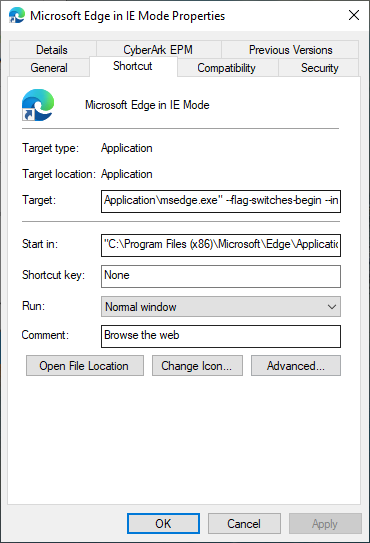
- Click OK.
- If done correctly, you will see the following message when opening Edge:
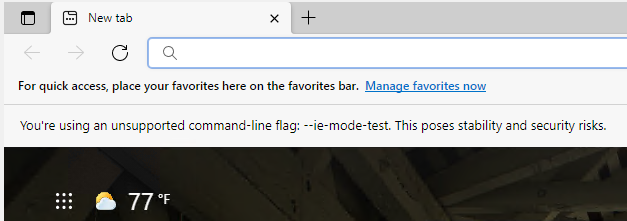 Note: The stability and security risks are inherent to the IE browser and existed previously in IE as well. Such risks are the reason IE is no longer supported by Microsoft.