Creating and Managing Barcodes
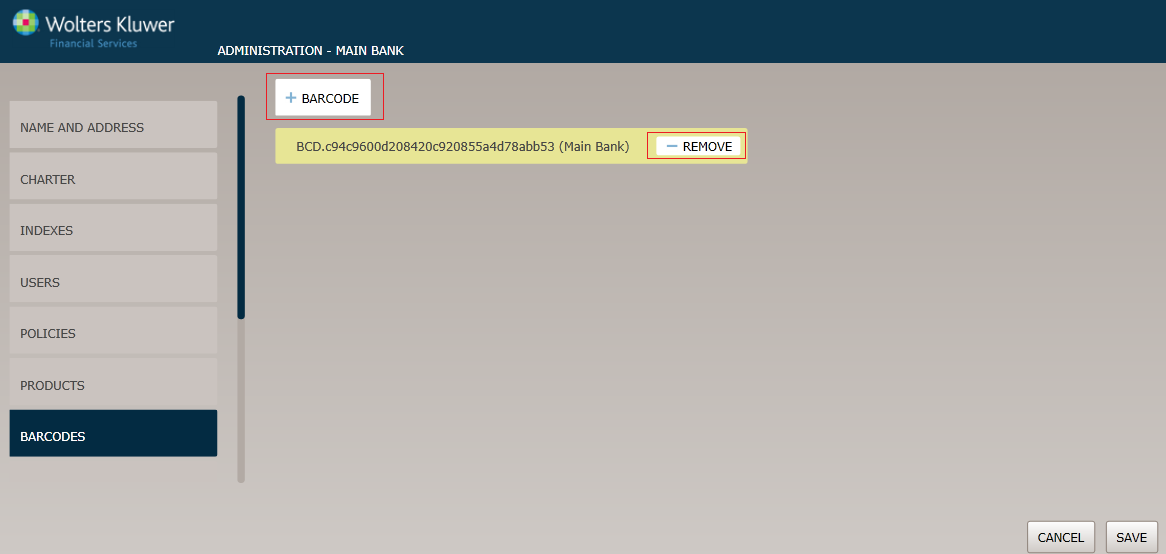
As shown in the page shot below,select the Barcodes menu option to display and work with barcodes as follows:
- Click the Barcode button to create a new barcode configuration.
- Click an existing barcode to display or modify it.
- Select Remove to delete a barcode.
Guidelines
- An Organization can only have one barcode configuration.
- Once a barcode configuration has been created,new barcode configurations will overwrite the existing configuration. Copied barcode configurations will overwrite an existing barcode configuration after copying and saving.
Procedure
Click an existing barcode to display or modify it or click the Barcode button to create a new one. The Barcode Name page appears.
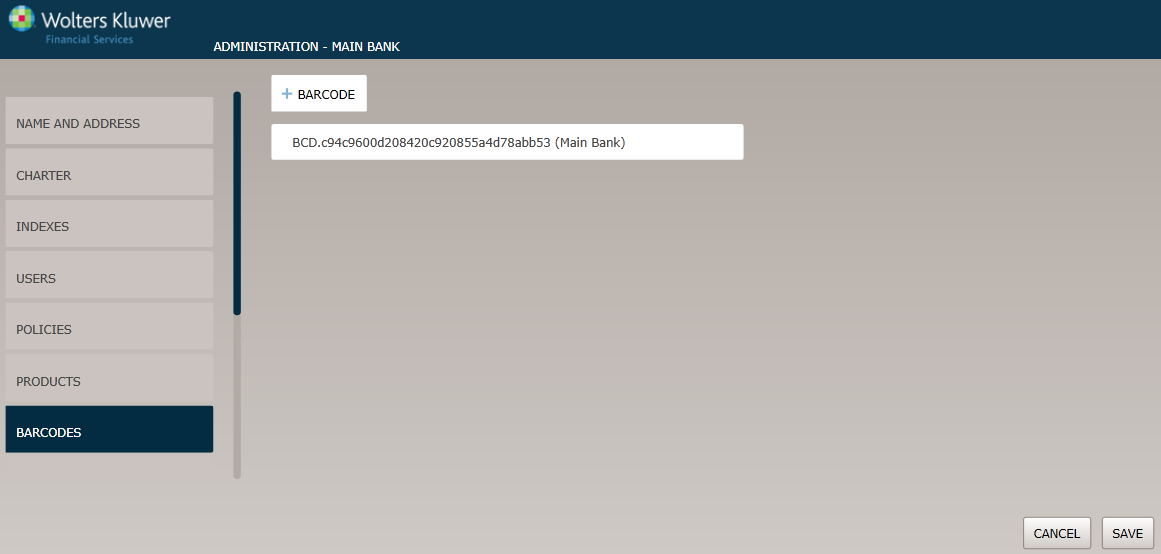
Barcode Name page
The Short Organization Name and Barcode Configuration Name fields are pre-filled by default and cannot be modified.
Note: The Barcode Configuration Name field contains the name of the barcode configuration; this field is automatically created when the user assigns an owner organization. Each organization can have only one barcode configuration.
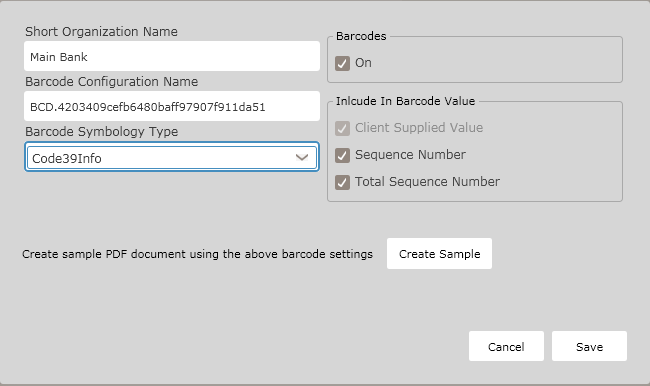
- The Barcodes off/on option button allows users to set the barcode functionality; select On to use barcodes across all lines of business.
- Select one of the following Barcode Symbology Types in the corresponding dropdown
- Code 39Info
- Code 128Info
- Code 25Info
- PDF417
Include in Barcode Value
In the Include in the Barcode Value section, select one of the following values:
- Client Supplied Value; The client passes this value through using the Data Transport Schema. Any data formatting should be done by the client before passing the value
- Sequence Number; the Sequence Number is a unique number assigned to each document and can be used as part of the barcode value. Sequence Number will start with 01 and increment by 01 for each document contained within the transaction.
- Total Sequence Number; The Total Sequence Number is the number of documents contained within a transaction and can be used as part of the barcode value.
Note: Every barcode value contains a Client-Supplied Value; the client passes this value using the Data Transport Schema; any data formatting should be completed by the client before passing this value.
The Client Barcode Value should be use the following XPath for:
Mortgage (VMPMismo Schema) LOAN/_CLOSING_DOCUMENTS/LOAN_DETAILS/@vBarcodeIdentifier Deposit (ExpereTXN Schema) /Txn/TaglineBarcodeDesc.
Create Sample
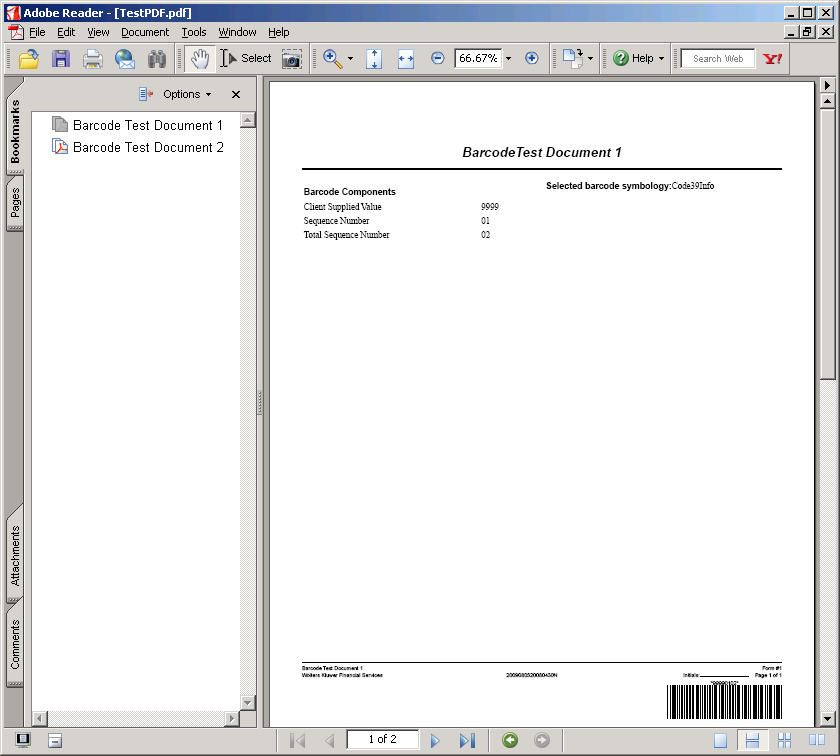
Select the Create Sample button to create and print a sample .PDF document that contains a barcode with the settings selected for the Organization. Utilize the sample document to test barcodes with barcode scanners.
- Click Cancel to exit the barcode without saving or changing it.
- Click Save to save all changes made to the barcode. Saving also makes the barcode available to OPPSA users.