Downloading Attachments
Single or multiple uploaded attachments can be downloaded.
To download a single attachment
- On the Attachments grid, select
 next to a transaction and select
Download.
next to a transaction and select
Download. - Save the file to the appropriate location.Note: If using Internet Explorer, use the Save or Save As process to save the attachment to a location. If using Google Chrome, follow the Google Chrome download process to save the attachment to a location. The file will display as a file at the bottom of the page. If you select a check box next to the attachment and select
 , the files will display as a zip
file.
, the files will display as a zip
file.
To download multiple attachments
- On the Attachments grid, select the attachments to download.
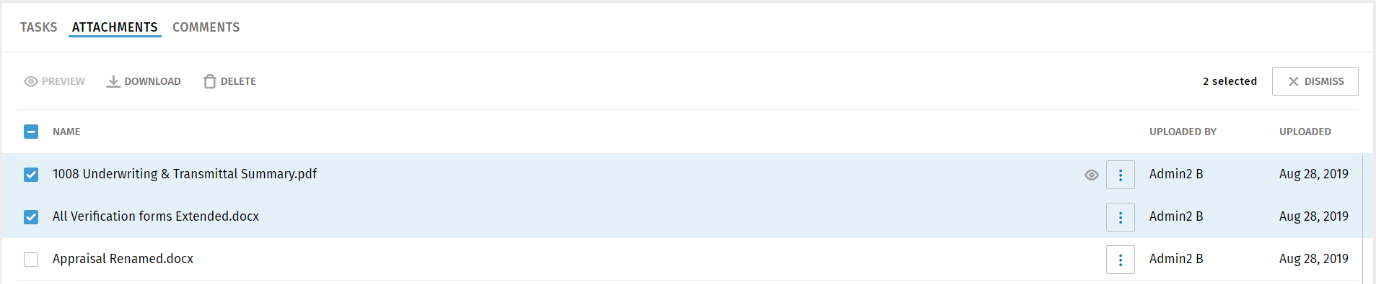
- Select
at the top of the Attachments grid.
- Save the files to the appropriate location.Note: If using Internet Explorer, use the Save or Save As process to save the attachment to a location. If using Google Chrome, follow the Google Chrome download process to save the attachment to a location. The files will display as a zip file at the bottom of the page.
Note: To find attachments, use the Search function. Enter a minimum of three
characters in the Search box  to quickly find an attachment.
to quickly find an attachment.