About Content References
To create a Content Reference:
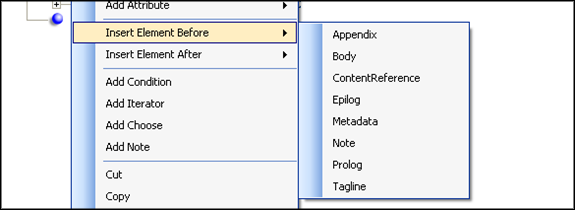
- Verify that both documents are available, then right-click in the desired
location and select Content Reference.
- Select Yes in the resulting dialogs.
- Navigate to the location where you saved a copy of the Content Reference source file (REQ). The tool will require you to navigate to that working folder.
- Once you select the source REQ file, a list of all the Sections and Notices in the referenced document appear. Select the content you need and click OK. Multiple Sections or Notices can be selected by using the Ctrl and Shift keys. If multiple Sections or Notices are selected, they are inserted into the new REQ file in the same order that they appear in the source REQ file.
- When you verify your selection, select OK.
The content will be brought into your file and appear with blue highlighting. If future changes are needed to the content, the changes must be made in the source document and saved. When the new document is opened after changes have been made to the source document the content references will be updated automatically. This keeps the two documents synchronized.
The ContentReference is displayed in Yellow when the referring document is opened. The validation of the ContentReference is Pending, signifying that the tool is verifying with the database that the ContentReference is current. If Requirements Editor is unable to contact the database, the ContentReference remains Yellow. If Requirements Editor is able to contact the database and determine if the content is current, the ContentReference appears in blue, indicating Up to Date.
Following is a complete list of the ContentReference colors:
- Blue: connected to authoring DB and matches what is in the authoring DB
- Red: connected to authoring DB but does NOT match what is
in the authoring DB
- You can do an update to the reference in a read only file, and still execute the document.
- Orange: connected to authoring DB but cannot find the reference in the authoring DB
- Yellow: not connected to Authoring DB
- Pink: indicates the content is referenced by another document. Changes to this content will affect the content displayed elsewhere.
Content references are supported as elements that can be added to a table (through the <entry> element) as a child element. Adding a content reference tag (<ContentReference>) is supported in the list of elements permitted within a table structure. Specifically, the tag is permitted within the <entry> tag used to populate a table cell. The content reference tag is available in the Add Child Elements menu.
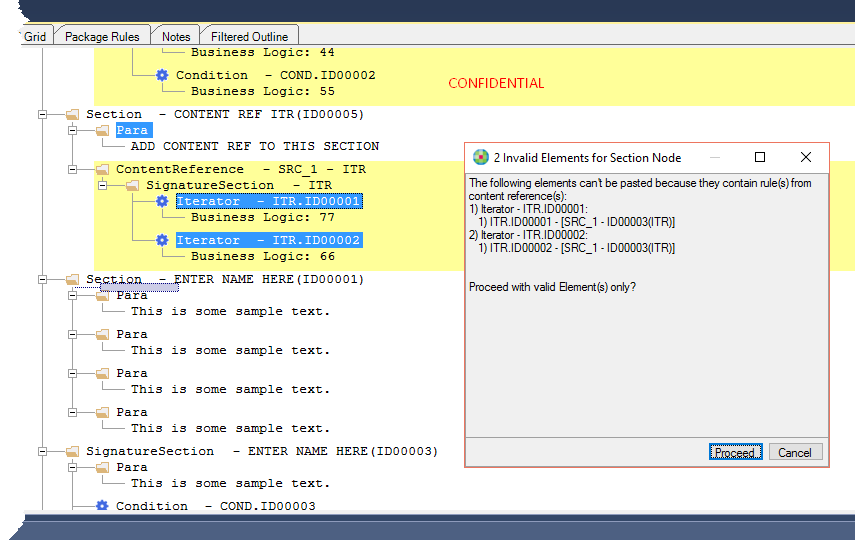
Freezing Content References
In order to prevent content references from being updated, select . This action freezes all content references within an REQ file.

The backgroundcolor is configurable within .
- This feature is only enabled if there are existing ContentRefernce elements within the open REQ file.
- When freezing content references, all content references within an REQ file are frozen. It is not possible to freeze individual content references.
To unfreeze content references, select .