Installing Server Tools
-
Navigate to the RequirementsEditor folder on the CD or
location of the installation files on the target machine.
- Install directly from the Expere Authoring CD (\\RequirementsEditor\ExpereServerToolsInstaller folder)
- Copy the installation file (ExpereServerTools.msi) to a folder on the target machine.
- Select and open ExpereServerTools.msi.
-
The installation program first checks your system to ensure disk
space and dependencies with any other Wolters Kluwer applications installed on
your computer. It will return standard Windows Installer errors, if any are
encountered. Once complete, the setup application is displayed.
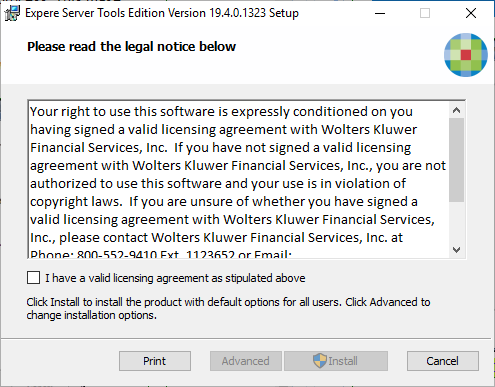
- Select the valid licensing agreement option.
-
Select the type of installation to perform and click
Next.
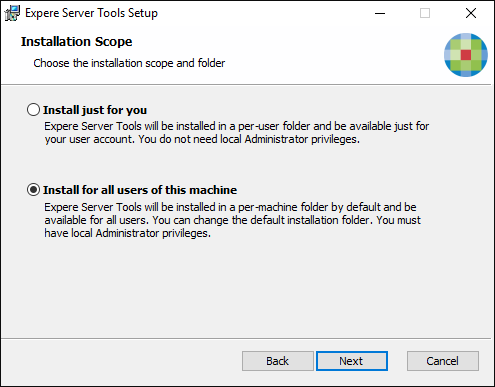
- Select Install just for you to install the program in a manner specific to the user account on the target computer in the [LocalAppDataFolder] folder (for example, C:\Users\UserFolder\AppData\Local).
- Select Install for all users of this machine to install the program on the target computer, available to all users, in the default program files folder (C:\Program Files\Wolters Kluwer\Expere Server Tools).
-
Select Change to select a folder other than the default in
which to install the program, or accept the default program folder and select
Next.
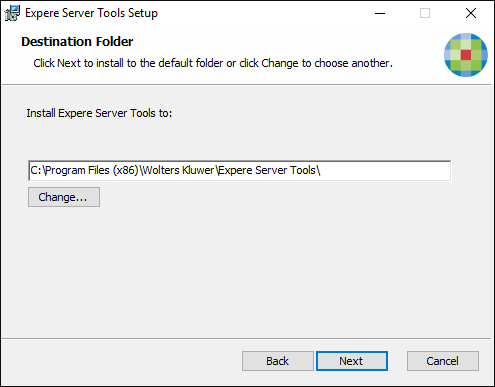
This option is not available if using the Install just for you option. The default program file location is C:\Program Files\WoltersKluwer\Expere Server Tools\. -
Select Install.
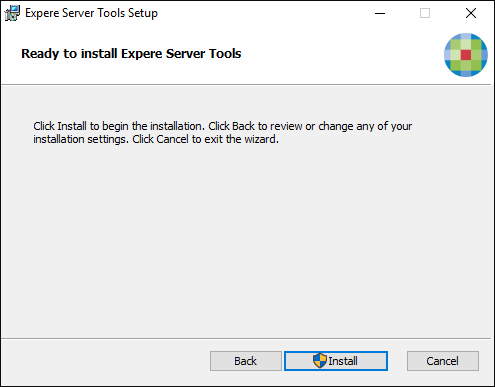
The installation process begins. This make take several minutes. A progress idicator is displayed during the process.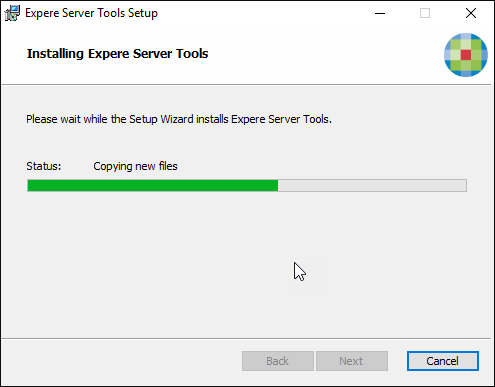
-
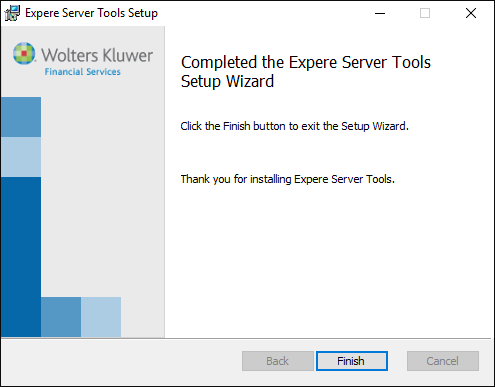
When complete, selectFinish.