When the DOCUMENTS tab on the Documents page is clicked, the Document Drawer
(initially hidden) is displayed over the currently displayed document.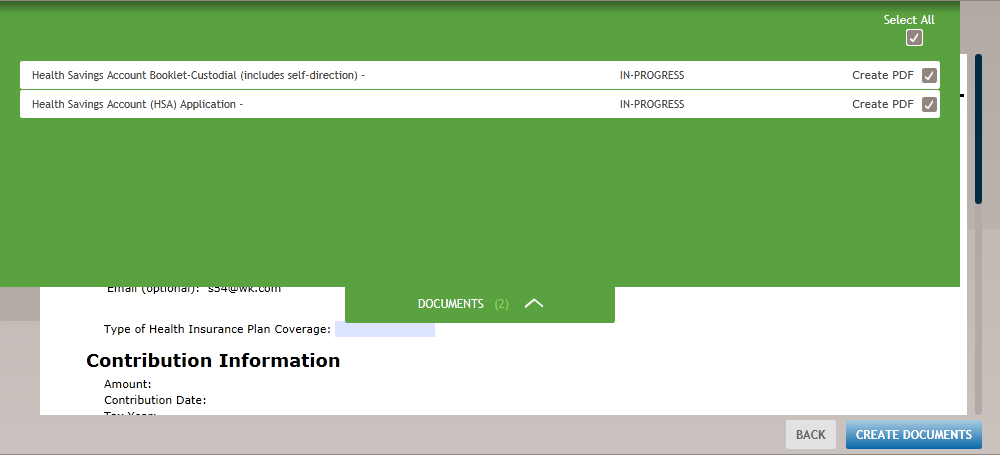
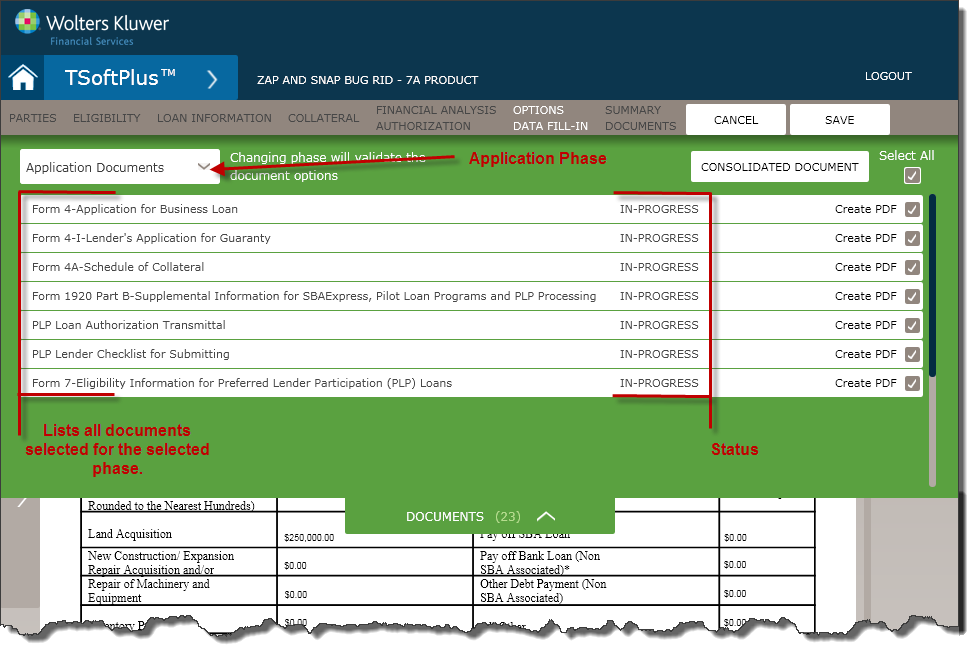
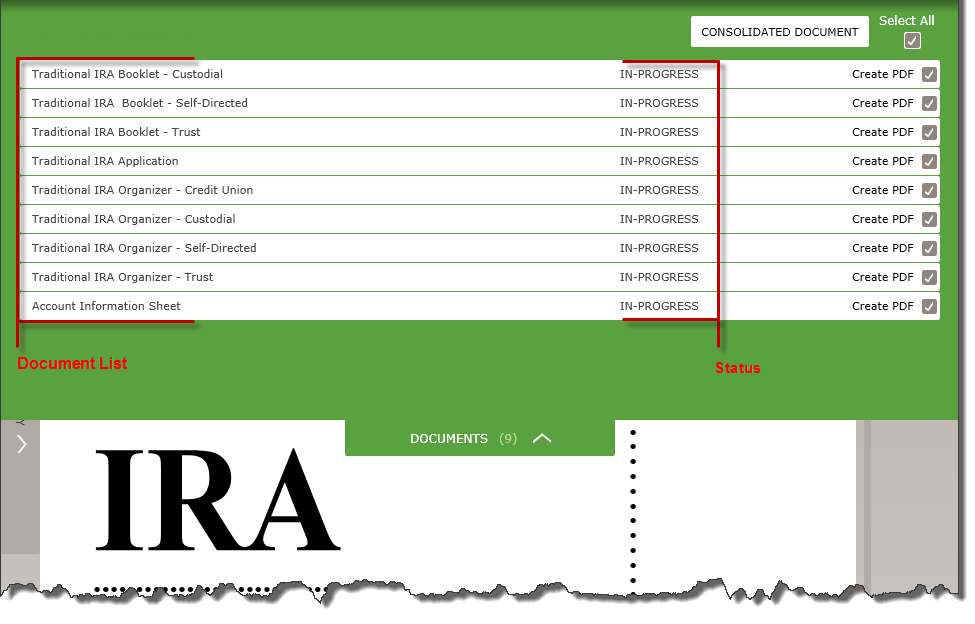
With the tab expanded, you can click any document in the list (see above) to view and
edit the document. The following table describes the features of the Document
Drawer.
| Feature | Description |
|---|---|
| Document Phase | You can change the document phase which returns you to the Document Options page to view and answer the questions pertinent to the phase selected. |
| Loan Documents List | Lists all documents auto-selected based on the Document Options questions answered. You can select a document to view and edit in the Documents page by clicking the document from the list. |
| Document List | Lists all documents selected in the Select Documents screen. |
| Status | The status tracking feature allows you to mark documents complete
when you are finished working with them. Hovering over the document
record presents a context menu. 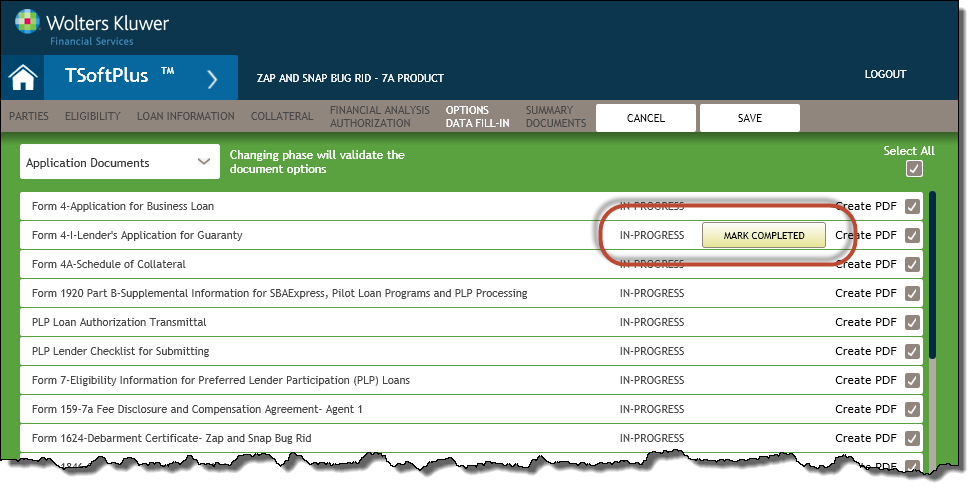 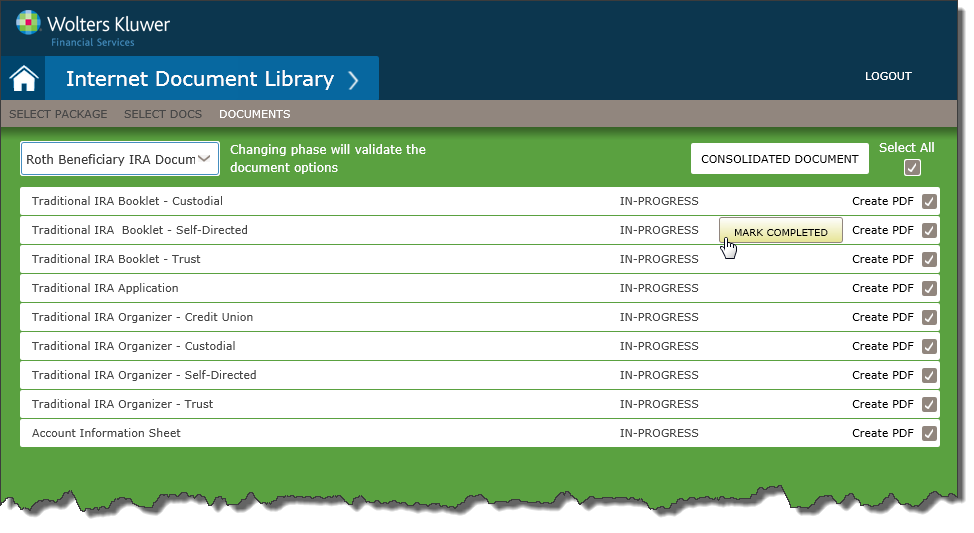 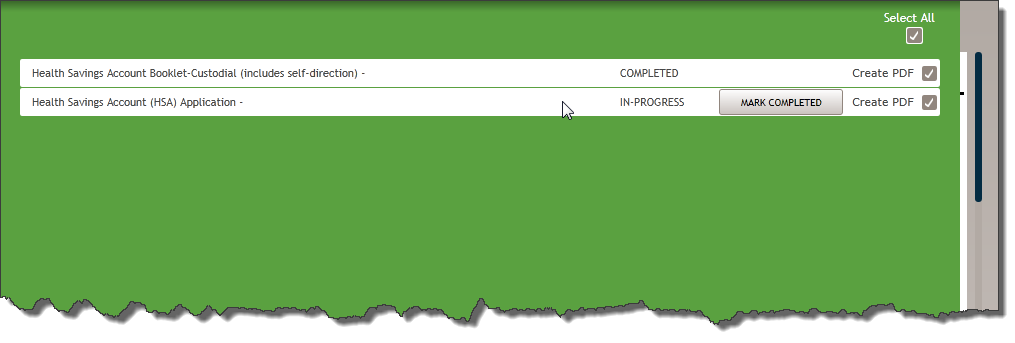 There are two statuses: In-Progress (default) and Completed. When you have completed working with a given document, you can change the status by hovering over the document row and clicking the MARK COMPLETED button. If a document is marked Completed, you can hover over the row and the IN-PROGRESS button is displayed. |
| Create PDF | Allows you to select individual documents to create to PDF by
selecting the check box. Note:
|
| Select All | When selected, all Create PDF check boxes are selected. When cleared, it clears all individual Create PDF check boxes. The default setting is all selected. |
Note: For a listing of the documents available in TSoftPlus, refer to Forms List in the Appendices .