Adding an Inquiry
Adding an Inquiry
Adding an Inquiry collects data to prepare for a transaction. An Inquiry can be converted to a
transaction.
Note:
An inquiry is optional. A transaction can also be
created directly by selecting the + Transaction option.
To add a new inquiry from the Inquiries grid:
- Add an inquiry and open the Details page by one of the following
methods after opening the Dashboard:
- Select +ADD on the Inquiries grid. Select a
line of business (Example: Mortgage).

- Select + Inquiry on the Inquiries dashboard.

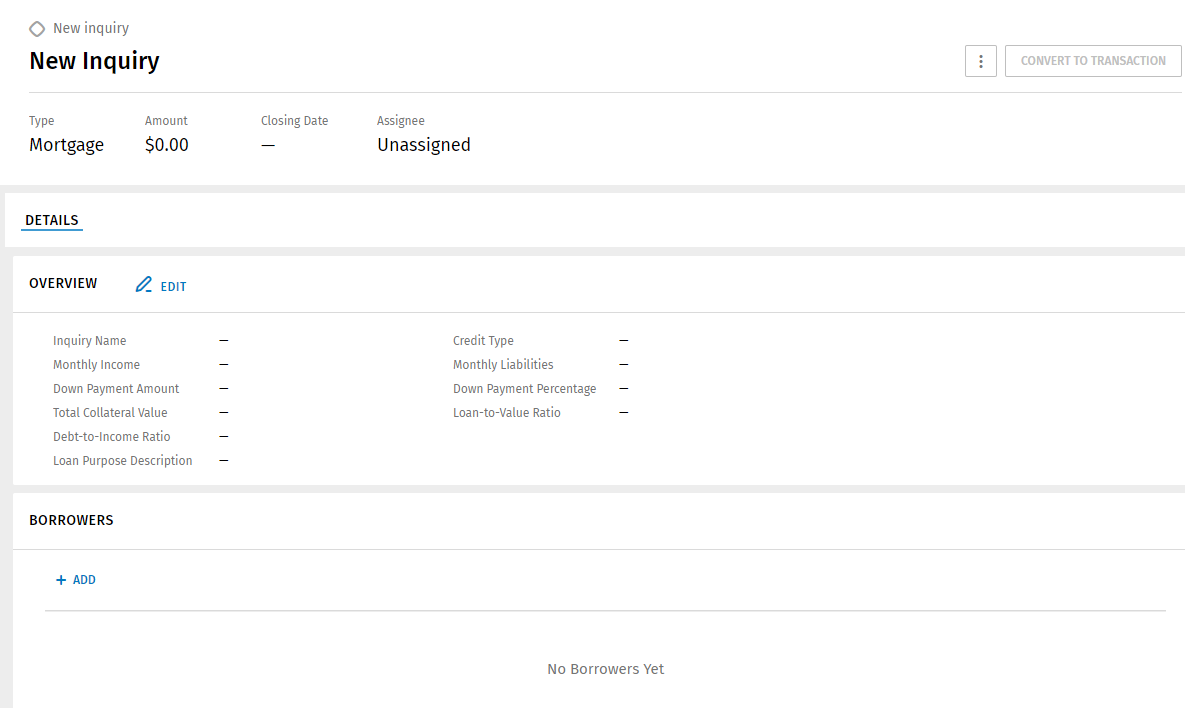
- Select +ADD on the Inquiries grid. Select a
line of business (Example: Mortgage).
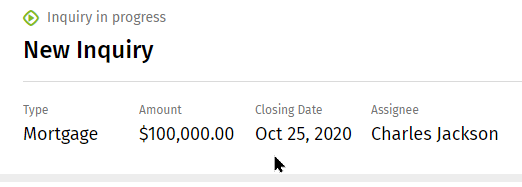
- Edit the information in the header by selecting the Amount,
Closing Date, and Assignee items and entering information as
applicable.
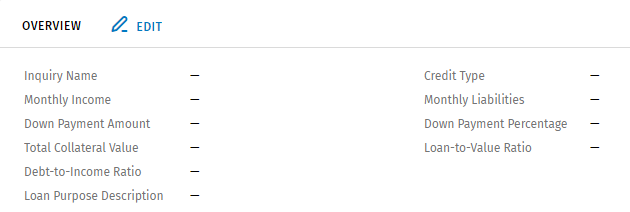
- Select Edit in the Overview section.
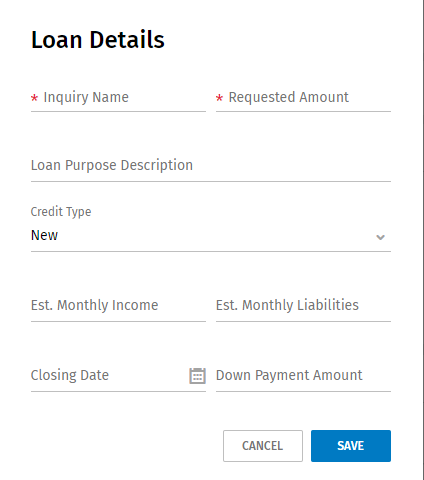
- Complete Loan Details for the Overview section and select
Save. After completing Loan Details, the new
Inquiry Name displays at the top of the Inquiries page.
- Add borrowers as needed. To add a borrower, select +Add in
the Borrowers section. Search for or create a new borrower.
Select Add.

- To search for a borrower, enter a name in the Search box. Select a borrower from the list.
- To add a new borrower, select Create New.
Complete the Add Borrower page.
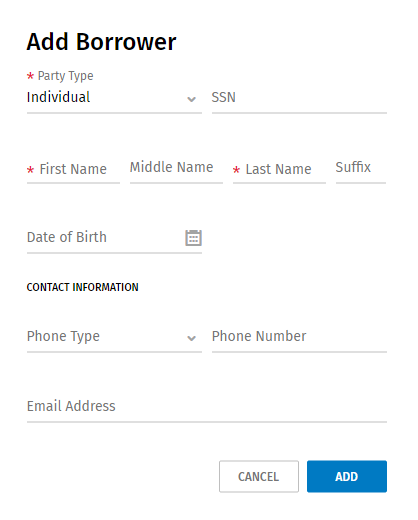 Note:To edit or delete a borrower, select
 next to a borrower name
and select Edit or Delete.
next to a borrower name
and select Edit or Delete.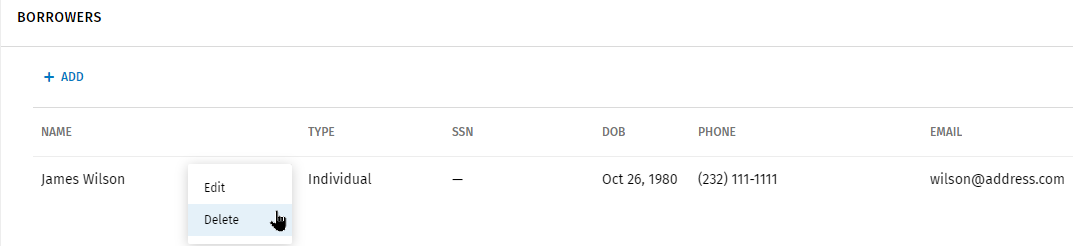
- Add collateral as needed.
- Select +Add in the Collateral
section.
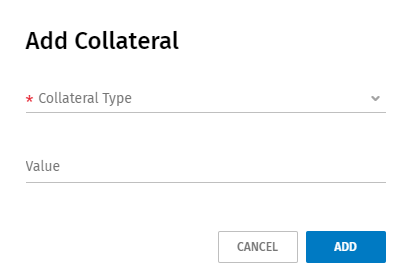
- Select the arrow next to Collateral Type. Select a
type from the list or search for
collateral.
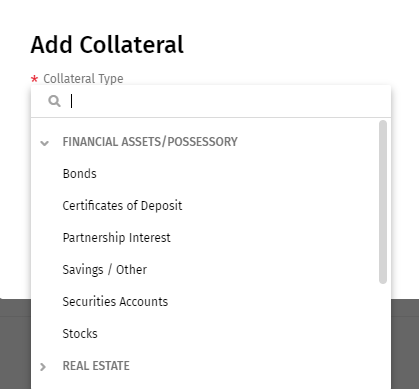
- Enter a value.
- Select Add.
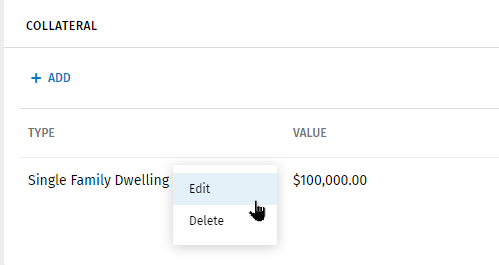
Note:- To edit or delete collateral, select next to a borrower name
and select Edit or Delete.
- Select +Add in the Collateral
section.
- After completing the New Inquiry page, the Inquiry can be converted to a transaction. Select Converting an Inquiry to a Transaction for more information.
Note:
Select the and an option to edit an assignee, print the
Summary, or delete the Inquiry.
and an option to edit an assignee, print the
Summary, or delete the Inquiry.