Batch Transfer

This section explains how to tranfer a series of orders between lenders. Click here to download a Batch Transfer templae file.
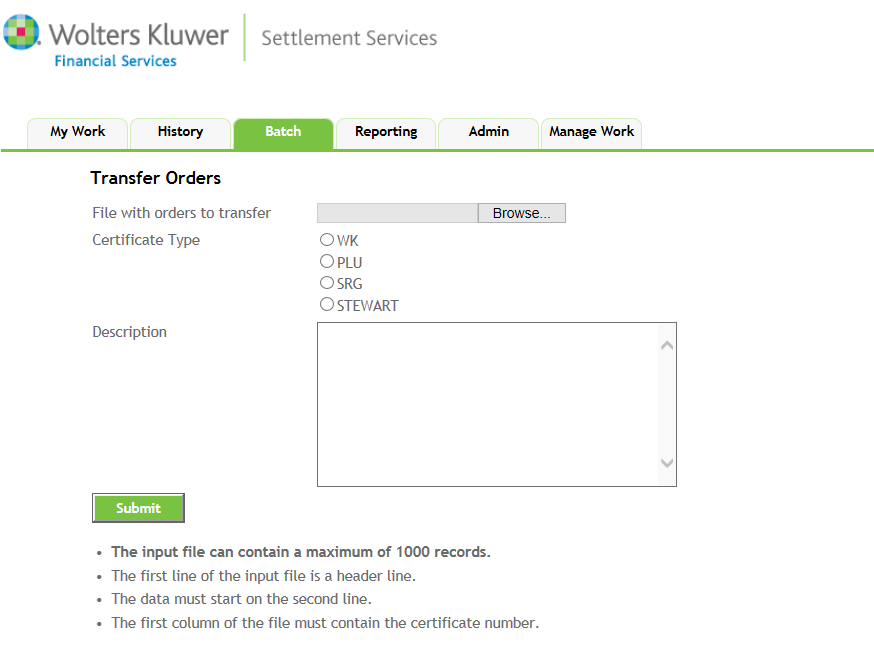
  1. From the Batch tab, click the Batch Transfer link.
  2. From the Transfer Orders screen, click the Browse button. Locate and select a .CSV file.
  3. Select one of the following Certificate Type options:
    • WK
    • PLU
    • SRG
    • STEWART
  4. Enter a Description if needed
  5. Click the Submit button.
    Note: Observe the following guidelines:
    • The input file can contain a maximum of 1000 records.
    • The first line of the input file is a header line.
    • The data must start on the second line.
    • The first column of the file must contain the certificate number.
  6. The order transfer processing screen will appear; if no validation issues exist, complete the corresponding fields.
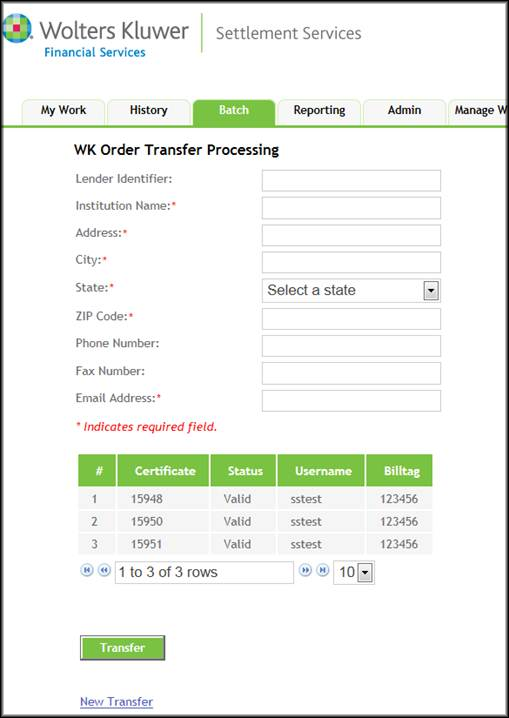
  7. Click Transfer. The Transfer Completed screen appears.
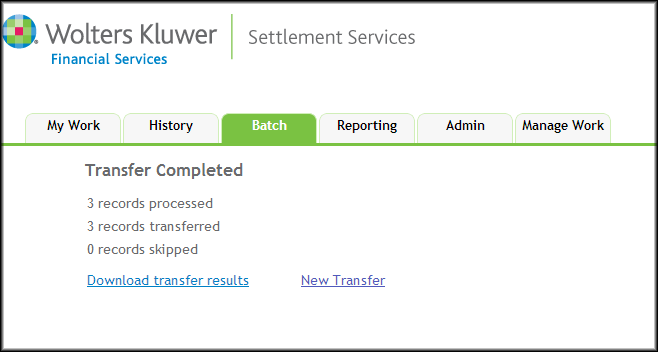
  8. Click the Download transfer results link to download the records as a .CSV file (available to open in Microsoft Excel).
    Note: Observe the following guidelines:
    • When a customer uploads a CSV file, Manual Center will process the file to determine valid and invalid records.
    • Invalid orders include: Paid off orders, Cancelled orders or orders that can’t be found.
    • Manual Center will display these invalid orders in a table after the user uploads the CSV file. It will not permit the user to proceed with the batch transfer until they upload a CSV file containing only valid records.