Who can view and upload documents?
- Clients using the Flood Determination Services website
- Internal Manual Center User
How do I attach a document?
- To add an attachment, click Attachment from the Add dropdown menu.
- From the Attach Files popup, select Add Files. The Choose FIle to Upload dialog appears.
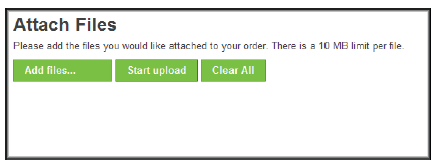
- Navigate to the desired file(s) and select Open. The file name will appear below the Add files...,Start upload, and Clear All buttons.
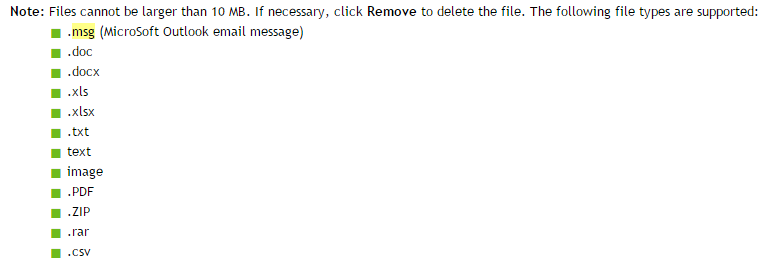
- Navigate to the desired file(s) and select Open. The file name will appear below the Add files...,Start upload, and Clear All buttons.
-
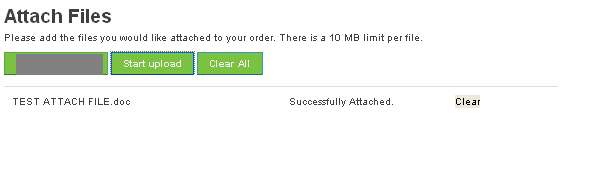
Select Start Upload; if the file uploaded successfully, a Successfully Attached message will appear.
- To remove the file(s), select Clear All. To remove an individual file, select Clear to the right of the file name.
Note: To delete an attachment, click the Delete button next to the attachment in the order Attachment section on the main order screen.
Who is responsible for attaching documents?
Customer Service Representative attaches the documents when:
- Additional information received for an incomplete/unassigned order
- Save attachments and upload them
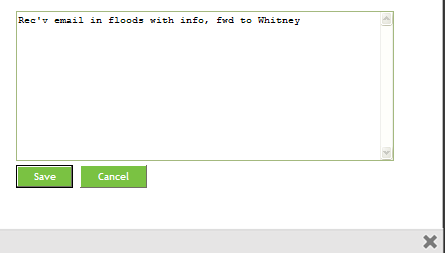
- "Add" - "Note" if email not attached.
Outsourced Mapper or Internal attaches the documents when:
- Additional information received for an Incomplete Assigned Order
- Assigned order that was RFI’d
- Assigned to RMSI
- Assigned to an Internal Mapper
- Customer Service will enter a note that the information was received and who it was forwarded to.
What if the information the client attached or CSR attached on an available order is incorrect, can I remove the document?
Answer is Yes
- Delete the document
- "Add"
- "Note" saying what you removed and why.
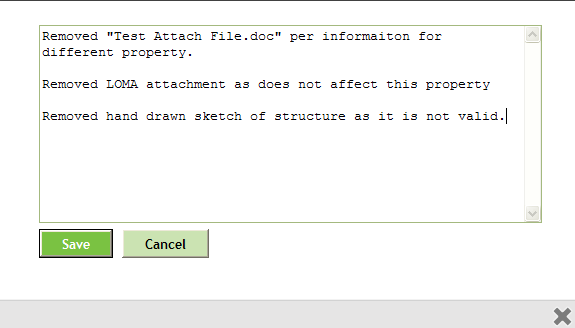
- "Note" saying what you removed and why.
Attaching Emails
Question: Who can see the email attachments?
Answer: Internal Mappers – Customers or Outsource users cannot see the email attachment. (As of January 22nd, 2015 release)
Attaching an email
- Open email and “Save As” or hit “F12”
- Edit email subject line to include: Certificate Number (if more than 3 cert #’s enter “multiple certificates)
- Other Subject Line Edits
- RUSH
- Original Subject: Loan Carson
- Revised Dubject: RUSH - CERT: 1234586; Loan Carson
- RFI
- Original Subject: Olson Loan
- Revised Subject: RFI - CERT: 1234867; Olson Loan
- REVIEW TYPE (replacing the word "dispute")
- Original SUbject: Zone recheck for Mr. Smith
- Revised Subject: ZONE REVIEW - CERT 987464; Zone recheck for Mr. Smith
- RUSH
- Other Subject Line Edits
- Nanual Center - Add > Attachment
- Locate email to attach > Start Upload
OR
- Select Email in your Inbox
- In MC on certificate to attach, choose ‘add’, choose ‘attachments’
- Click on ‘add files’ and this will Open folder where you wish to save the message
- Drag the message from your inbox to the folder to save
- Choose message to attach and click ‘open’ to Attach in Manual Center
When to attach the Email vs Attachments + Email
Order "Available" - RMSI HAS NOT Processed
- No Order history
- Assigned to: Available
- Customer Service attach Attachments + Email
- Outsource user still need to have access to the attachments
- Email also needs to be attached as a repository for the received email as well as for a potential RFI contact in the event the order is processed by an internal mapper.
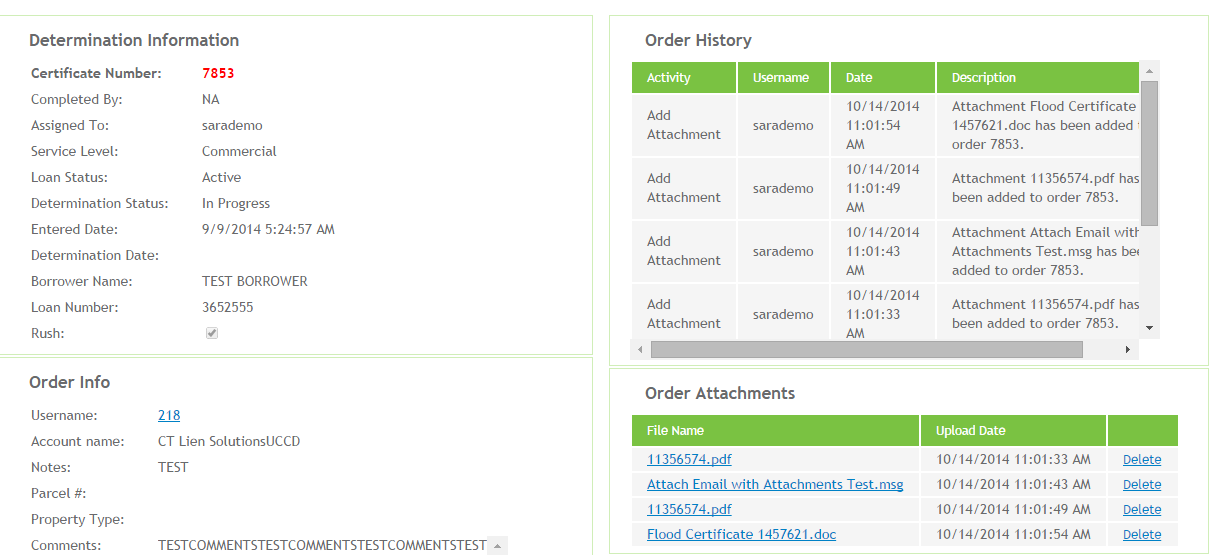
Order "Available" RMSI HAS processed.
- Order History = Queue Change
- Assigned To: Available
- Customer Service
- Attach email
- Mapping Analyst
- Attach any documents within email that pertain to the certificate so they are viewable both by the Customer and Outsource users.
Disputes
- Customer Service
- Select Email in your Inbox
- In MC on certificate to attach, choose "add," choose "attachments."
- Click on "add files" and this will open folder where you wish to save the message.
- Drag the message from your inbox to the folder to save.
- choose message to attach and click "open" to attach in Manual Center
- If Disputed Certificate belongs to:
- Internal Mapper (outside of the Dispute Team) forward email to individual after attaching email and submitting the dispute
- Individual Dispute Analyst that already processed an order - forward email to individual after attaching email and submitting the dispute
- Dispute Team – attach email and submit dispute
- Mapping Analyst
- Attach any documents within email that pertain to the certificate so they are viewable both by RMSI and the Customer
Email Communication
What DOES need to be attached?
- Any email that contains a screen shot to the customer
- Dispute Resolution - Mappers email sent to the customer
- Complex situations
- Example: Mapping Analyst: Thank you for the information, since you need multiple structures, please place additional orders as I have listed below…
- Detailed message from a Customer Service or Mapping Analyst
- Examples:
- See Cert: 13522291
- Mapping Analyst: We have completed this dispute, however not able to change the zone due to…
- Customer Service: Certificate Errors (cannot view cert, cannot transfer, etc.)
- Examples:
- Escalated conversations
- Examples:
- Customer: Please let me speak with your supervisor…
- Customer: I’d like to file a claim…
- Customer: I’m unhappy with your service, product, etc…
- Any other Voice of Customer (VOC) - Enter "VOC" in subject line of email
- Examples:
What DOES NOT need to be attached?
- Standard Response
- Examples:
- Thank you for the info, we have completed this order
- This dispute has been resolved
- We have updated the Loan ID
- Examples:
- Certificate Status Checks
- Customer Support: Did Not Initiate Dispute emails - ENTER NOTE ONLY
