Paper out timers and reminders do not run on holidays.
Custom holiday dates allow clients to define their own set of holiday dates, which may differ from the default federal US holidays.
For packages that expire after a specified number of days, holiday dates are used to help designate which dates to be considered business days. Users of Flexible Timers can set expiry dates on their packages that take the holidays into account.
For more details, refer to the Flexible Timer documentation.
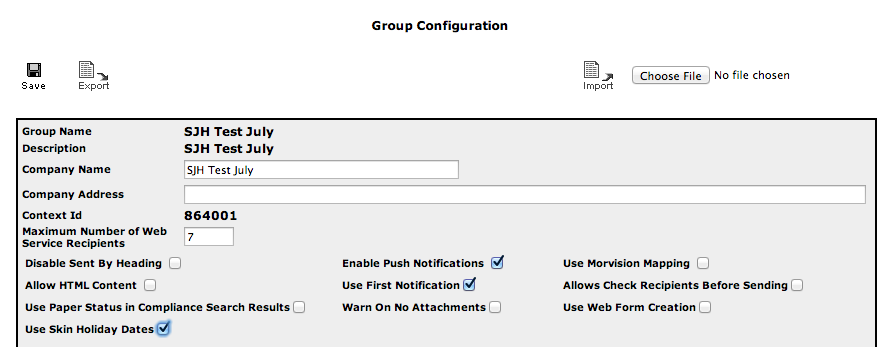
Checking the Use Skin Holiday Dates checkbox designates that the client will use their own holiday dates instead of the default ones. Note that this setting is available only to users with System Admninistrator rights.
Default Holidays
To view the current default holidays click Configure Holiday Dates in the menu on the left side of the page, and click All. This menu option is available only with System Administrator rights.
Click Default at the top of the list to show the list of dates.

Dates are shown in order.
To delete a date, click its corresponding red X icon.
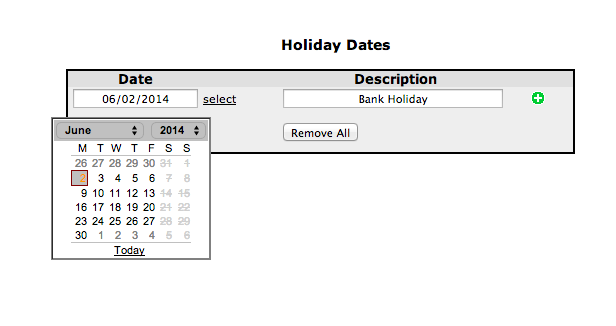
To add a new date, use the calendar popup in the blank date field, then enter a description. Click the green + button to add the date to the list.
Skin Holiday Dates
When the Use Skin Holiday Dates checkbox is marked, you may now configure the holiday dates. [note... not applied until checkbox is marked] Choose the Configure Holiday Dates option, then select the specific client in the skin list.
The list of holidays will initially be empty.
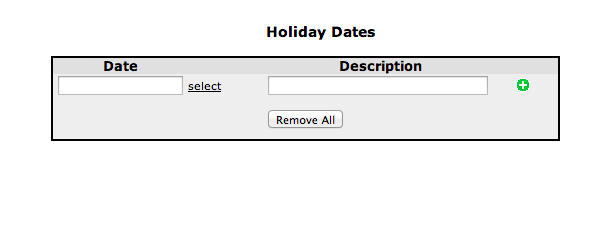
Add dates as required.
Removing All Dates
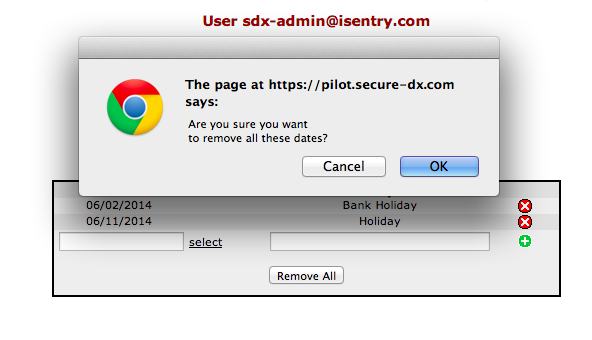
To remove all the dates in a list click Remove All. A confirmation message displays. Click OK.