This section explains how to integrate the release calendar for your product into the corresponding webhelp.
Note: This procedure describes specific Vasont functionality; for more information on using Vasont, see the InfoDev Confluence site.
- Before integrating the calendar, you must first create an html file that embeds your Event Viewer / Read-Only calendar and place it on the help server at \\Nastntx95015-c\InfoDev\resources\calendars\<Product>ReleaseCalendar.html.
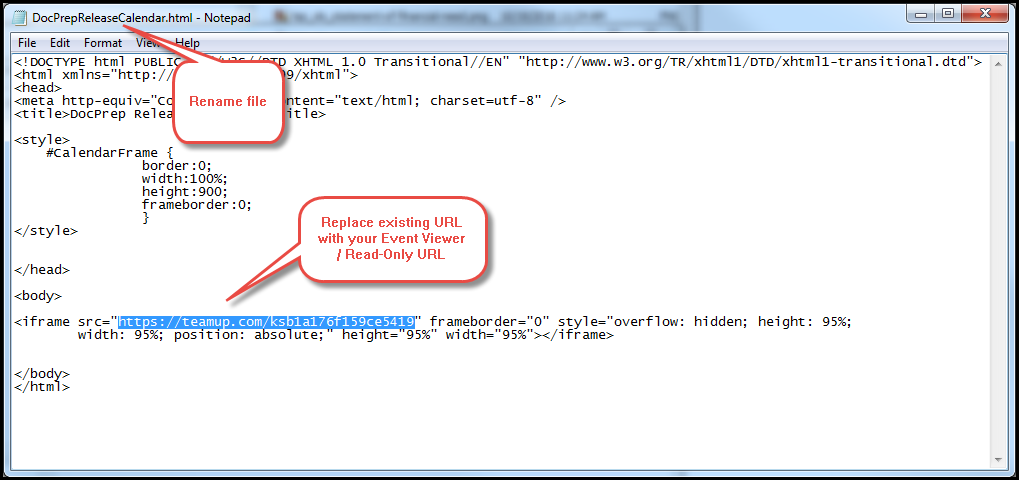
- Open an existing calendar in Notepad and rename it.
- In the <iframe src=> element, replace the existing URL with the link to your URL.
- Save the file to the location above.
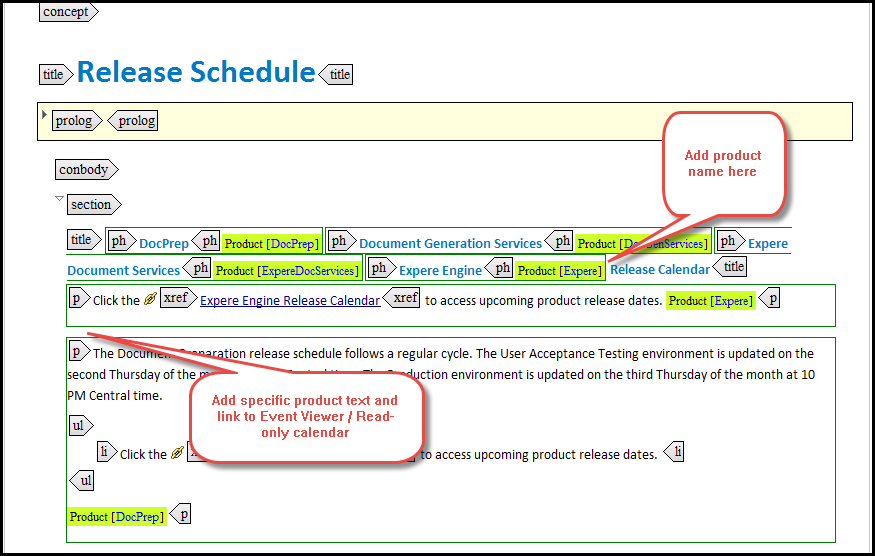
- Add your product (for example: Settlement Services) to the first <section><title></title></section> through a <ph/> element. Apply a product attribute and value to the <ph/>. See below for examples.
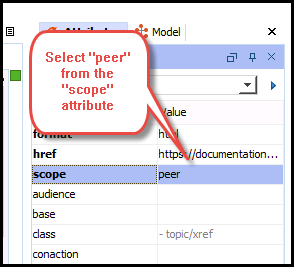
- Select the <xref/> for the calendar. In the Attributes pane, select peer from the scope dropdown list of available values.