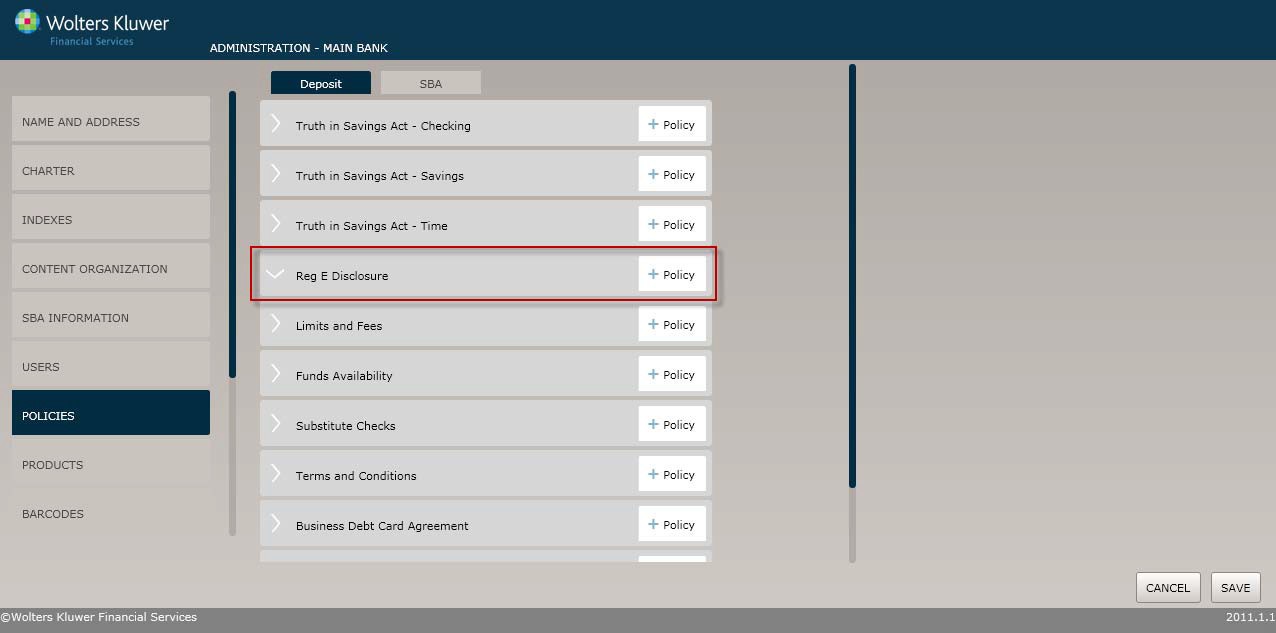
Select the Policiesmenu option and click the Policy buttonfor the Reg E Disclosure option.
Click the OK button at any time to save the policy information and make it availableto OPPSA users; however, keep in mind that the policywill close and save the information when you click OK. You will have to go to the menu screenand open the policy again to make additional changes.
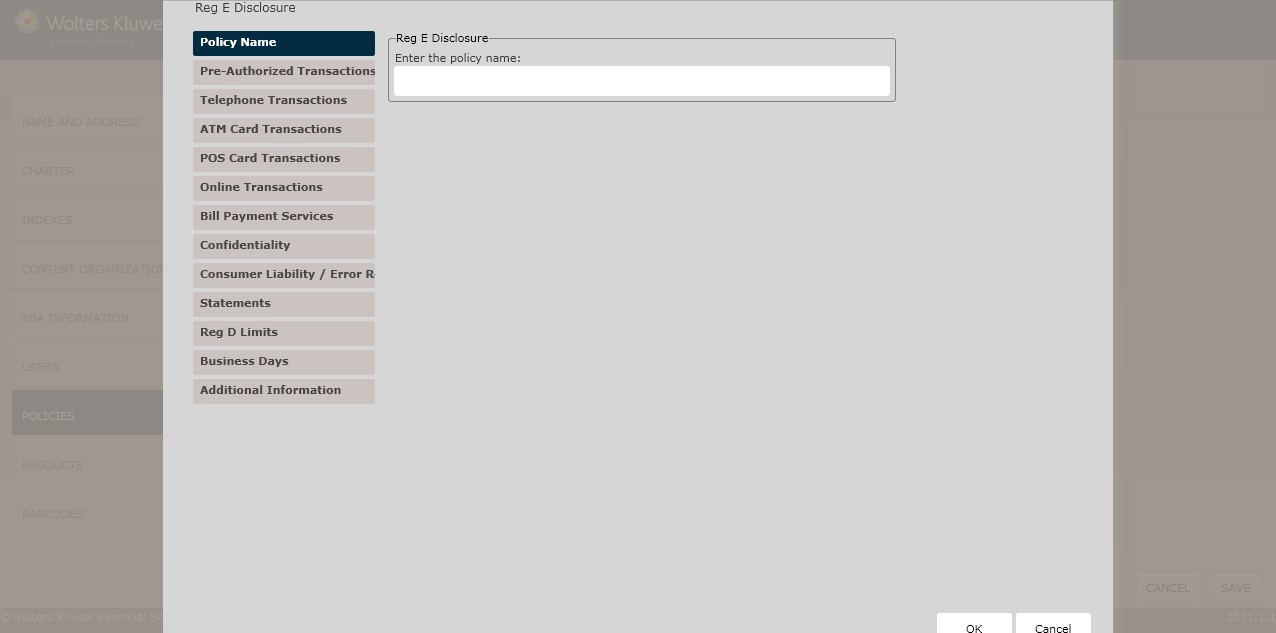
The Policy Name screen displays by default.Complete this screenand then click the option immediately under Policy Name,in this case Pre-Authorized Transactions. Continue until you have completed each screen.
To begin, in the Enter the policy name field, enter the name of the new policy.
This screen allowsyou to configure the followingtransaction types:
§ Directdeposits
§ Pre-authorized withdrawals
§ Electronic check conversion
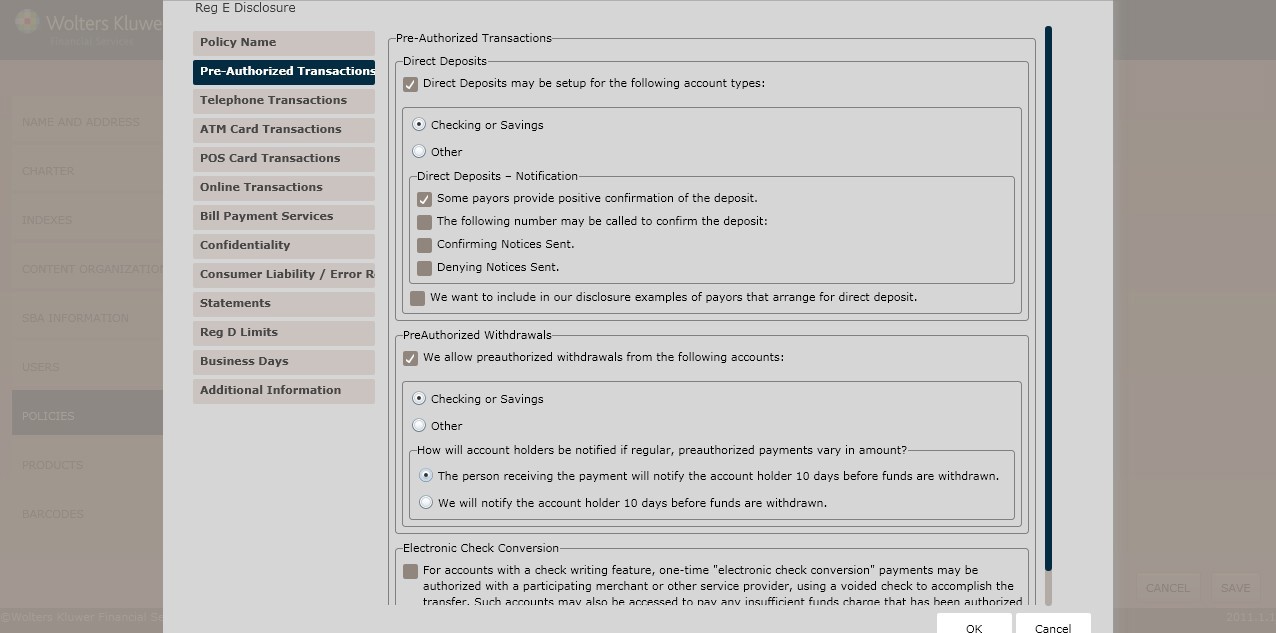
To setup directdeposits for a particular account,click the Direct Depositsmay be setup for the following account types checkbox. Selectone of the following:
§ Checkingor Savings
§ Other
NOTE: If selecting Other, determinethe account type in the corresponding textbox.
§ Select one of the following check boxes:
§ Some payorsprovide positive confirmation of the deposit(default)
§ The followingnumber may be calledto confirm the deposit
§ Enter the Phone Number inthe corresponding textbox.
§ Confirming NoticesSent
§ Denying NoticesSent
To include examples of payors that arrange for direct deposit, click the We want to include in our disclosure examples of payors that arrange for direct deposit checkbox. Enter the listing of payors that arrange for direct deposits in the corresponding textbox.
To allow preauthorized withdrawals for a specific account,click the We allow preauthorized withdrawals from the following accounts checkbox.
Select one of the following:
§ Checking or Savings (default)
§ Other
NOTE: If selecting Other, determinethe account type in the corresponding textbox.
§ Determinehow account holders will be notified if regular, preauthorized payments vary in amount; select one of the following:
§ The person receivingthe payment will notifythe account holder 10 days beforefunds are withdrawn. (default)
§ We will notify the account holder 10 days beforefunds are withdrawn.
§ To authorize one-timeelectronic check conversion paymentsto a participating service provider, click the following checkbox:
§ For accounts with a check writing feature,one-time “electronic check conversion” paymentsmay be authorized with a participating merchantor other serviceprovider, using a voided check to accomplish the transfer; such accounts may also be accessed to pay any insufficient funds charge that has been authorized for collection by electronic transfer.
The Telephone Transactions screen allows you to create rules for conducting transactions over the telephone.
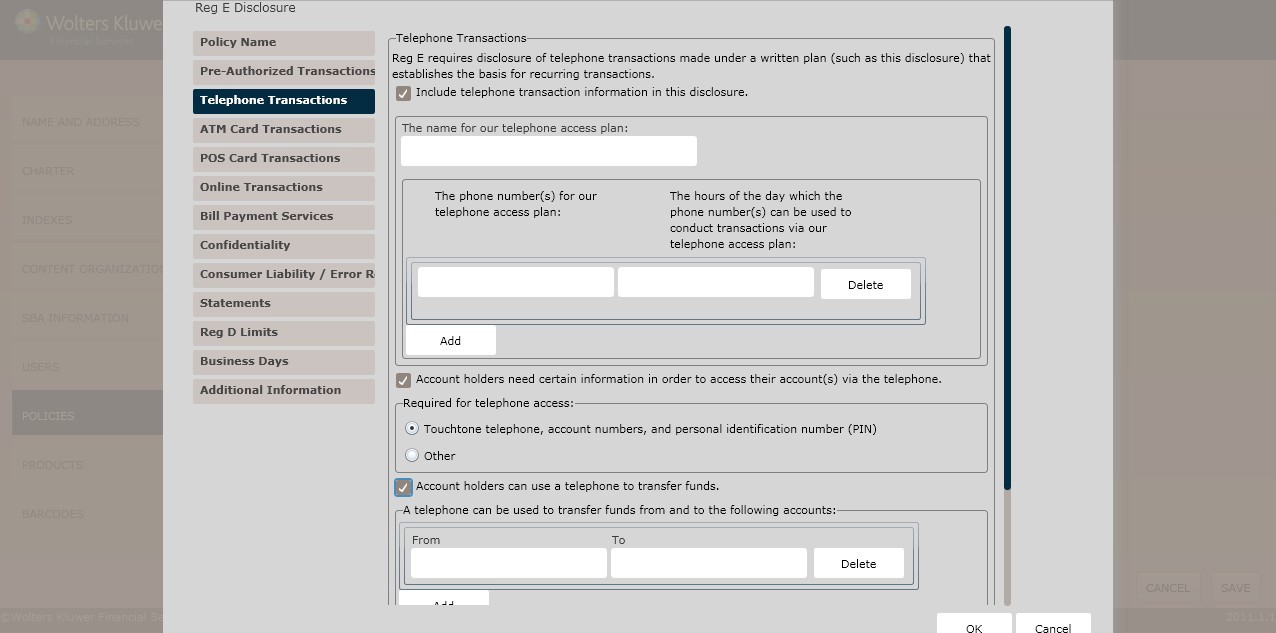
Reg. E requiresdisclosure of telephonetransactions made undera written plan that establishes the basis for recurring transactions.
To include telephone transaction information for the disclosure, click the Include telephone transaction information in this disclosure checkbox.
NOTE: Deselecting the Include transaction information in this discolosure checkbox will save only if all Account holders… checkboxes are deselected first.
§ Enter the name for our telephone accessplan in the corresponding textbox.
§ Click Add toadd additional telephone numbers fields.
§ Click Delete to deletea telephone number.
§ Enter the Access Phone Numberand Hours in the corresponding textboxes.
§ To specifythat account holders need certaininformation to access their account over the telephone, click the Accountholders need certaininformation in order to accesstheir account(s) via the telephone checkbox. Select one of the following:
§ Touchtonetelephone, account numbers, and personal identification (PIN) (*default)
§ Other
NOTE: If selecting Other, determine the additional information account holders need.
§ To allow account holdersto use a telephoneto transfer funds, click the Accountholders can use a telephone to transfer funds checkbox.
§ Enter the accountsto transfer From and To in the corresponding textboxes.
§ Click Add toadd additional telephone numbers fields.
§ Click Delete todelete a telephonenumber.
§ To allow account holdersto use a telephone to make a payment,click the Accountholders can use a telephoneto make paymentscheckbox.
§ Enter the accountsto transfer From and To in the corresponding textboxes.
§ Click Add toadd additional telephone numbers fields.
§ Click Delete todelete a telephonenumber.
§ To allow account holdersto use a telephone to obtain balanceinformation, click the Account holders can use a telephoneto obtain balance information checkbox.
§ Select the type of account to obtain balanceinformation:
§ Checking or Savings (*default)
§ Other
NOTE: If selecting Other, determine the type of account.
§ To allow account holders to use a telephone to obtain withdrawal history, click the Account holders can use a telephoneto obtain withdrawal history checkbox.
§ Select the type of account to obtain withdrawal history:
§ Checkingor Savings (*default)
§ Other
NOTE: If selecting Other, determine the type of account.
§ To allow account holdersto obtain deposithistory by telephone, click the Account holders can use a telephone to obtain deposithistory checkbox.
§ Select the type of account to obtain deposit information:
§ Check or Savings(*default)
§ Other
NOTE: If selecting Other, determine the type of account.
§ To allow account holdersto obtain transaction history by telephone, click the Account holderscan use a telephone to obtain transaction history checkbox.
§ Selectthe type of account to obtaintransaction information:
§ Check or Savings(*default)
§ Other
NOTE: If selecting Other, determine the type of account.
The ATM Card Transactions screen allowsusers to configurethe specific rules for ATM transactions.
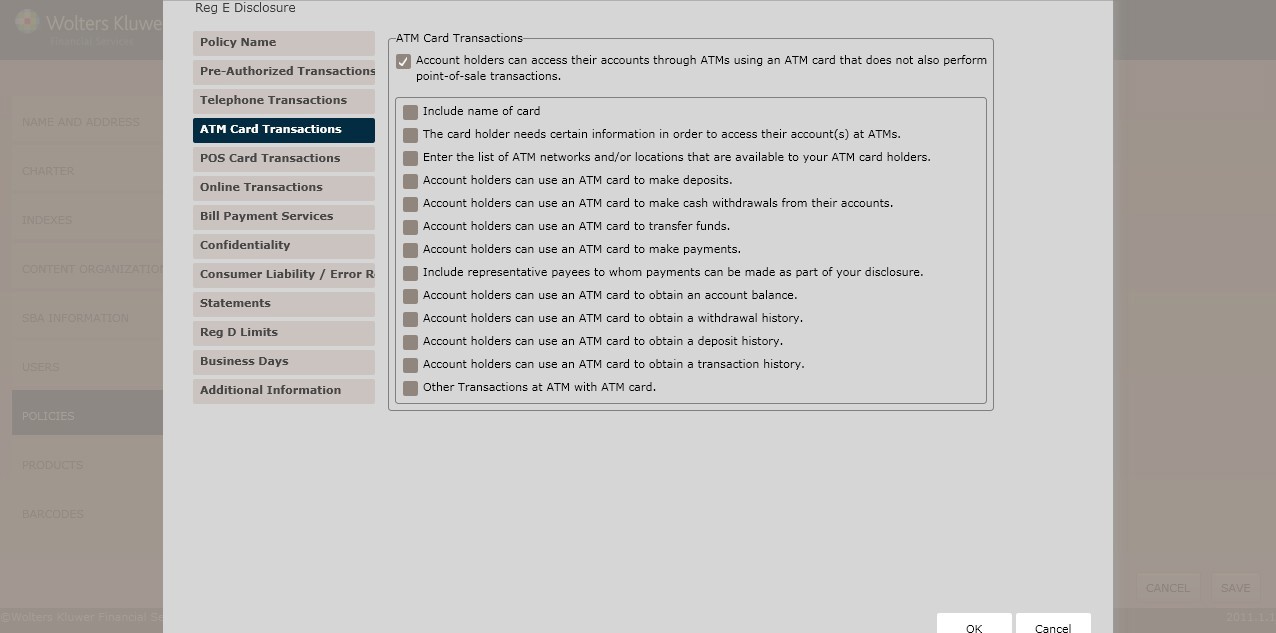
Clicking the Account holderscan access their accountsthrough ATMs using an ATM card that does not also performpoint-of-sale transactions checkboxdisplays a list of additional ATM Card Transaction rules.
NOTE: Clickingthe Account holderscan access theiraccounts through ATMs using an ATM card that does not also performpoint-of-sale transactions checkboxdisplays further configurable ATM options.
§ To includethe card name, click the Include name of card checkbox; enter the card name in the field below.
§ To specifythat card holdersneed certain information to access an account at an ATM, click The card holderneeds certain information in order to access their account(s) at ATMs checkbox; indicatewhat a card holder needsto access theiraccount(s) at ATMs checkbox. Select one of the following:
§ Personal Identification (PIN) (*default)
§ Other
NOTE: If selecting Other, specifythe account type in the field below.
§ Enter the list of ATM networks and/orlocations in the Enter the list ATM networks/locations available to your card holders field below.
§ To allow account holdersto make depositsusing an ATM card,click the Accountholders can use an ATM card to make deposits checkbox. Specify the accounttype by selecting one of the following:
§ Checking or Savings (*default)
§ Other
NOTE: If selecting Other, specifythe account type in the field below.
§ To allow account holdersto make cash withdrawals with an ATM card, click the Account holderscan use an ATM card to make cash withdrawals from their accounts checkbox. Specifythe account type by selecting one of the following:
§ Checking or Savings (*default)
§ Other
NOTE: If selecting Other, specifythe account type in the field below.
§ To allow account holdersto use an ATM card to transferfunds, click the Account holderscan use an ATM card to transfer funds checkbox; determine the accounts to transfer From and To in the corresponding fields.
§ Click Add Additional Accountsto add additional From and To fields.
§ To deletea desired From and To field, place the cursorin the desiredfield; click Delete.
§ To allow account holdersto use an ATM card to make a payment, click the Accountholders can use an ATM card to make payments checkbox; determine the accounts to transferFrom and To in the corresponding fields.
§ Click Add Additional Accounts to add additional From andTo fields.
§ To deletea desired From and To field, place the cursorin the desiredfield; click Delete.
§ To create a list of representative payees per a disclosure, Click the Includerepresentative payeesto whom paymentscan be made as part of your disclosure checkbox. Enter the list of representative payees who will accept paymentsfrom ATMs in the field below.
§ To allow account holdersto use an ATM card obtain accountbalances, click the Account holders can use an ATM card to obtain an account balance checkbox. Specify the account type by selectingone of the following:
§ Checking or Savings (*default)
§ Other
NOTE: If selecting Other, specifythe account type in the field below.
§ To allow account holdersto use an ATM to obtain withdrawal history, click the Account holders can use an ATM card to obtainwithdrawal history checkbox. Specify the account type by selectingone of the following:
§ Checking or Savings (*default)
§ Other
NOTE: Ifselecting Other, specify the account type in the field below.
To allow accountholders to use an ATM card to obtain a deposit, click the Account holderscan use an ATM card to obtain a deposit checkbox. Specify the account type by selectingone of the following:
§ Checkingor Savings
§ Other
NOTE: Ifselecting Other, specify the account type in the field below.
§ To allow account holdersto use an ATM card obtain a transaction, click the Account holders can use an ATM card to obtain a transaction checkbox. Specifythe account type by selecting one of the following:
§ Checking or Savings (*default)
§ Other
NOTE: If selecting Other, specifythe account type in the field below.
§ To create a list of other allowable ATM transactions, click the Other Transactions at ATM with ATM card checkbox. Specifyadditional EFT type(s) in the field below.Describe the following:
§ The transaction type
§ Accountsthat may be accessed
§ Any special conditions
§ Any limitsor frequency transactions
Click Next to advanceto the POS Card Transactions screen.
The optionson this screen are intendedto cover all of the types of transfers that can be performed with the point-of-sale/debit card, includingboth ATM transfers andpoint-of-sale.
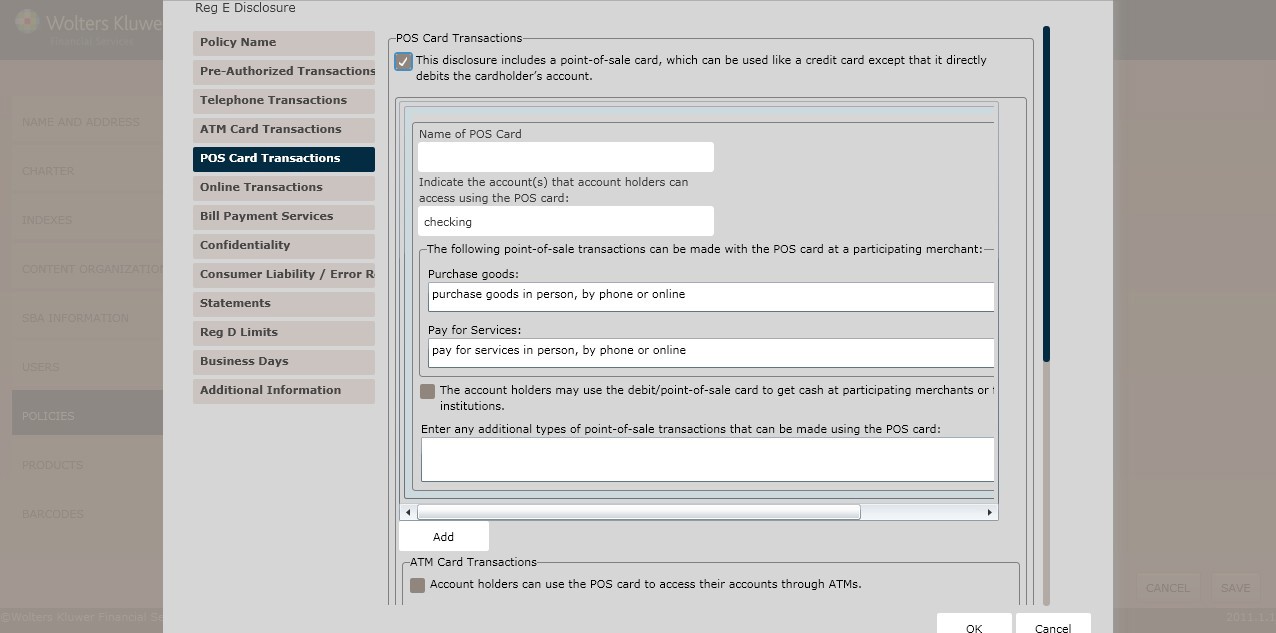
To specify that the disclosure includes a POS card, click the This disclosure includesa point- of sale card, which can be used like a creditcard except that it directlydebits the cardholder’s account checkbox.
NOTE: Clicking the This disclosure includes a point-of-sale card, which can be used like a credit card exceptthat it directly debits the cardholder’s account checkbox presents the user with additional selections in the Consumer Liabilitysection on the Consumer Liability/Error Resolution screen. See ConsumerLiability below for more information.
§ To includea POS card name, click the Include a name(s) for our POS card checkbox; enter the POS card name in the corresponding text box.
NOTE: The Include a name(s) for our POS card checkbox only appearswhen clicking the This disclosure includesa point-of-sale card, which can be used like a credit card except that it directly debits the cardholder’s account checkbox.
§ Specifythe type of point-of-sale transactions that can made with a POS card by selecting any of the following:
§ Purchase Goods; select one of the following:
§ In person, by phone or online (*default)
§ Other
NOTE: if selecting Other, specifythe account type in the field below.
§ Click Add toadd additional telephone numbers fields.
§ Click Delete todelete a telephonenumber.
§ Pay for Services; select one of the following:
§ In person, by phone or online (*default)
§ Other
NOTE: if selecting Other, specifythe account type in the field below.
§ Click Add toadd additional telephone numbers fields.
§ Click Delete todelete a telephonenumber.
§ To allow account holdersto make debit card or POS withdrawals at particular financialinstitutions, click The account holders may use the debit/point-of-sale card to get cash at participating merchants or financial institutions checkbox.
§ To specifyany additional types of point-to-sale transactions, select Other; enter the additional types in the field below.
§ To specifyif any Minnesota Point-of-Sale Transactions can be reversed,select one of the following:
§ Yes, a point-of-sale transaction can be reversedby (*default)
NOTE: Specifythe necessary action(s) in the field below.
§ No, a point-of-sale transaction cannot be reversed.
§ To allow Californiaaccount holdersto use their POS card without a PIN, click The POS card may be used for transactions without the use of a Personal Identification Number (PIN) or other similartransaction checkbox.
§ To allow Wisconsin institutions to honor chargeback requests of $50 or higher POS transfers within threebanking days, click the Disclose that the institution will honor requestsfor chargebacks on point-of-sale transferfor $50 or more, if the institution receives notice within3 banking days of the transaction checkbox.
§ To assess a fee, click the For this service,a fee will be assessedcheckbox. Specify the following: Fee Name, Fee Amount.
§ To allow account holdersto use a POS card at ATM, click the Account holders can use the POS card to accesstheir accounts through ATMs checkbox.
§ When clicking the Account holderscan use the POS card to access their accountsthrough ATMs option, the In additionto the POS card, card holders need certaininformation in order to access theiraccount(s) at ATMs checkboxappears. Selectingthis function requirescard holders to provideadditional information when using their POS card at an ATM. Determine the type of information the card holder needs by selectingone of the following:
§ Personal Identification number (PIN) (*default)
§ Other
NOTE: if selecting Other, specifythe information in the field below.
§ To specifywhether a list of ATM networks/locations should be made available tocard holders, click the List the ATM networks/locations available to your card holders checkbox. Enter the list of ATM networks/locations in the corresponding textbox.
§ To allow card holders to use their POS card to make adeposit, click the Card holderscan use their POS cards to make deposits checkbox. Specify the accounttype by selectingone of the following:
§ Checking or Savings (*default)
§ Other
NOTE: If selecting Other, specifythe account type in the field below.
§ To allow card holders to use their POS card to make a withdrawal, click the Card holderscan use their POS cards to make withdrawals checkbox. Specifythe account type by selecting one of the following:
§ Checking or Savings (*default)
§ Other
NOTE: If selecting Other, specifythe account type in the field below.
§ To allow card holders to use a POS card to transfer funds, click the Card holderscan use a POS to transfer fundscheckbox; determine the accounts to transfer From and To inthe corresponding fields.
§ Click Add to add additional From andTo fields.
§ Click Delete to delete a desiredFrom and To field.
§ To allow a card holder to make a payment with a POS card, click the Card holders can use a POS card to make payments checkbox; determine the accounts to make payments From and To inthe corresponding fields.
§ Click Add to add additional From andTo fields.
§ Click Delete to delete a desiredFrom and To field.
§ To createa list of representative payeesper a disclosure, click the Include representative payees to whom paymentscan be made as part of your disclosure checkbox. Enter the representative list in the corresponding textbox.
§ To allow card holders to obtain an account balancewith a POS card, click the Card holders can use their POS cardsto obtain an accountbalance checkbox.Specify the account type by selecting one of the following:
§ Checking or Savings (*default)
§ Other
NOTE: If selecting Other, specifythe account type in the field below.
§ To allow card holders to obtain withdrawal history with a POS card, click the Card holders can use a POS cards to obtaina withdrawal history. Specifythe account type by selecting one of the following:
§ Checking or Savings (*default)
§ Other
NOTE: If selecting Other, specifythe account type in the field below.
§ To allow card holders to obtain a deposithistory with a POS card, click the Card holders can use their POS cards to obtain a deposit historycheckbox. Specify the account type by selecting one of the following:
§ Checking or Savings (*default)
§ Other
NOTE: If selecting Other, specifythe account type in the field below.
§ To allow card holdersto obtain a transaction historywith a POS card, click the Card holders can use their POS cards to obtain a transaction historycheckbox. Specify the account type by selectingone of the following:
§ Checking or Savings (*default)
§ Other
NOTE: If selecting Other, specifythe account type in the field below.
§ To create a list of other allowable POS transactions, specify additional EFT type(s)in the Other Transactions at ATM with POS card field below. Describe the following:
§ The transaction type
§ Accountsthat may be accessed
§ Any special conditions
§ Any limits or frequency transactions
The Online Transactions screen is used to createthe following rules regarding online transactions:
§ Online Transactions Information
§ Computer AccessInformation
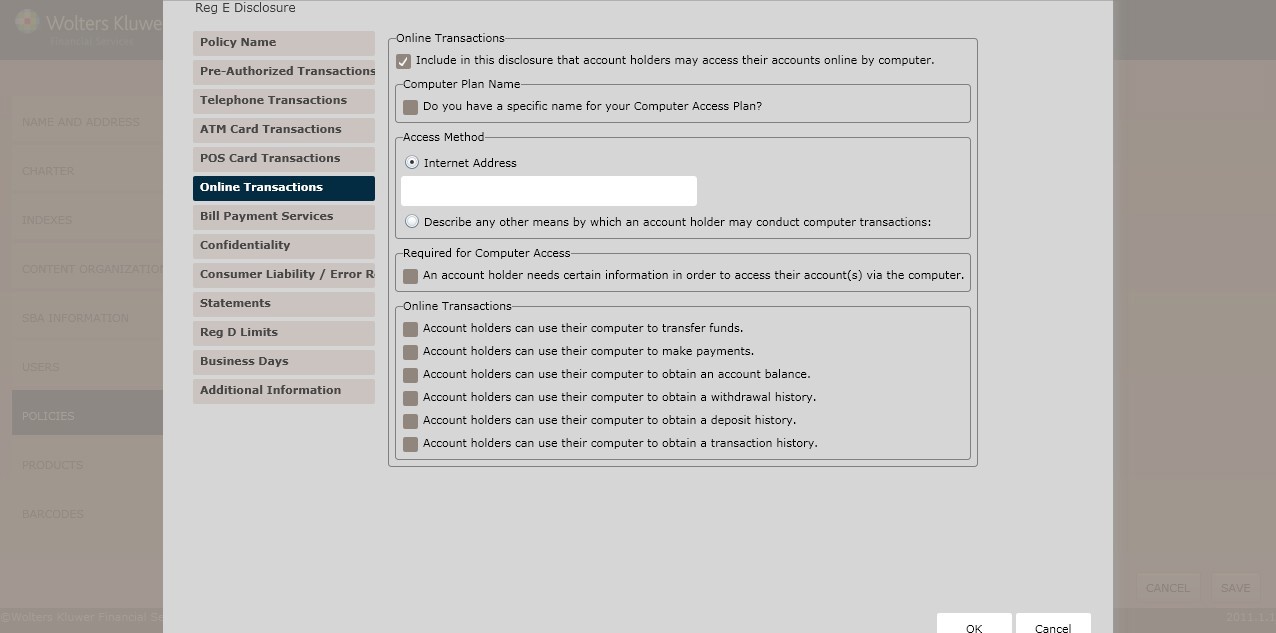
Clicking the Include in this disclosure that account holders may accesstheir accounts onlineby computer checkbox.
NOTE: Selecting the Include in this disclosure that account holders may access their accounts onlineby computer option,displays additional online transaction checkboxes.
If necessary, selectthe Do you have a specific name for your Computer AccessPlan checkbox. Enter the name of a computeraccess plan in the corresponding textbox.
§ Computer AccessPlan
To specify other Access Plans, select one of the following:
§ InternetAddress (*default); enterthe internet addressin the field below.
§ Describe any other means by which an accountholder may conductcomputer transactions; enter the additional information in the field below.
To require accountholders to provideadditional information when accessing their account witha computer, click the An account holderneeds certain information in order to accesstheir account(s) via the computer checkbox. Select one of the following:
§ Username and password (*default)
§ Other
NOTE: If selecting Other, enter the necessaryinformation in the field below.
§ To allow account holdersto make payments with a computer, click the Account holder can use their computerto transfer funds checkbox. Determine the accountsto make payments From and To in the corresponding fields.
§ Click Add Additional Accountsto add additional From and To fields.
§ To deletea desired From and To field, place the cursorin the desiredfield; click Delete.
§ To allow account holdersto make paymentswith a computer, click the Account holder can use their computer to make payments checkbox. Determinethe accounts to make payments From and To in the corresponding fields.
§ Click Add Additional Accountsto add additional From and To fields.
§ To deletea desired From and To field, place the cursorin the desiredfield; click Delete.
§ To specifythat paper check paymentsare not subject Regulation E, click the Payments made by paper checks to specifiedpayees (as disclosed in a separateagreement) will not be subject to Regulation E checkbox.
§ To allow account holdersto obtain account balances with a computer, click the Account holders can user their computer to obtain an account balance checkbox. Specify the account type by selectingone of the following:
§ Checking or Savings (*default)
§ Other
NOTE: If selecting Other, specifythe account type in the field below.
§ To allow account holdersto obtain withdrawal histories with a computer, click the Account holderscan user their computer to obtain an withdrawal history checkbox. Specify the account type by selectingone of the following:
§ Checking or Savings (*default)
§ Other
NOTE: If selecting Other, specifythe account type in the field below.
§ To allow account holdersto obtain a deposithistory with a computer, click the Account holderscan user their computer to obtain a deposit historycheckbox. Specify the account type by selecting one of the following:
§ Checking or Savings (*default)
§ Other
NOTE: If selecting Other, specifythe account type in the field below.
§ To allow account holdersto obtain a transaction historywith a computer, click the Account holders can user theircomputer to obtaina transaction historyby clicking the checkbox. Specify the account type by selecting one of the following:
§ Checking or Savings (*default)
§ Other
NOTE: If selecting Other, specifythe account type in the field below.
The Bill of PaymentService screen isused to create the followingrules for online bill payment:
§ Bill PaymentServices
§ Computer AccessInformation
§ Telephone Access
§ Other AccessTypes
§ Transfer Types
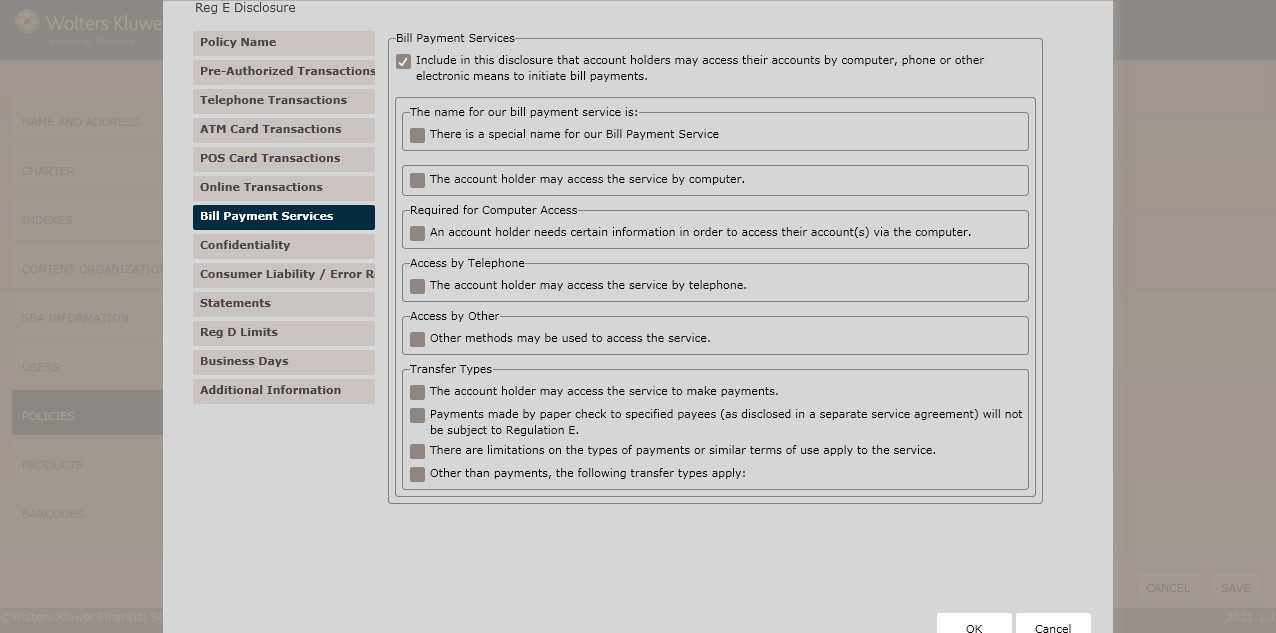
Clicking the Includein this disclosure that account holders may access their accounts by computer checkbox displaysa list of additional Bill PaymentService options.
§ To specifya special bill payment servicename, click the There is a specialname for our Bill Payment Servicecheckbox. Enter the name in the corresponding textbox.
NOTE: Selecting the Include in this disclosure that account holders may access their accounts by computer option,displays additional online transaction checkboxes.
§ To allow an accountholder to access the service by computer, click the The account holder may access the serviceby computer checkbox. Enter the name in the field below.
To require an account holderprovide certain information when accessing an account with a computer, click the An account holderneeds certain information in order to access their account(s) via the computer checkbox. Select one of the following:
§ Username and password (*default)
§ Other
NOTE: If selecting Other, enter the necessaryinformation in the field below.
To allow an account holderto access the serviceby telephone, click The account holder may access the service by telephonecheckbox. Enterthe phone numberin the corresponding text box.
§ If selectingThe accountholder may access the serviceby telephone option, specify what information accountholders to access the serviceby telephone; select one of the following:
§ Username, password, and account number(*default)
§ Other
NOTE: If selecting Other, enter the necessaryinformation in the field below.
To determine other methods of accessing the service, click the Other methodsmay be used to access the service checkbox. Enter the methodsin the field below.
§ To requirethat account holders,click the Account holdersneed certain information to access the service checkbox. Enter the information in the field below.
§ To allow account holdersto make payments through the service,click The accountholder may access the service to make payments checkbox.
§ Determine the accounts totransfer From and To in the corresponding fields.
§ To verifythat paper checks made to specific payeesare not subject to Regulation E, click the Payments made by paper checks to specifiedpayees (as disclosedin a separate agreement) will not be subject to Regulation E checkbox.
§ If selectingthe Payments made by paper checksto specified payees (as disclosed in a separate agreement) will not be subject to Regulation E option, determine if any limitations on types of payments apply. Click the Limitations on the types of payments or similarterms of use apply to the service checkbox.
§ Enter the limitations in the corresponding text box.
§ If any additional transfer types apply,click the Other than payments, the following transfer types apply checkbox. Enter the additional transfer types in the corresponding text box.
The Confidentiality screen is used to createaccount sharing information when conducting transactions. This screen outlines the following rule creation:
§ Confidentiality – All StatesExcept Massachusetts
§ Confidentiality – Massachusetts
NOTE: Depending on the jurisdictions selected when creatingyour organization, not all options may appearon this screen.
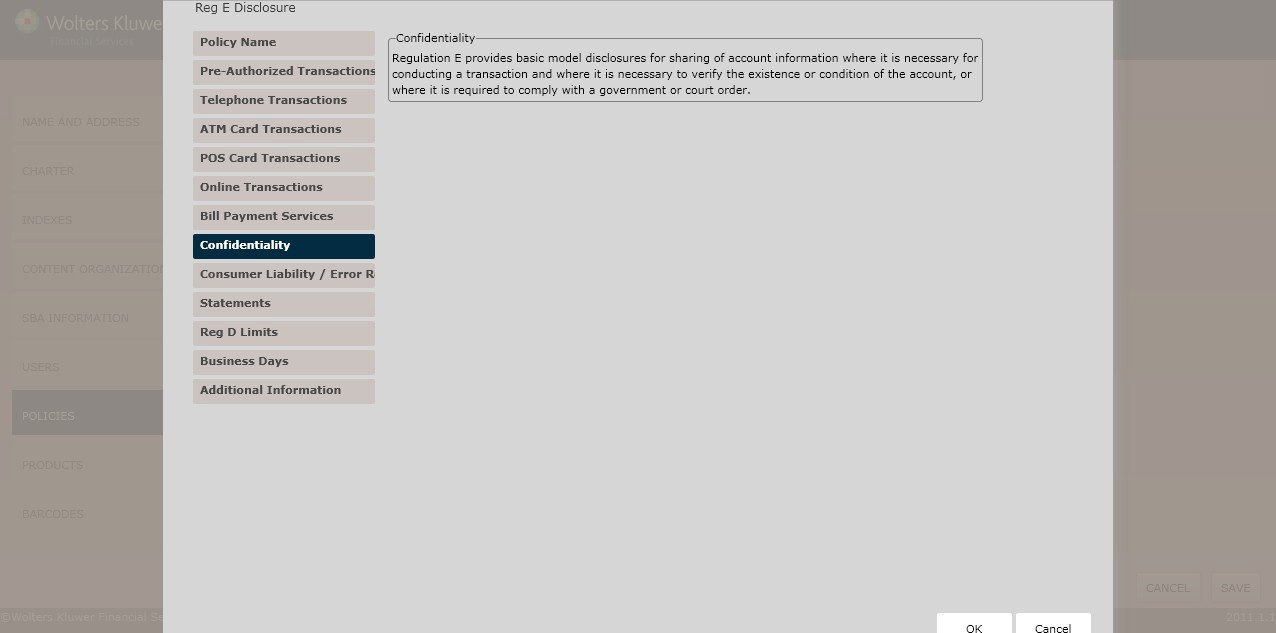
In the Confidentiality – All States Except Massachusetts section, determinethe circumstances in which accountinformation should be shared with third parties; select one of the following:
§ Add a cross-reference to our privacydisclosure, which is provided separately in addition to the basic disclosure
§ When the account holder’s written permission is obtainedprior to the releaseof any information(*default)
§ Other
NOTE: If selecting Other, enter the necessaryinformation in the field below.
§ In the Confidentiality –Massachusetts section, determine the circumstances in which account information should be shared with third parties;select one of the following:
§ Add a cross-reference to our privacydisclosure, which is provided separately in addition to the basic disclosure
§ When the account holder’s written permission is obtainedprior to the releaseof any information(*default)
§ Other
NOTE: If selecting Other, enter the necessaryinformation in the field below. Make sure you select Massachusetts and a different state on the Charter screen.
This screenallows users to determine regulatory language for the following:
§ Consumer Liability
§ Advisory AgainstIllegal Use
§ Error Resolution
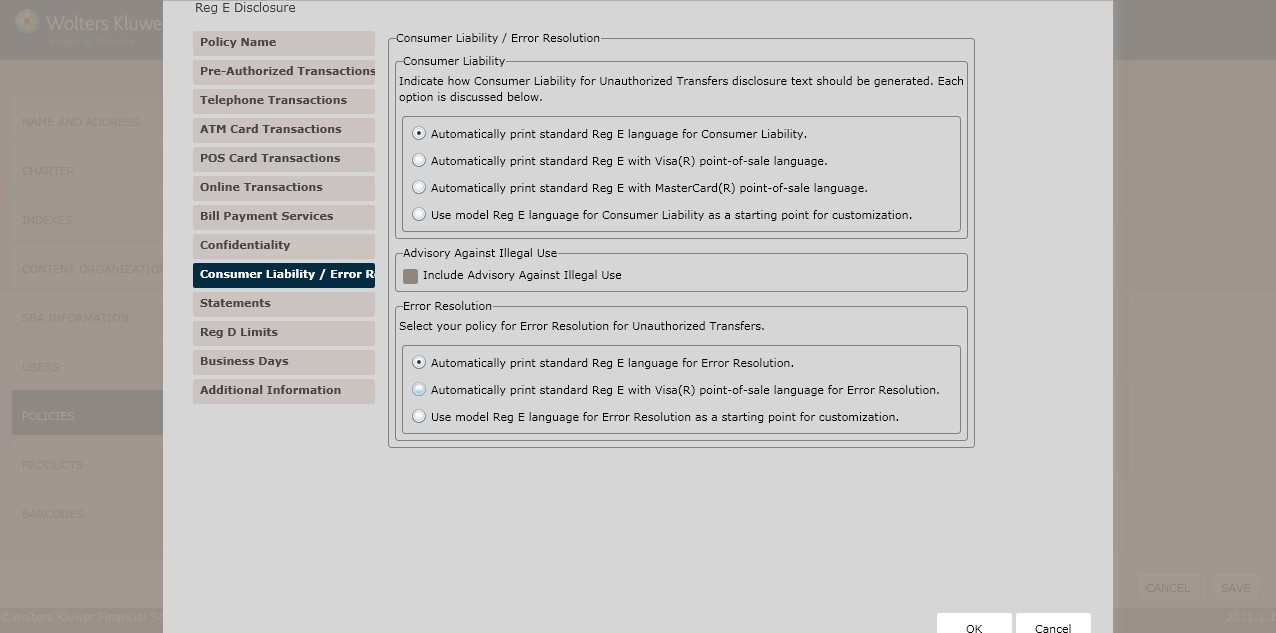
The Consumer Liabilitysection allows users to indicate how Consumer Liability for Unauthorized Transfersdisclosure text should be generated.Select one of the following options:
§ Automatically print standard Reg. E languagefor Consumer Liability
§ Automatically print standard Reg. E with Visa® with point-of-sale language
NOTE: SelectingAutomatically print standardReg. E with Visa® point-of-language disables the Advisory AgainstIllegal Use selection below.
§ Automatically print standard Reg. E with MasterCard® with point-of-sale language
§ Automatically print standard Reg. languagefor Consumer Liability as a startingpoint for customization.
If applicable, selectthe Include AdvisoryAgainst Illegal Usecheckbox.
Select one of the following policies for Error Resolution for Unauthorized Transfers:
§ Automatically print standard Reg. E language for Error Resolution
§ Automatically print standard Reg. E with Visa® point-of-sale languagefor Error Resolution.
§ Use modelReg. E. languagefor Error Resolution as a startingpoint for customization.
NOTE: Make any changesin the subsequent text box below the Use model Reg. E. language for Error Resolution as a startingpoint for customization selection.
§ For Michigan users,go to the Contact Information screen; for all other users,advance to the Statements screen.
 This screenallows users to enter contact information for the institution.
NOTE: Michiganlaw requires that notice of state and federalregulators be given in the event that the card holder believesthat the Michigan Electronic Funds Transferact has been violated.
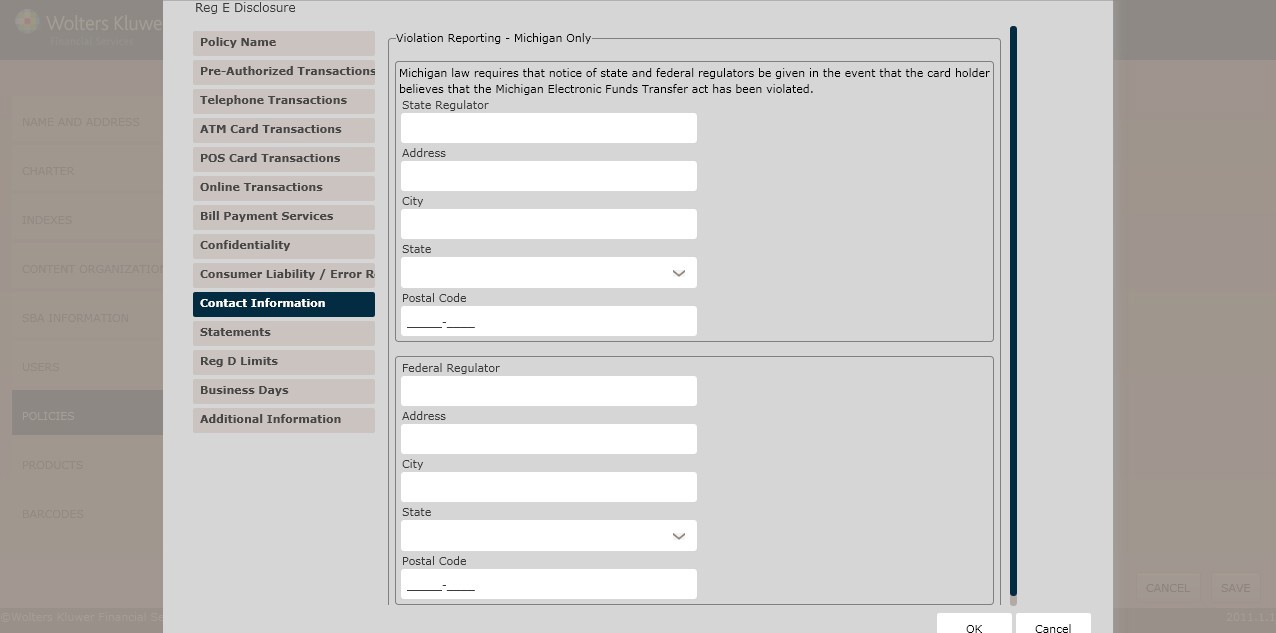
Enter the following contact information:
§ State Regulator
§ Address
§ City
§ State (select the desired statefrom the dropdownbox)
§ Postal Code
§ FederalRegulator
§ Address
§ City
§ State (selectthe desired state from the dropdownbox)
§ Postal Code
The Statements screen is used to create statementrules.
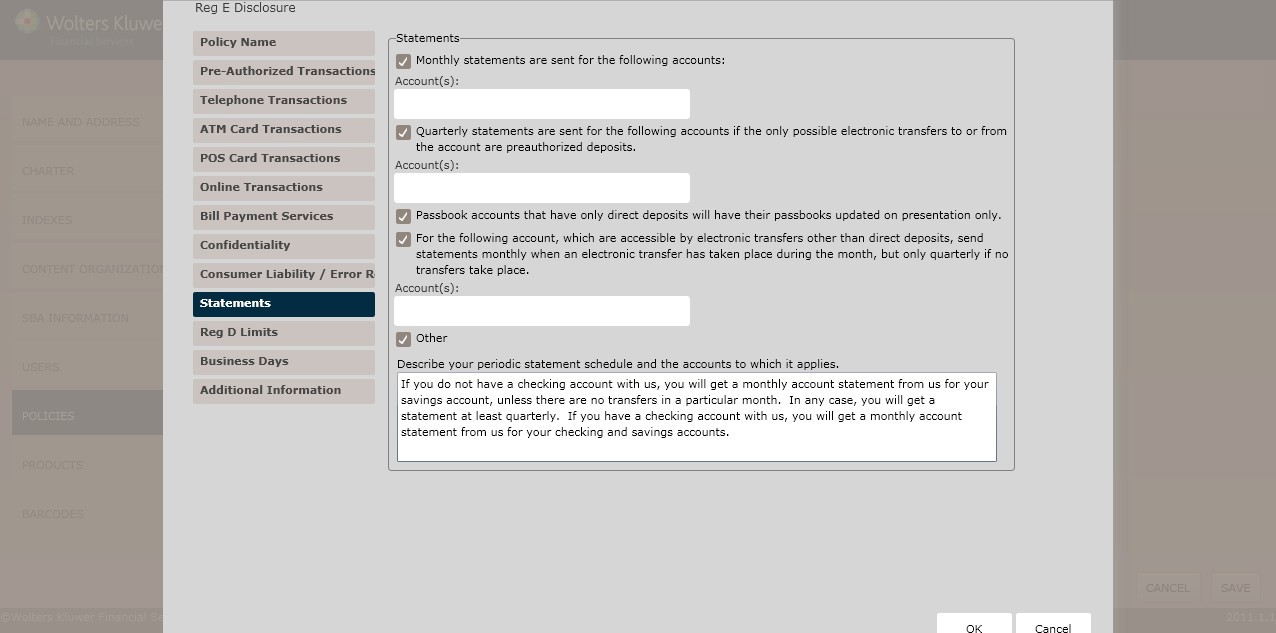
To specify monthlystatements will be sent for a particular account,click the Monthly statements are sent for the following accounts checkbox. Enter the Account(s) inthe field below.
§ To specifythat quarterly statementswill be sent if preauthorized deposits are the only allowable electronic transfers, click the Quarterlystatements are sent for the following accounts if the only possibleelectronic transfersto or from the account are preauthorized depositscheckbox.
§ Enter the Account(s) in the field below.
§ To specifypassbook account with only direct deposit are updated on presentation, click the Passbook accountsthat have only direct depositswill have their passbooks updated on presentation only checkbox.
§ To specifythat monthly statements are sent for a particular account when an electronic transferhas occurred, Click the For the following account, which are accessible by electronic transfers other than direct deposits, send statements monthlywhen an electronic transferhas taken place during the month, but only quarterlyif no transfers take place checkbox.
§ Enter the Account(s) in the field below.
§ To specifya statement schedulefor a particular account, perform the following:
§ Click the Other checkbox
§ Enter the periodic statement scheduleand the accounts to which it applies in the field below.
This screen allows you to limit certain transaction for an account to qualifyas a savings accountfor Regulation D reserve requirements.
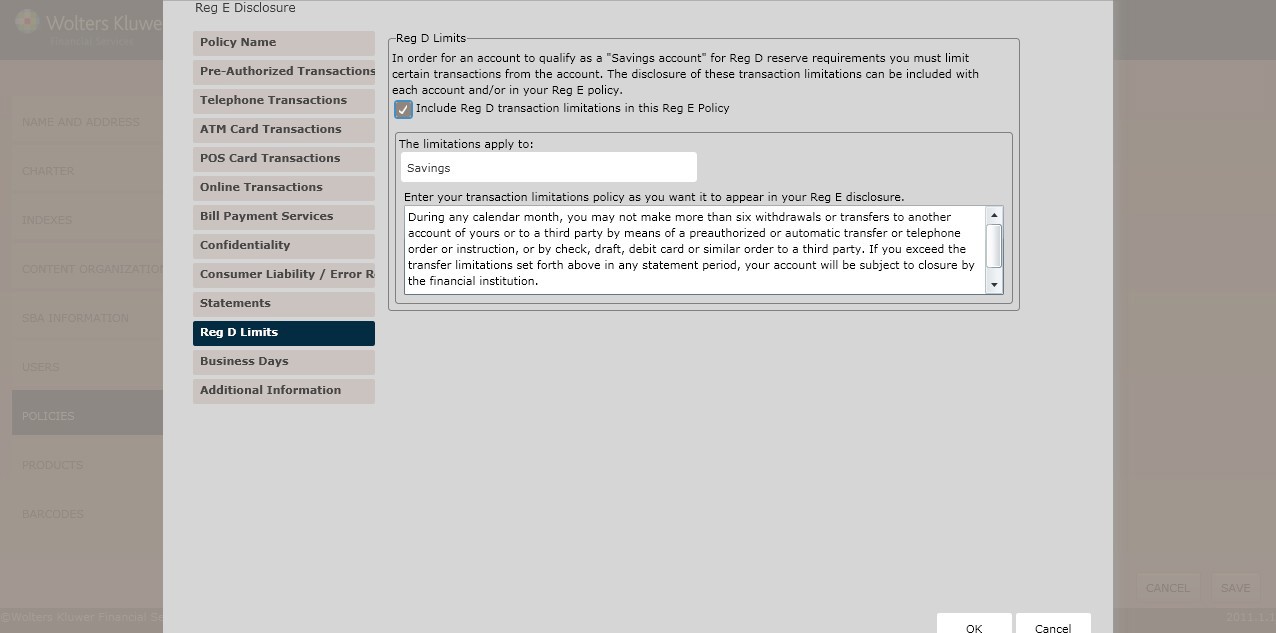
To include Reg. D transaction limitations in the Reg. E policy, click the IncludeReg. D transaction limitations in the Reg. E Policy checkbox.
§ If selectingthe Include Reg. D transaction limitations in the Reg. E Policyoption, select one of the following:
§ Checking and savings account(s) (*default)
§ Other
NOTE: If selecting Other, specifythe account type to which the limitations apply.
§ Enter the transaction limitations policy as you want it to appear in your Reg. E disclosurein the corresponding text box.
This screen allowsyou to determine the business days and hours. Businessdays (according to Regulation E) are those days you are open for substantially all of your functions. Unlikethe fundsavailability regulation (Reg CC), Saturdays and Sundayscould constitute business days under Reg E if all departments are open for some period of time.
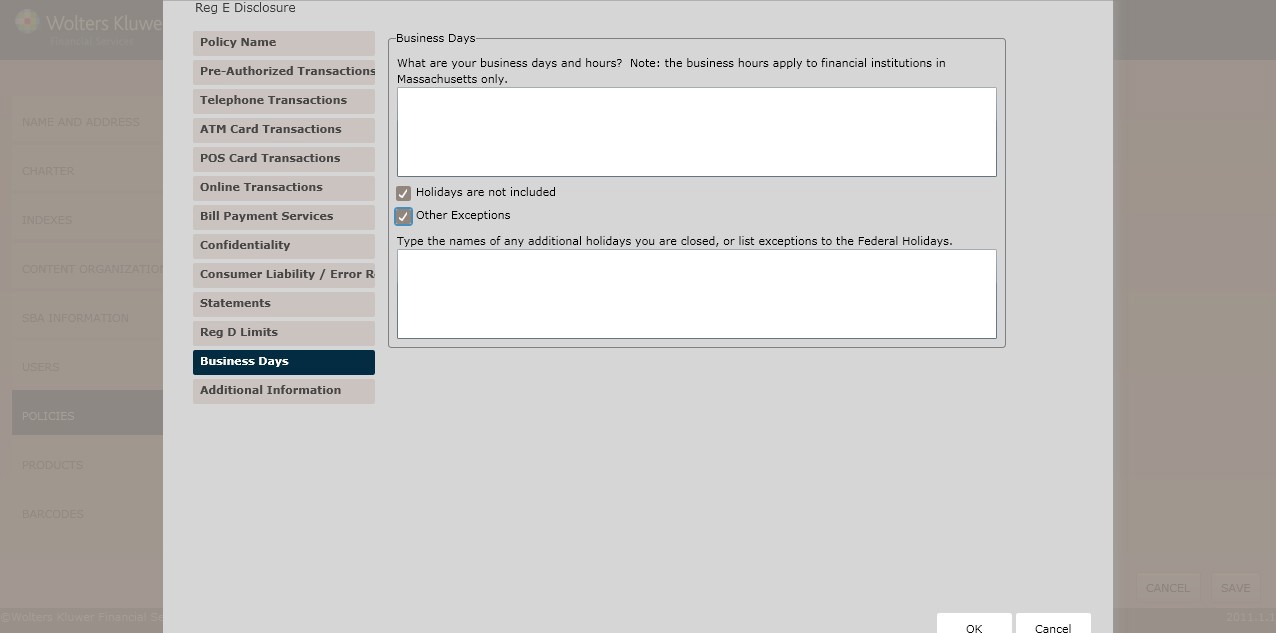
Specify the businessdays and hours in the field below.
§ If applicable, select the following:
§ Holidaysare not included
§ Other Exceptions
NOTE: If selecting Other Exceptions specify any additional holidaysin the field below.
This screenallows users to specify the following information:
§ SecurityLimitations
§ ATM User Precautions
§ Cross Border/International Transfers
§ EFT AgreementTerminations for Massachusetts and Minnesota
§ Termination Transaction Completion Time for Minnesota
§ MinimumAccount Balance for Massachusetts and Michigan
§ HealthSavings Accounts(HSAs)
§ Other Terms
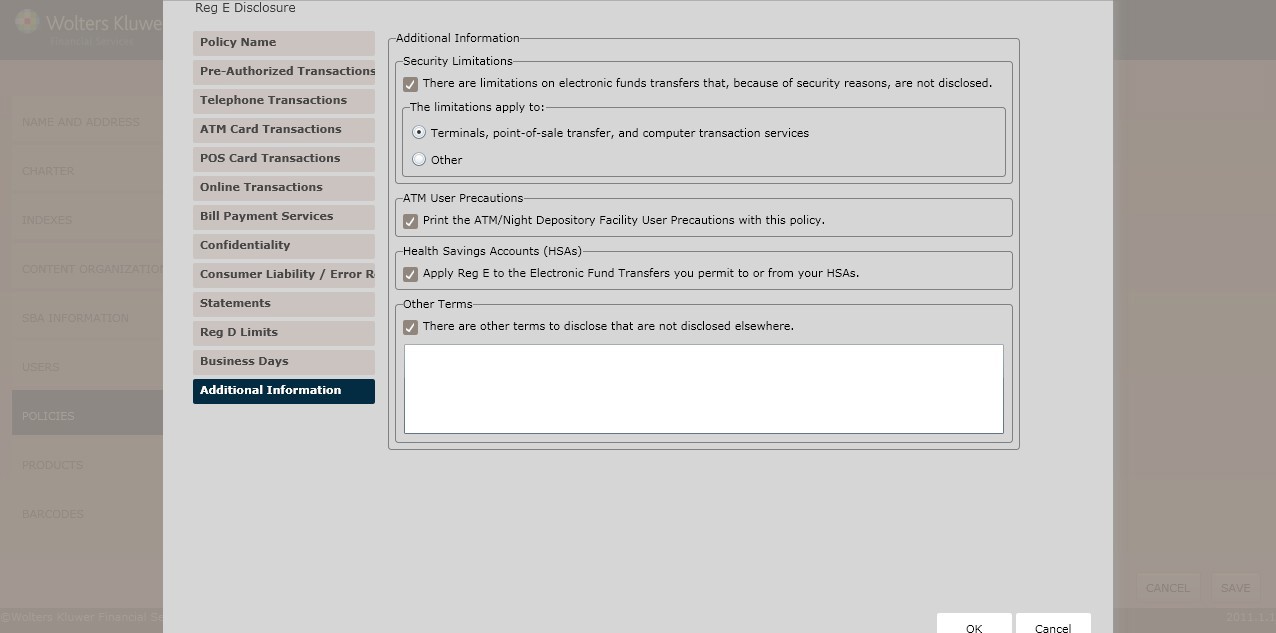
To specify any security limitation on electronic transfers, click the There are limitations on electronic transfers that,because of security reasons,are not disclosed checkbox.
§ Select one of the following:
§ Terminals, point-of-sale transfer, and computertransaction services (*default)
§ Other
NOTE: If selecting Other, specifyto what the limitations applyin the field below.
To print ATM/NightDepository Facility User Precautions, click the Print the ATM/NightDepository Facility User Precautions with this policycheckbox.
To disclose rules on how transactions in foreigncurrency are convertedto U.S. dollars,click the Disclose rules explaining how transactions in foreign currency will be converted to U.S. dollars checkbox.Depending on whether you chose VISA or Mastercard, select the corresponding button.
NOTE: The Cross Border/International Transfers section appears when selecting the following:
§ This disclosure includes a point-of-sale card, which can be used like a credit card except that it directly debitsthe cardholder's accounton the POS Card Transactions screen.
§ Either the Automatically print standard Reg E with VISA® point-of-sale languageor Automatically printstandard Reg E with MasterCard® point-of-sale languagefrom the Consumer Liability/Error Resolution screen.
§ Select one of the following:
§ Automatically printstandard VISA/Mastercard card currencyconversion and international transactionslanguage (*default)
§ Use VISA/Mastercard card foreigncurrency conversion and cross-border transactions language as a startingpoint
NOTE: the above optionsprovide sample text to use when creatingrules
To terminateany EFT agreements in Massachusetts and Minnesota, specifythe agreement rules or guidelines in the Account holders may terminatean electronic funds transfer agreement by field.
§ Specify the agreement rules in the We may terminate an electronic funds transfer agreement by field.
To specify the terminaltransaction completion time in Minnesota, Enter the time needed to complete terminaltransactions by selectingone of the following:
§ Withdrawals will normally be completed
§ Deposits will normally be completed
§ Transfers betweenaccounts will normallybe completed
§ Payments will normally be completed
§ Other
NOTE: If selecting Other, specifythe time in the field below.
To determine minimumaccount balancesin Massachusetts and Michigan, specifyminimum account balances for the following:
§ Checking
§ Enter the accountbalance in the corresponding text box.
§ Savings
§ Enter the accountbalance in the corresponding text box.
To apply Reg. E to HSAs, click the Apply Reg. E to the Electronic Fund Transfers you permit to and from your HSAs checkbox.
§ Select one of the following:
§ Wolters KluwerFinancial Service’sStandard HSA Language(*default)
§ Other
NOTE: If selecting Other, specifythe language to use in the field below.
To include relevantterms necessary to the Reg. E disclosure, click There are otherterms to disclosethat are not disclosed elsewhere checkbox.
§ Enter the terms in the field below.
§ Click OK to completethe policy creation process.The policy is now available to OPPSA users.
For information on displaying, editing,copying or deletingpolicies, see Creating and Managing Policies, earlierin this section.