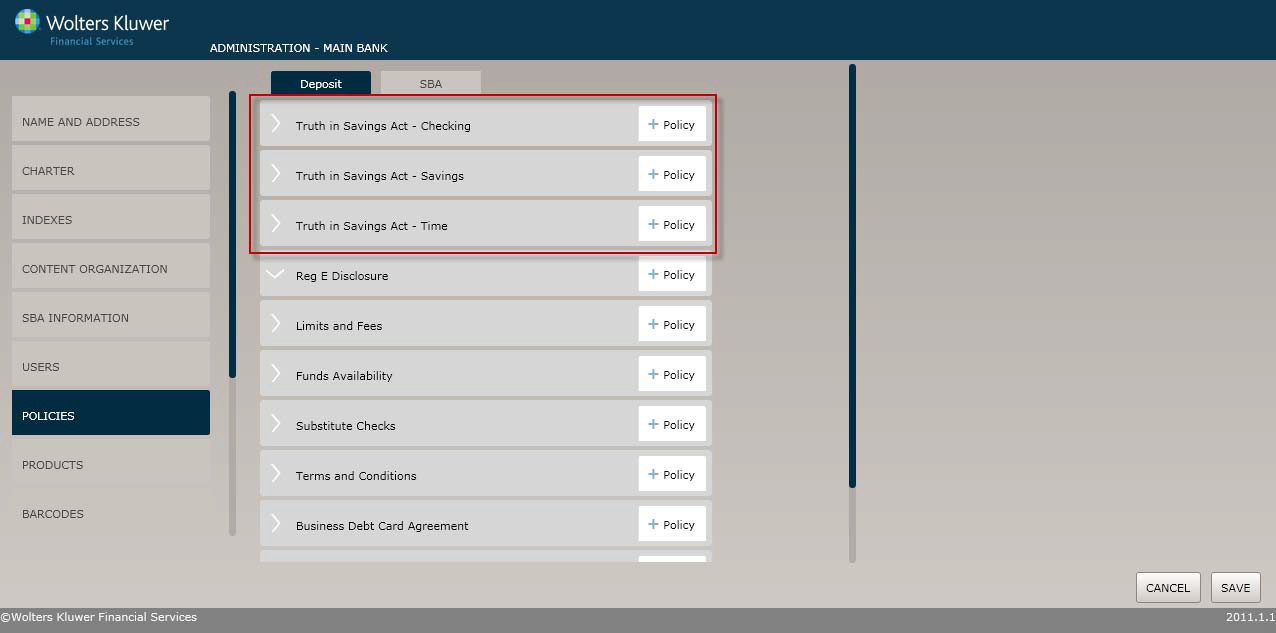
To create a new Truth-in-Savings policy, select the Policiesmenu option and click the Policy button for one of the following:
§ Truth in Savings - Checking
§ Truth in Savings – Savings
§ Truth in Savings– Time
Click the OK button at any time to save the policy information and make it availableto OPPSA users; however, keep in mind that the policywill close and save the information when you click OK. You will have to go to the menu screenand open the policy again to make additional changes.
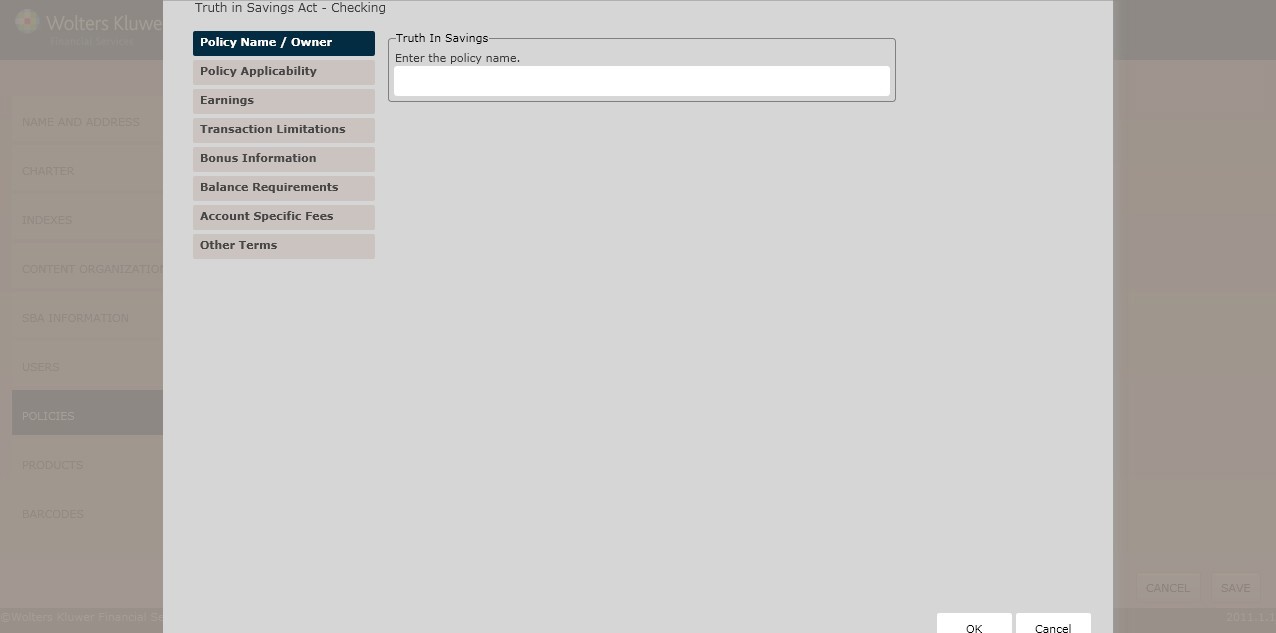
Enter the policy name. The Policy Name / Ownerscreen displays by default.Complete this screen and then click the optionimmediately under Policy Name / Owner, in this case Policy Applicability. Continue until you have completedeach screen.
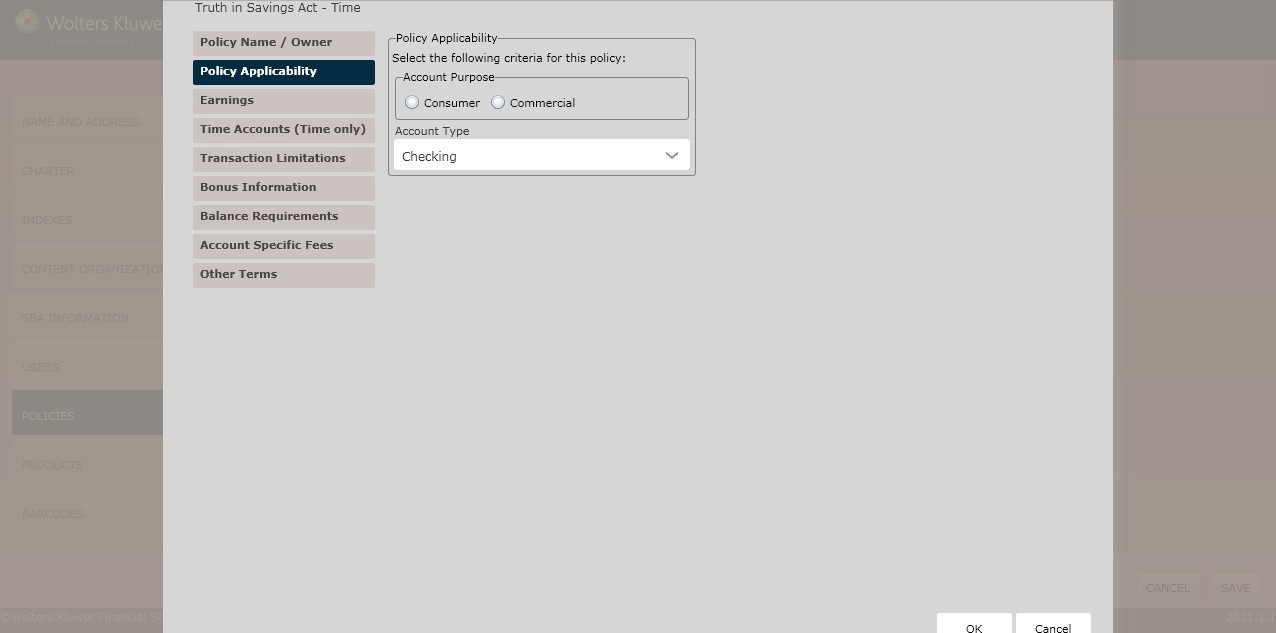
Select the account purpose:
§ Consumer- To use this policyfor IRA and HSA accounts, click the This policy may also be used for IRAs and HSAs checkbox.
§ Commercial
Select the account type:
§ Checking (*if choosing a checkingaccount policytype and consumer, commercial, or IRA/HSA account purpose)
§ Money Market (*if choosinga savings account policy type and consumer, commercial, or IRA/HSAaccount purpose)
§ Savings (*if choosinga savings account policy type and consumer, commercial, or IRA/HSA account purpose)
§ Time (*if choosing a time accountpolicy type and consumer, commercial, or IRA/HSA account purpose)
§ Club (*if choosing a time or savingsaccount policy type and consumeraccount purpose)
§ ETA (SM) (*if choosing a checkingor savings accountpolicy type and consumeraccount purpose)
§ Basic Banking (NY Only) (*ifchoosing a checkingaccount policy type and consumeraccount purpose)
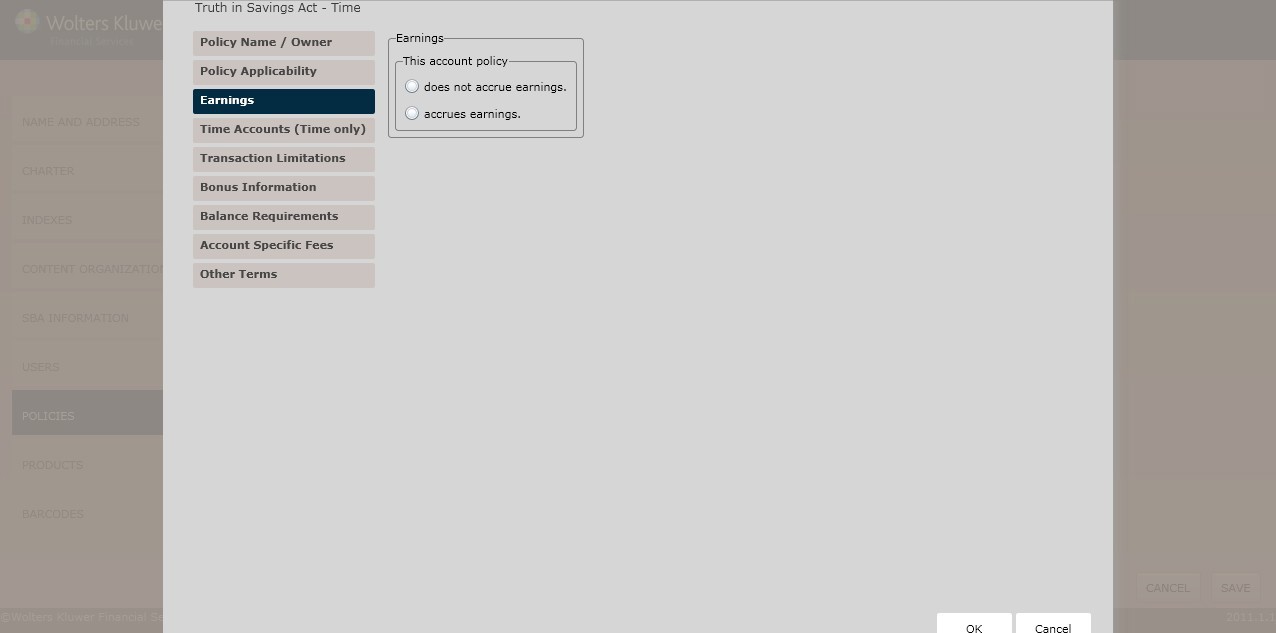
Select one of the following:
§ Does not accrue earnings
§ Accrues earnings
NOTE: If you selectaccrues earnings, complete the information below.
Determine the Rate Type by selectingone of the following:
§ Fixed (*default)
§ Determine the Rate Structure byselecting one of the following:
§ Single; enter the APY andRate in the Single Rate section.
§ Tier A; enter tier information in the Tier A – Fixed Rate or Variable Rate without Index section.
§ Tier B; enter tier information in the Tier B – Fixed Rate or Variable Rate without Index section
§ Stepped; enter the stepped information in the SteppedRate section.
§ Exchange; enter the exchange information in the Exchange Rate section.
§ Variable
§ To tie the rate to an index, click The rate is tied to an index checkbox.
§ Determinethe Rate Structure. See Fixed abovefor more information.
Select one of the following from the Compounding Frequency dropdown box:
§ Daily
§ Weekly
§ Bi-weekly
§ Monthly
§ Quarterly
§ Semi-annually
§ Annually
§ Continuous
§ No compounding/simple
§ Semimonthly
Select one of the following from the CreditingFrequency dropdown box:
§ Daily
§ Weekly
§ Bi-weekly
§ Monthly
§ Semi-monthly
§ Quarterly
§ Semi-annually
§ Annually
§ At maturity
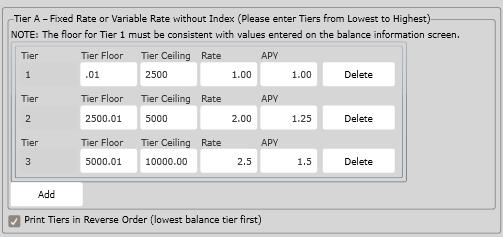
Enter Tier information in Lowest to Highest order.
By default, Tier information will display on the PDF in highest to lowest order. To display Tier information in lowest to highest order, select ‘Print Tiers in Reverse Order (lowest balance tier first)’ checkbox.
To determine a payment of earnings policy,select one of the followingfrom the General Policy for Payment of Earnings section:
§ Adding it to the accountbalance
§ If necessary, click the If this accountis closed before a creditingdate, the accountholder will forfeitany accrued, but uncredited earningscheckbox.
§ Creditingit to another balance
§ If necessary, click the Credited earnings are required to be withdrawn and cannot be added to the accountbalance checkbox.
§ If necessary, click the If this accountis closed before a creditingdate, the accountholder will forfeitany accrued, but uncredited earningscheckbox.
§ Mailed by check
§ If necessary, click the Credited earnings are required to be withdrawn and cannot be added to the accountbalance checkbox.
If necessary, click the If this accountis closed beforea crediting date, the accountholder will forfeit any accrued, but uncredited earningscheckbox.
If selecting Variable frequency rate and a particular Compounding Frequency, the VariableRate Information section appears. Select one of the following Rate ChangeFrequency options:
§ Daily
§ Weekly
§ Every Other Week
§ Monthly
§ Quarterly
§ Semiannually
§ Annually
§ At any time
To establish a Floor, click the corresponding checkbox. Enter the lowest rate applicable in the corresponding field.
To establish a Ceiling, click the corresponding checkbox. Enter the highest rate applicable in the corresponding field.
To specify that an InitialRate Applies, click the corresponding checkbox.
§ To establisha Fixed Rate Type, click the corresponding checkbox. Enter the rate in the
§ Fixed InitialRate text box.
§ Enter a rate in the Initial Rate field.
§ Enter a rate term in the Initial Rate Term field. Select one of the following:
§ Day(s)
§ Month(s)
§ Week(s)
§ Year(s)
Determine if a PeriodicRate Change Limit Applies byclicking the corresponding checkbox.
§ Enter a Periodic Rate ChangeLimit in the corresponding text box.
§ Enter a Periodic Rate ChangeTerm in the corresponding text box. Select one of the following:
§ Day(s)
§ Month(s)
§ Week(s)
§ Year(s)
To determine SingleRate information, provideinformation in the followingfields:
§ APY
§ Rate
In the Balance Computation Method section, select the method used to determine the balance on which earnings are paid:
§ Daily Balance
§ AverageDaily Balance
To determine the method used to determine the balance on which earnings are paid, click Other; enter the following:
§ Balance Computation Method Name
§ Enter the methodin the corresponding text box.
In the Noncash Deposits section, determine when a noncash item will accrue earnings after being deposited. Select one of the following:
§ Day of Deposit
§ First BusinessDay After Deposit
§ Business Day Receive Credit
§ Other
NOTE: If selecting Other, Enter when earnings begin to accrue on noncash deposits in the corresponding text box.
Complete the following fields for Time Accountsonly.
(*If selecting a Savings Account)Determine how the Early Withdrawal Penalty by selecting one of the following:
§ No penaltyapplies because principal withdrawals are strictlyprohibited within seven days of the depositand any other permitted withdrawals are without penalty(*default)
§ An early withdrawal penaltymay/will be imposed
§ Determine if The penalty may/willbe imposed byselecting one of the following:
§ The penalty may be imposed; select the penalty criteriaby selecting one of the following:
§ SpecificValue; enter the value in the corresponding field. Amount Withdrawn; in The early withdrawal penaltyamount is equal to section,select one of the following:
§ One, three,or six months earnings;select one of the following:
§ Seven days’ earnings if the withdrawal is made withinthe first six days after deposit
§ The greaterof all earnings on the amount withdrawnor seven days’earnings on the amount withdrawn
§ Other
NOTE: if selectingOther, Enter the early withdrawal penalty for this account in the corresponding field.
§ The penalty will be imposed; ; select the penalty criteriaby selecting one of the following:
§ Specific Value; enter the value in the corresponding field.
§ Amount Withdrawn; in The early withdrawal penalty amount is equal to section, select one of the following:
§ One, three,or six months earnings;select one of the following:
§ Seven days’ earnings if the withdrawal is made withinthe first six days after deposit
§ The greaterof all earnings on the amount withdrawnor seven days’ earnings on the amount withdrawn
§ Other
NOTE: if selectingOther, Enter the early withdrawal penalty for this accountin the corresponding field.
§ If selecting the An early withdrawal penalty may/willbe imposed option button, determine if the rate used to calculatethe early withdrawal penaltyis one of the following in the Early Withdrawal Penalties – VariableRate Accounts section:
§ The rate in effect at the time of withdrawal
§ The rate in effect at the beginning of the term
§ The average of the rates in effect during the term
§ The highestrate in effect during the time
§ Other;Enter the rate used to calculatethe early withdrawal penalty in the corresponding field.
In the Early Withdrawal PenaltyRate Reduction section, determine the effect on the rate when an early withdrawal is made; select one of the following:
§ The rate for the remainder of the term will not be reduced
§ The rate may/willbe reduced for the remainder of the term; selectone of the following:
§ The penaltymay be imposed
§ The penaltywill be imposed
§ Determineif the reduced rate is based on the following:
§ Specific Value;enter the Reduced Rate and Specific APY in the corresponding fields.
§ Other; Enter your policy for the early withdrawal penaltyrate reduction in the corresponding text box.
(*If selecting a Time Account) Determine the Maturity Type by selecting one of the following:
§ AutomaticRenewal; enter the Term of Accountin the corresponding text box.
§ For accountswith Automatic Renewals, determinewhether a Grace Period Applies by clicking the corresponding checkbox. Enter a Grace Period inthe corresponding field. Select one of the following:
§ Business Days
§ Calendar Days
In the AutomaticRenewal Prevention section, determinewhen an accountholder may prevent renewal by selecting one of the following options:
§ Providingthe notice prior to maturity or during the grace period; select one of the following methods to providethe notice:
§ Telephone
§ Written
§ Writtenor telephone
§ Withdrawing the funds at maturity or during the grace period
§ Other; Enter the methodsby which an account holdermay prevent renewalof this account in the corresponding field.
To apply callablefeatures, clickthe Callable Feature Appliescheckbox.
§ To allow an accountto be called in advanceby the accountholder, click the Account can be calledby advanced notice to the account holder option button. Determine when the account can be called by selectingone of the following:
§ With a 30 Day Notice
§ With a 10 Day Notice
§ At Any Time
§ To specifya different policyfor calling an account, clickOther; enter the policy in the corresponding field.
§ Single Maturity(fixed term, no automatic renewal); enter the Term of Account in the corresponding field.
§ Required Notice; in the Required Fields section, perform the following:
§ Specifythe amount of time the accountholder must provideadvance notice in The account holder must provideadvance notice of at least field. Select one of the following:
§ Business Days
§ Calendar Days
§ To specifyan Alternate Maturity Type, select one of the following:
§ Date; enter an Alternate Maturity Date in the corresponding field.
§ Period; enter an AlternateMaturity Periodin the corresponding field.Select one of the following: Month(s), Week(s), Year(s),Day(s), No AlternateMaturity
Earnings Upon Final Maturity
(*If selectinga Time Account) Determine how the Earnings Upon Final Maturitywill be handled by selecting one of the following:
§ Interest/Dividend BearingAccount
§ Non Interest/Dividend Bearing Account
§ Paid to Account Holder
§ Other; Enteryour policy for earningsafter final maturity in the corresponding text box.
This screenallows users to configure transaction information.
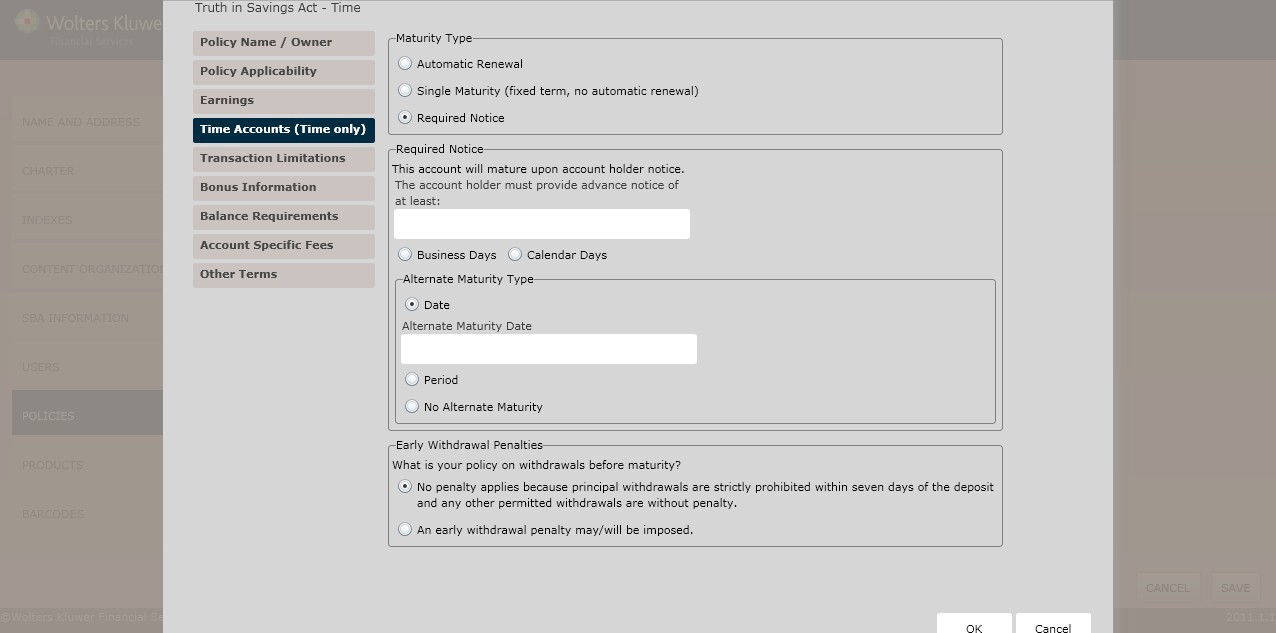
NOTE: This screen only appears when you selecting Time fromthe Policy Applicability screen.
Select one of the following:
§  AutomaticRenewal (see AutomaticRenewal below)
§ Single Maturity(fixed term, no automatic renewal); complete the Term of Accountfield.
§ Required notice(see RequiredNotice below)
§ In the Renewal Term section, select one of the following:
§ Same as original term
§ Other; enter the renewalterm for the account in the corresponding field.
§ In the Renewal Rate section, select one of the following:
§ Same rate we offer on new accountswith the same term
§ Other; enter the details regarding how the rate will be determined at renewal in the corresponding textbox.
§ If necessary, click the Grace PeriodApplies checkbox; enterthe Grace Period. Clarifythe grace periodby selecting one of the following:
§ Business Days
§ Calendar Days
An account holder may preventrenewal by selectingone of the following:
§ Providingthe notice prior to maturity or during the grace period
§ Withdrawing the funds at maturity or duringthe grace period
§ Other; enter the methodsby which the accountholder may prevent renewalof this accountby completing the corresponding textbox.
If necessary, click the Callable FeatureApplies checkbox; see Callable Account Optionsbelow for more information.
Select one of the following:
§ Accountcan be called by advanced notice to the account holder; select one of the following from the This account can be called section:
§ With a 30 Day Notice
§ With a 10 Day Notice
§ At Any Time
§ Other; completethe Enter your policy for calling this account field.
The account holdermust give advancenotice by performing the following:
§ Completing The accountholder must provide advance noticeof at least:field; selectone of the following option buttons:
§ Business Days
§ Calendar Days
§ From the Alternate MaturityType section, select one of the following types:
§ Date
Determine how unwithdrawn funds will be handled upon final maturity by selecting one of the following:
§ Interest/Dividend BearingAccount
§ Non Interest/Dividend Bearing Account
§ Paid to Account Holder
§ Other
Determine your policy on withdrawals before maturity by selecting one of the following:
§ No penalty applies because principal withdrawals are strictlyprohibited within sevendays of the deposit and any other permittedwithdrawals are withoutpenalty.
§ An early withdrawal penaltymay/will be imposed.
This screen allows users to configure the following transaction limitations:
§ Deposit Frequency Limitations
§ Deposit AmountLimitations
§ Earnings Withdrawal Limitations
§ Principal Withdrawal Limitations
§ WithdrawalLimitations
§ Savings AccountWithdrawal Limitations
§ Club AccountWithdrawal Limitations
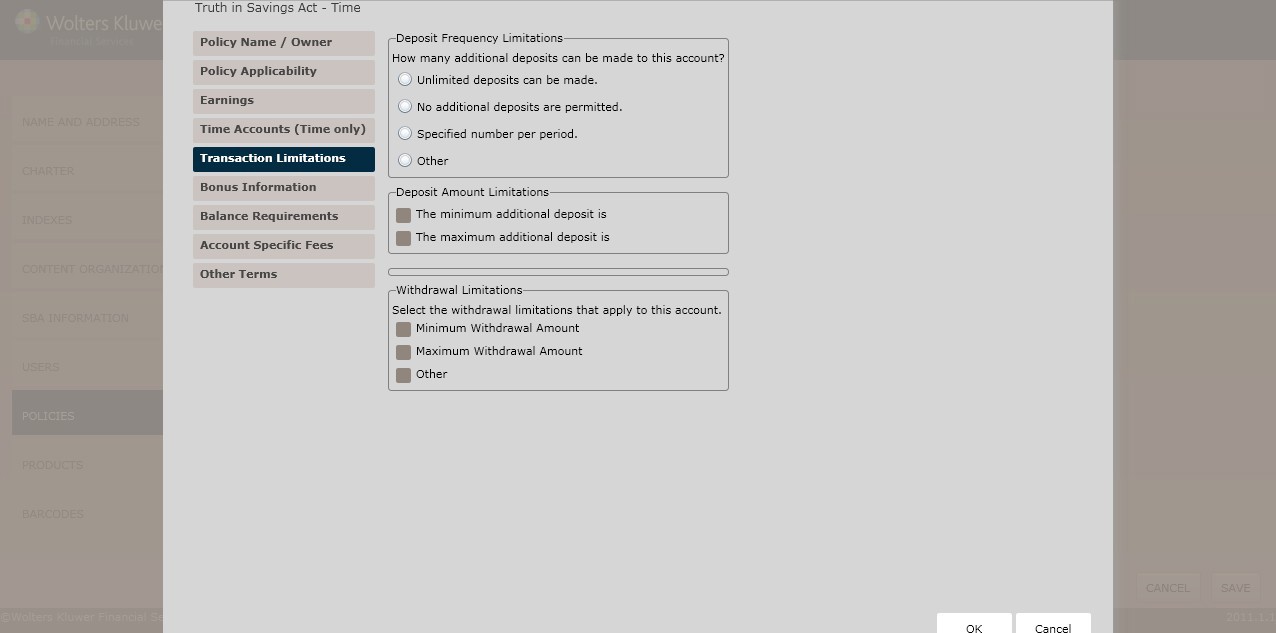
NOTE: Dependingon the Account Type selected from the Policy Applicability screen, not all options will appear.
(*If selecting a Checking or Savings Account) In the Deposit Frequency Limitations section, determine if any additional deposits can be made to the account; select one of the following:
§ Unlimited Depositscan be made (*default)
§ No additional depositsare permitted
§ Specifiednumber per period;perform the following:
§ Enter the numberin the No more than field.
§ Determinethe frequency by selecting one of the following: Day, Month, Quarter,Year, Other.
NOTE: If selecting Other,Enter your policy for deposit frequencylimitations in the corresponding textbox.
(*If selecting a Checking or Savings Account) In the Deposit Amount Limitations section, determine if minimum and maximum additional deposit limitations exist by selecting either of the following checkboxes:
§ The minimumadditional deposit; enter the deposit amountin the corresponding text box.
§ The maximumadditional deposit; enter the depositamount in the corresponding text box.
(*If selecting a Time Account) Determine how additional depositsto the account will affect the maturity date in the Deposit Limitations – Effect on Maturitysection. Select one of the following:
§ The maturitydate will remainthe same;
§ A new maturity date will be established for the entireaccount balance. The account will mature at the end of a period equal to the original terms
(*If selecting a Savings Account)Determine the Savings Account Withdrawal Limitations; according to Regulation D requirements, users must limit certaintransactions in order to qualify as a savingsaccount. Clickthe Include Reg. D Transaction Limitations with this account checkbox.
§ Enter your policy for withdrawal limitations for Reg. D in the corresponding field.
(*If selecting a Time Account) Determine your policy on withdrawing principal for the account in the PrincipalWithdrawal Limitations section. Select one of the following from the dropdown box:
§ Principalmay not be withdrawn duringthe term
§ Principalmay be withdrawn during the term only if we agree,subject topenalty
§ Unlimitedwithdrawals may be made duringthe term, subject to penalty.
§ Other
NOTE: If selecting Other, Enter your policy for withdrawal frequencylimitations in the corresponding textbox.
(*If selecting a Time Account)Determine your policy on withdrawing earnings for this account in the EarningsWithdrawal Section. Selectone of the following:
§ Earningsmay not be withdrawn during the term
§ Earningsmay be withdrawn without penalty; performthe following:
§ In the Whattype of earning can be withdrawn from this account during the term section, select one of the following:
§ Accrued Earning
§ CreditedEarning; determine when Earningscan be withdrawn by selecting one of the following: Only on creditingdate, Any time after crediting, Other; Enter your policy for earnings withdrawal limitations in the corresponding field.
§ Earnings may be withdrawn, subject to penalty
§ Earningsmay be withdrawn only if we arrange a periodicpayment option; see above for additional details.
§ Other
(*If selecting a Checking or Savings Account) In the WithdrawalLimitations section, select any of the withdrawal limitations that apply to the account:
§ Four cash withdrawals and four balance inquires per month are permitted with additional fee. The account may be accessedfor cash withdrawals and balanceinquires only through proprietary ATMs or in person at one of our tellers.
§ Onlinepoint-of-sale purchases, cash withdrawals and cash-backpurchases are also available with no additional fee.
§ Other
NOTE: If selecting Other, Enter your policy for other withdrawal limitation amounts in the corresponding text box.
(*If selecting a Savings Accountwith a Club option) Determine the Club Account Withdrawal Limitations by clickingThe account may/willbe closed checkbox. Select one of the following:
§ The account may be closed
§ The account will be closed
§ In the If section, selectthe number of withdrawals that can be made before a certain date. Enter the date in the corresponding field; select one of the following:
§ Any
§ One
§ Two
§ Three
§ Other; Enteryour policy on withdrawals from the club account in the corresponding field.
The Bonus Information screen allows users to offer bonuses worth more than $10.00in exchange for the following:
§ Opening,maintaining, or renewingan account
§ Increasing the balance
This screen also allows users to configure periodic deposit amounts.
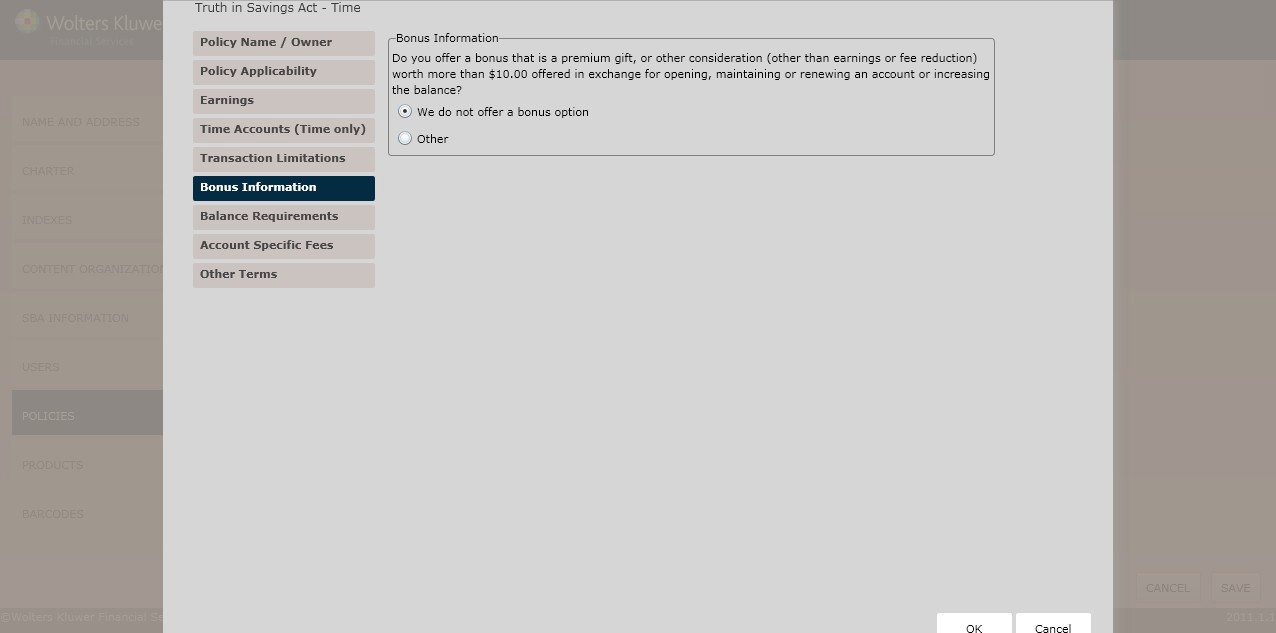
NOTE: The Bonus Information option is only available for Time/Club users.
Select one of the following:
§ We do not offer a bonus option(*default)
§ (*If selectinga Club/Savings Account) If the account holder makes the following number of consecutive deposits, we will make the next consecutive deposit;enter the Number of Consecutive Depositsin the corresponding field.
§ (*If selectinga Club/Savings Account) If deposits are made totaling a prearranged periodic amount withina specified timeframe, we will contribute a bonus equalto the periodic amount; complete the following fields:
§ Deposits must exceed
§ Times the prearranged periodicamount by the following date
§ Other
NOTE: If selecting Other, Enter the bonus policyfor this account in the corresponding text box.
§ If selectingone of the followingoptions in the Bonus Information section,advance to the Periodic Deposit Amountsection:
§ If the account holdermakes the following numberof consecutive deposits, we will make the next consecutive deposit
§ If deposits are made totalinga prearranged periodicamount within a specifiedtimeframe, we will contribute a bonus equalto the periodic amount
In the Periodic Deposit Amount section, select one of the following options that define the periodic deposit amount for this policy:
§ We do not want to disclosea specific periodicdeposit amount
§ The periodicdeposit amount falls within a range of values for a specifictime period; specify the following:
§ Minimum Amount
§ Maximum Amount
§ Frequency
§ The periodicdeposit amount is a specific value for a specifictime period; specify the Amount in the corresponding field.
§ Other;Enter the periodic depositamount for this policy in the corresponding field.
The Balance Requirements screen allows users to determine the following requirements for a particular account:
§ Balance Requirements
§ Minimum Balance
NOTE: When selectingETM fromthe Policy Applicability screen, the Balance Requirements screen defaultsto No minimum balance requirements apply.
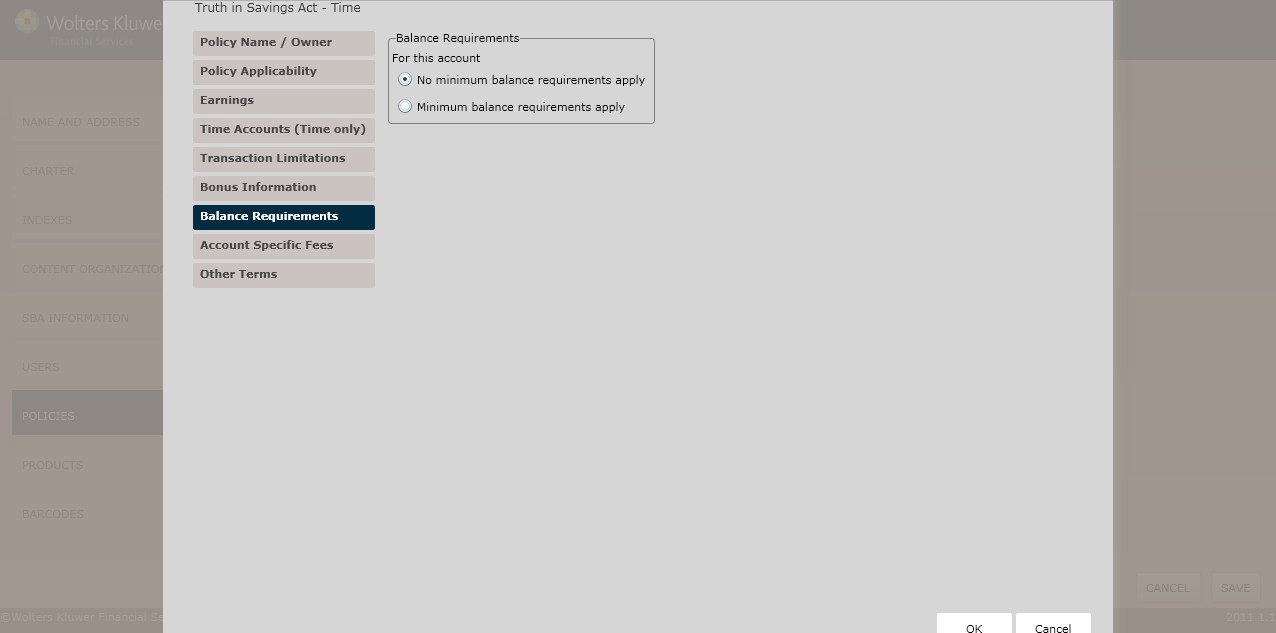
Select one of the following to determinethe Balance Requirements:
§ No minimumbalance requirements apply (*default)
§ Minimum balancerequirements apply
§ If selecting the Minimumbalance requirements apply checkbox, selecteither of the following:
§ There are minimumbalance requirements to open this account; to determine a minimum balance requirement open an account,select one of the following:
Minimum Balance to Open Account
§ Minimum BalanceAccount; enter the amount in the corresponding field.
§ Other;Enter any other minimumbalance or relatedconditions that apply in the corresponding text box.
§ (*If selectinga Checking/Share Draft,Money Market, Savings/Share Savings, Time/Term Share Account, Club, or Basic Bankingaccount and allowing this accountto accrue earnings) There are minimumbalance requirements below which no earningswill be paid on this account; in the Minimum Balanceto Earn Rate section, select one of the following balance computation methodsused to earn the disclosedrate:
§ Average Daily Balance. Enter the amountin the corresponding field; selectone of the following:
§ Daily
§ Weekly
§ Bi-weekly
§ Monthly
§ Quarterly
§ Semi-Annually
§ Annually
§ Daily Balance; enterthe amount in the corresponding field.
§ InvestableBalance; enter the amount in the corresponding field.
§ Computation Method; enter the Name and Method in the corresponding fields.
§ Other; Enter any otherminimum balance requirements necessary to earn the disclosed rate in the corresponding field.
§ (*If selectinga Checking/Share Draft,Money Market, Savings/Share Savings, Time/Term Share Account, Club or Basic Bankingaccount) There are minimumbalance requirements to avoid fees; selectone of the following:
Select the balancecomputation method(s) that will be used to earn the disclosedrate.
§ Average DailyBalance
§ — Enter the Amount in the corresponding field (in dollars).
§ Daily Balance
§ Enter the Daily Balance inthe corresponding field (in dollars).
§ Computation Method
§ Enter the Name and the Amount (in dollars).
§ Other
§ Completethe Enter any other minimum balancerequirements necessaryto earn the disclosed rate textbox.
§ The fees are assessed are based on somethingother than a singled balance (Tiered Balance); Enter the minimum balancerequirements necessary to avoidthis fee in the corresponding field. Enter the Fee Rulesin the corresponding field.
§ The fees assessed are based on a singlebalance; performthe following:
§ Enter a Fee Name in the corresponding field.
§ Select one of the followingfrom the Balance Method dropdown:
§ Daily Balance; completethe fields in the MinimumSingle Balance to AvoidFees – Detailssection.
§ AverageDaily Balance; complete the fieldsin the Minimum Average Balanceto Avoid Fees – Detailssection.
§ Both/Either; completethe fields in the Both BalanceMethods – Details section.
§ (*If selectinga Basic Bankingaccount) Complete the fieldsin the There are minimum balancerequirements to maintainthe account section.
§ Select one of the followingfrom the Fee AppliedEvery dropdown box:
§ Day
§ PeriodicCycle
§ Week
§ Month
§ Quarter
§ Year
§ Statement Cycle
§ Other
NOTE: ClickDelete to delete a particular fee; click Add to add another fee.
The Account Specific Fees screenallows users to apply fees tothe account; these fees are not itemized elsewhere.
§ Click Next to advance to the Bonus Information screen.
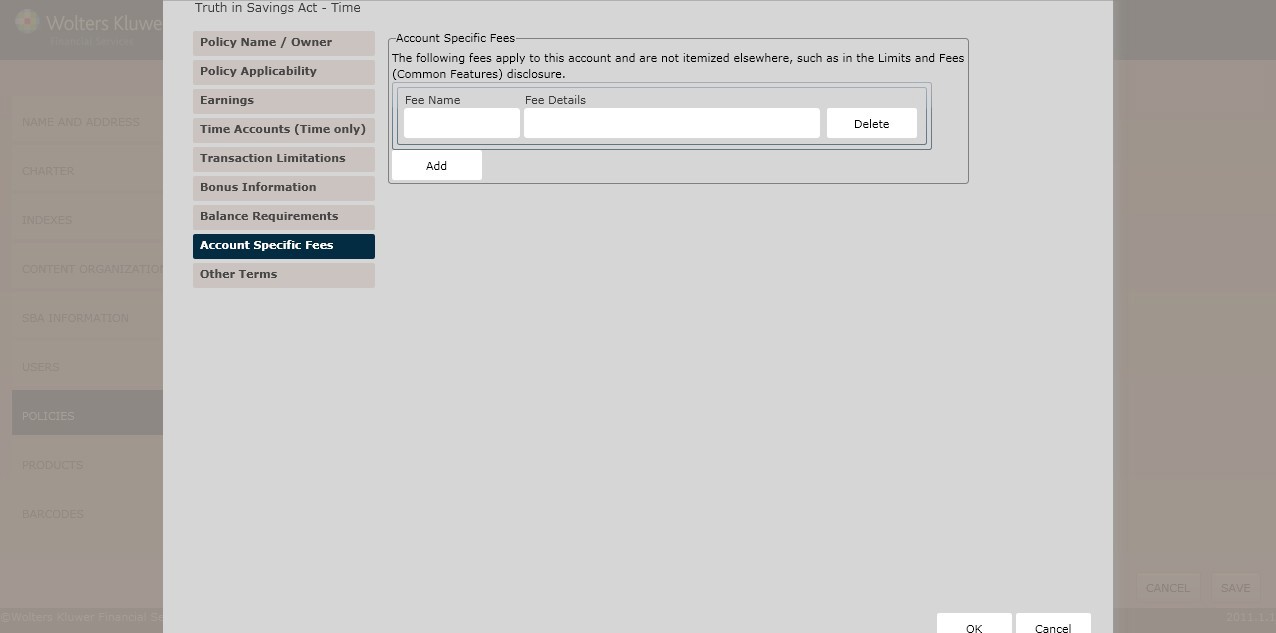
Complete the followinginformation:
§ Fee Name
§ Fee Details
NOTE: Click Delete to delete the fee from the policy; click Add toadd new fees to the policy.
 This screen allowsusers to enter additionaldisclosure terms tothe policy.
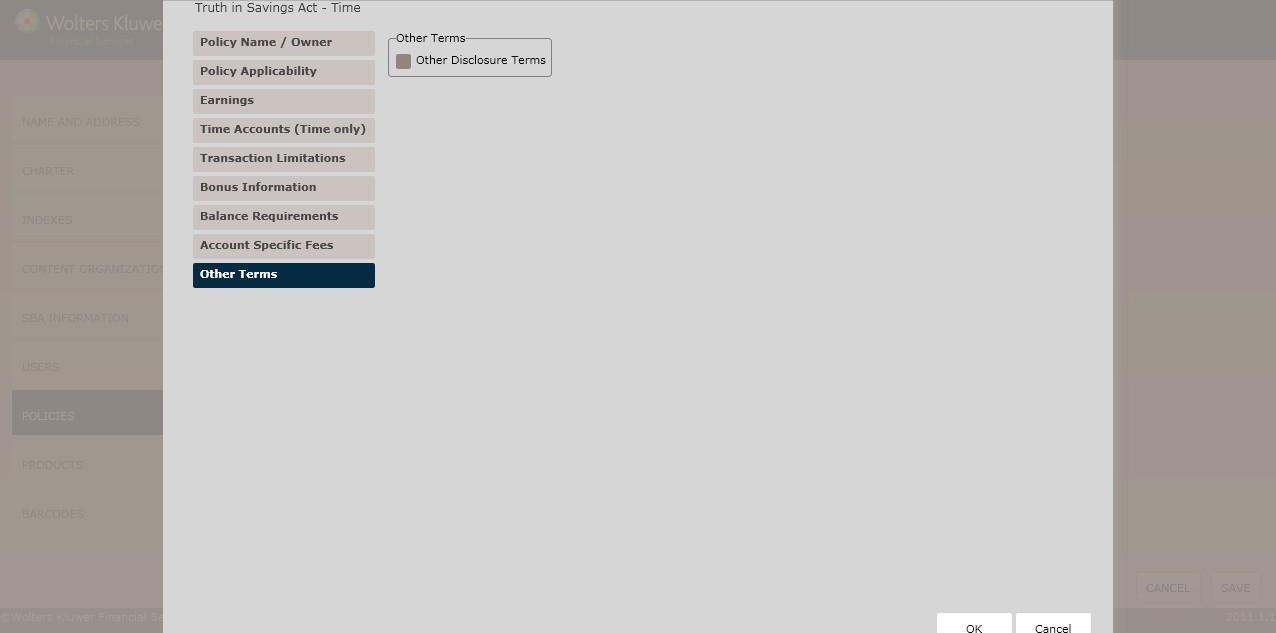
To enter additional disclosure terms, click the Other Disclosure Terms checkbox. Enter any additional disclosure terms to print on the account disclosure in the corresponding field. For information on displaying, editing, copying or deleting policies, see Creating and Managing Policies, earlier in this section.
§ (*If selecting a Basic BankingAccount) In the Periodic Cycle – New York Only section, click The periodic cycle we use is:checkbox. Enter information in the corresponding field.
§ Click OK to completethe Account Policy (TISA) creationprocess. The policy is now availableto OPPSA users.
NOTE: If there are errors or missinginformation, you need to resolvethem before you can save the policy.