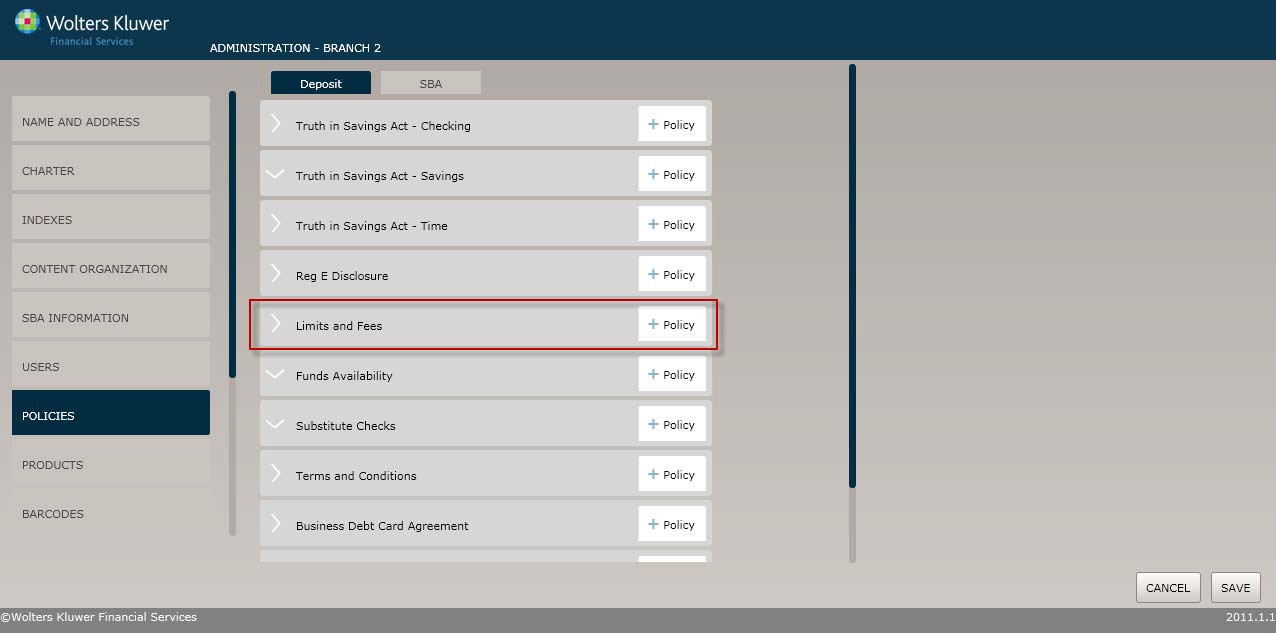
Select the Policiesmenu option and cClickthe Policy button for the Limitsand Fees option.
Click the OK button at any time to save the policy information and make it availableto OPPSA users; however, keep in mind that the policywill close and save the information when you click OK. You will have to go to the menu screenand open the policy again to make additional changes.
The Policy Name/Owner screen allows users to perform the following for the policy:
§ Create a policy name
§ Establish limitsand fees for the policy
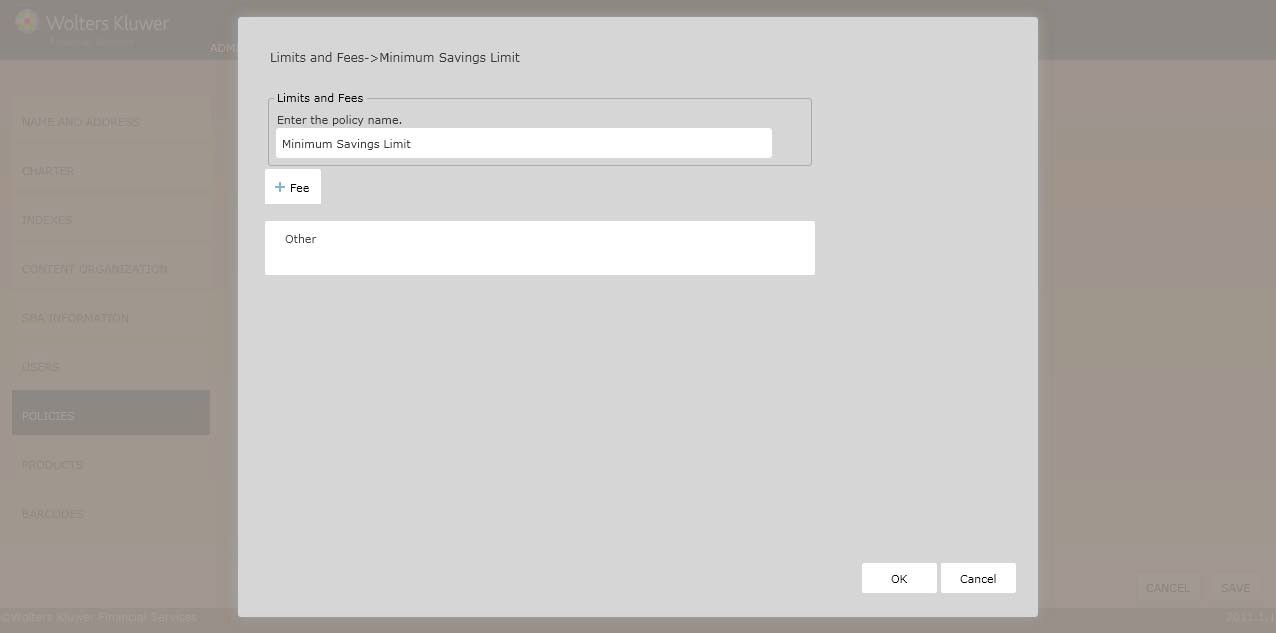
In the Enter the policy name field, enter the name of the new policy.
Click the Fee button. The Fee Name screen displays.
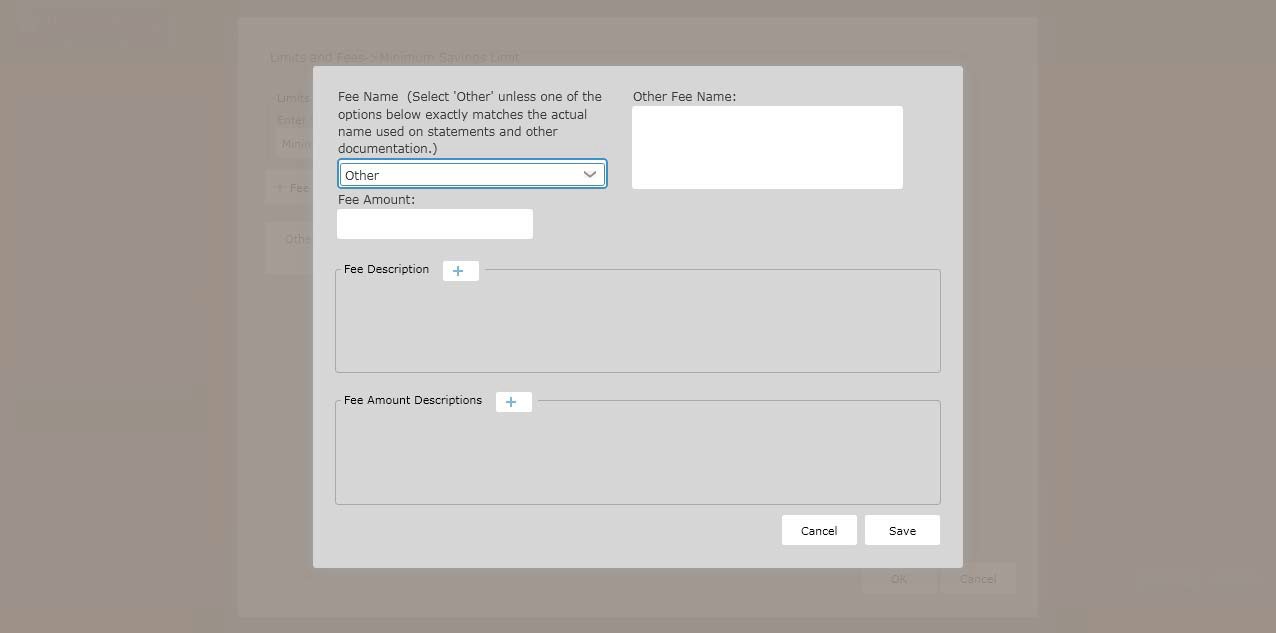
In the Fee Information section, enter the following:
§ Fee Name; click the arrow next to the dropdownto access a list of names.
NOTE: If selecting OverdraftFee, proceed to the Overdraft Fee section below.
§  Fee Amount
§ To determine if the corresponding fee is an overdraftfee, click The corresponding fee is an overdraft fee checkbox. Enterthe regulatory languagein the corresponding textbox.
§ Click Remove todelete an existingdescription.
§ Click Add Description to create an additional description textbox.
§ Enter the Fee AmountDescription in the corresponding textbox.
§ Click Remove todelete an existingdescription.
§ Click Add Description to create an additional description textbox.
§ Click Save to complete the Limits and Fees policy creationprocess. displays.
On the Limits and Fees screen,use the Move Up and Move Down buttons to control the print order of limitsand fees.
Use the Remove and Copy buttons to delete or duplicate a fee.
NOTE: Thelimits and fees will print in the exact orderthey are list in the limits and fees list box. To change the order,select a limit or fee and select the Print Order Up or Down button. This will move the limit/feeup or down in the list.
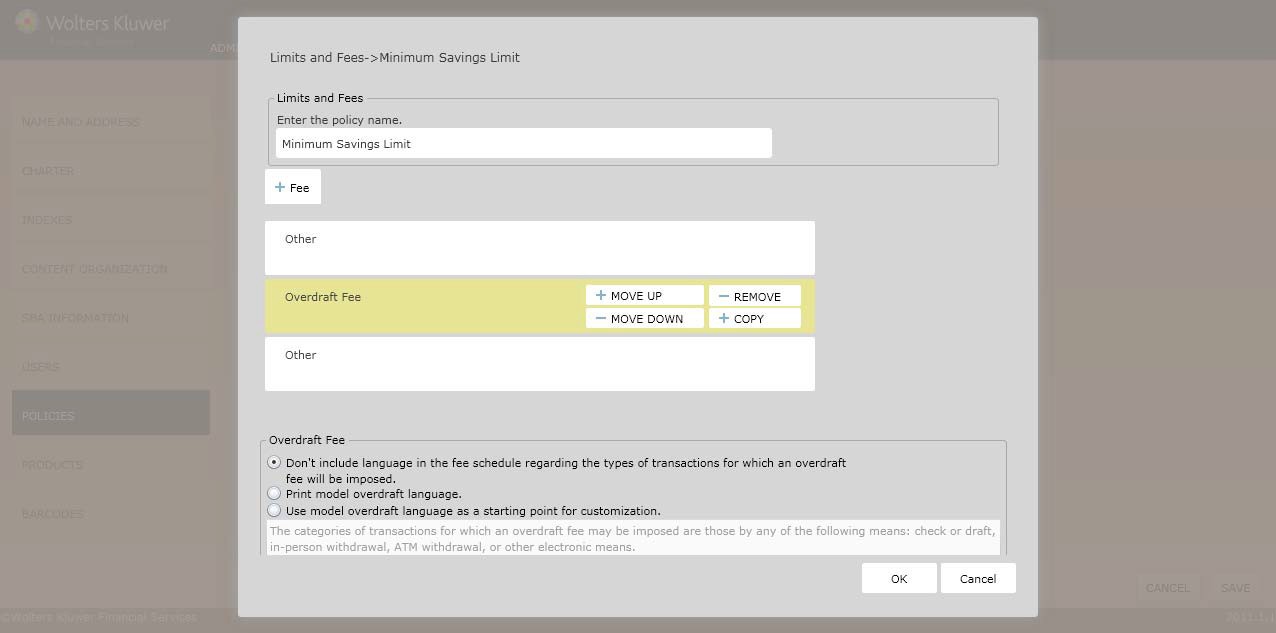
Use this sectionif selecting Overdraft Fee in the Fee Name section above.Select one of the following:
§ Don’t include language in the fee scheduleregarding the types of transactions for which an overdraft fee will be imposed.
§ Print model overdraft language
§ Use model overdraft languageas a starting point for customization.
NOTE: If selecting Use WKFS proprietary languageas a starting point for customization, enter additional language necessary for this rule in the corresponding text box.
§ Click OK tocomplete the Limitsand Fees policycreation process. The policy is now available to OPPSA users.