Before your DITA content can be loaded into Vasont, certain aspects of the content code must be modified so that Vasont accepts it without issues. InfoDev DITA Tools provides a method of quickly modifying the data for you. The following procedure discusses the process.
To prepare your DITA content for Vasont:
-
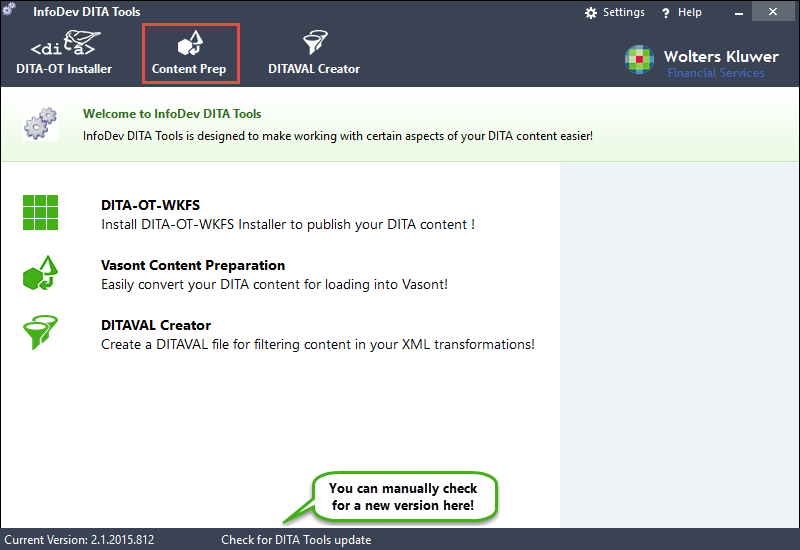
Run DITA Tools and click Content Prep.
The Vasont Content Preparation page is displayed.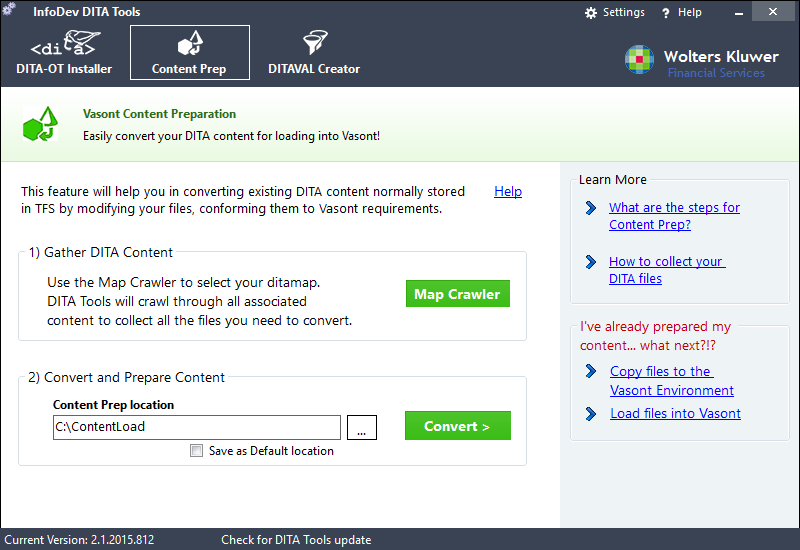
-
To collect all DITA content associated with a ditamap, click Map
Crawler.
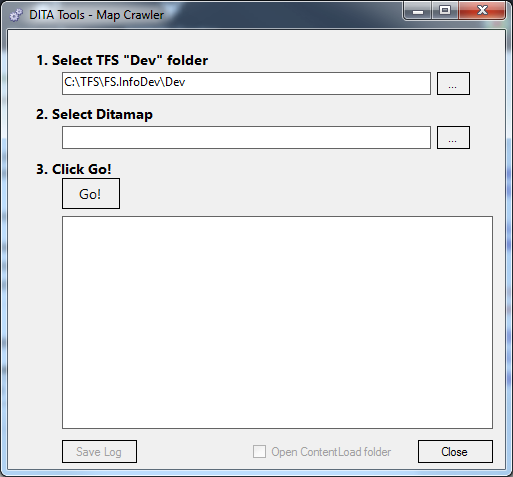
The Map Crawler screen is displayed.
-
Click Go!.
The gathering process can take a few minutes to complete, as it needs to analyze all text for links to other files. A progress indicator is displayed until complete.
During the process, all recognized files are reported in the list box at the bottom of the screen.
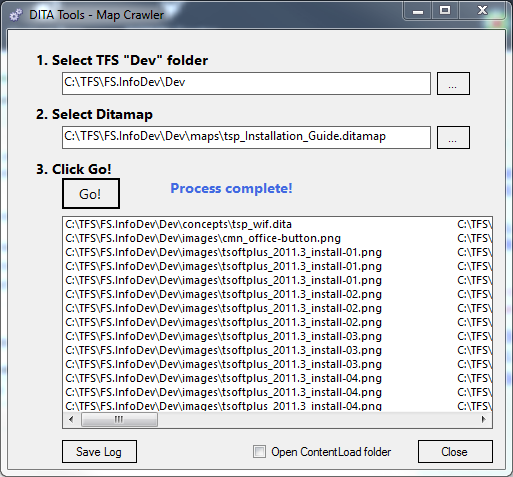 Note: To save the list of all identified files to a text file, click Save Log. The text file is automatically named and saved in the ContentLoad folder.
Close the Map Crawler window to continue with content preparation.
-
To convert the gathered content, click Convert >, highlighted
below..
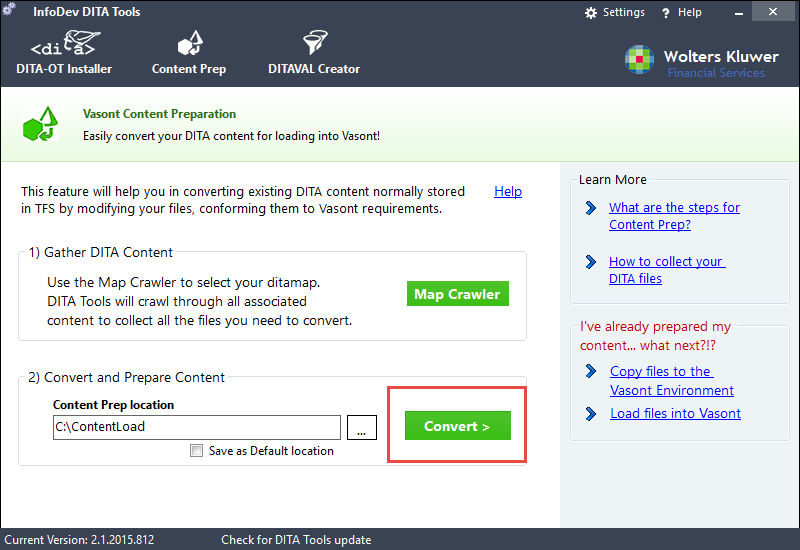
InfoDev DITA Tools analyzes the files found within the selected location and reports back with a dialog box, as follows: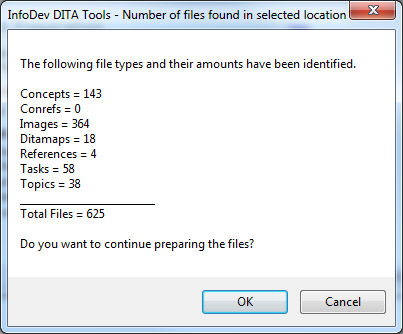
-
Click OK to continue. Should the numbers reported not seem right to you
and you wish to stop the process, click Cancel.
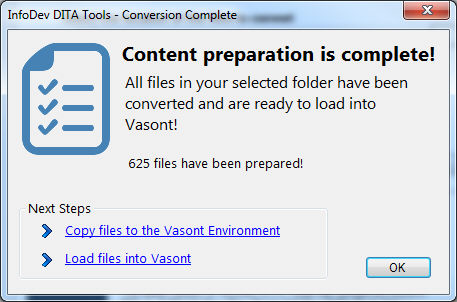
After clicking OK, InfoDev DITA Tools converts all files within the selected location. This process takes only seconds. You will be notified when the process is complete.