-
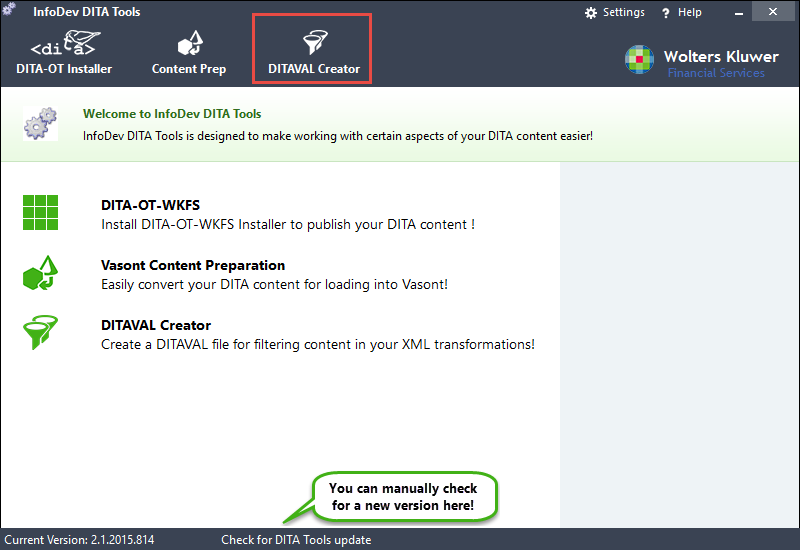
Open InfoDev DITA Tools and click the Ditaval Creator button.
The DITAVAL Creator page is displayed, providing access to information should you need to learn more about Ditavals.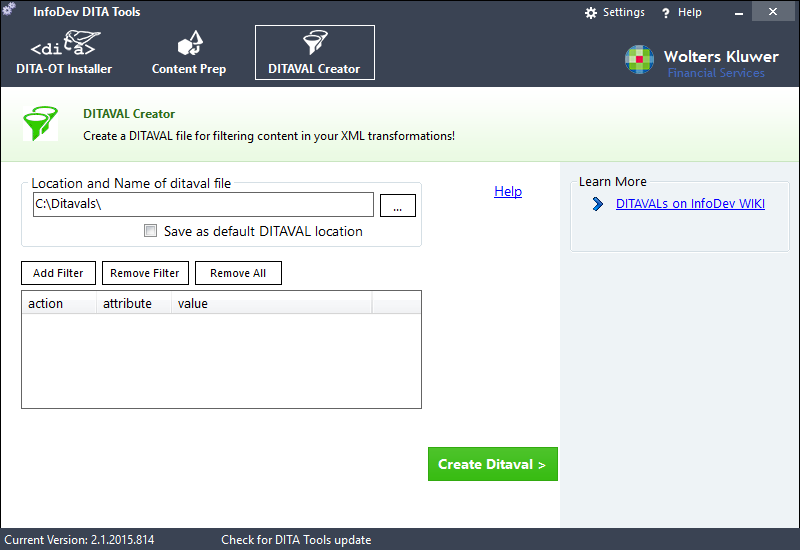
-
Click Add Filter.
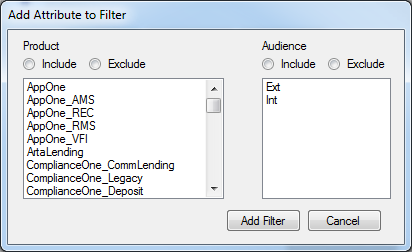
The Add Attribute to Filter dialog is displayed.
-
Click Add Filter.
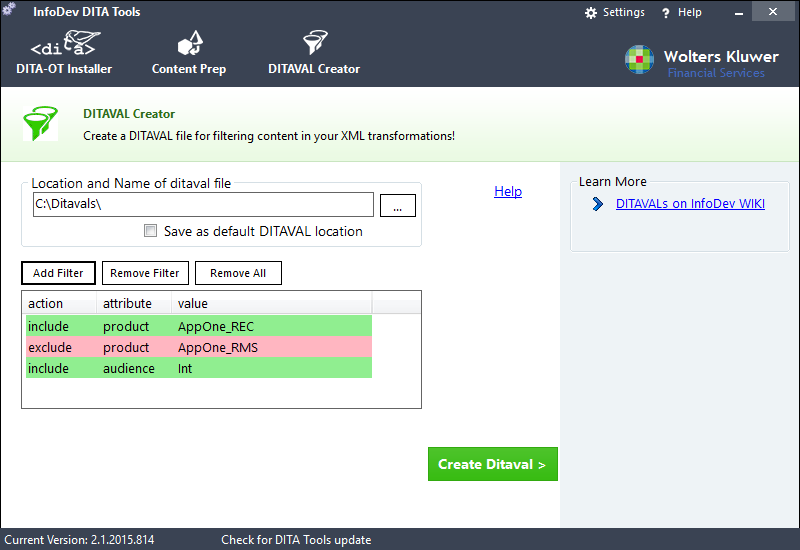
The selected filter criteria is added to the Ditaval Wizard screen.
-
When finished including and excluding attributes, click Create Ditaval
>.
When the ditaval is successfully created, a message box appears informing you of the creation and the Ditaval Wizard displays the options to either open the ditaval in the default application (most likely Oxygen) or to display it in Windows Explorer.