It is assumed that you have already accessed your OneDrive account. This allows access to OneDrive locations when saving the document.
This procedure should be performed when you need to provide your product team with a document for collaborative review.
-
Publish the ditamap for the content you need to share.
Note the following:
- Open the Configure Transformation Scenario(s) dialog and select DITA Map MS Office Word (Experimental).
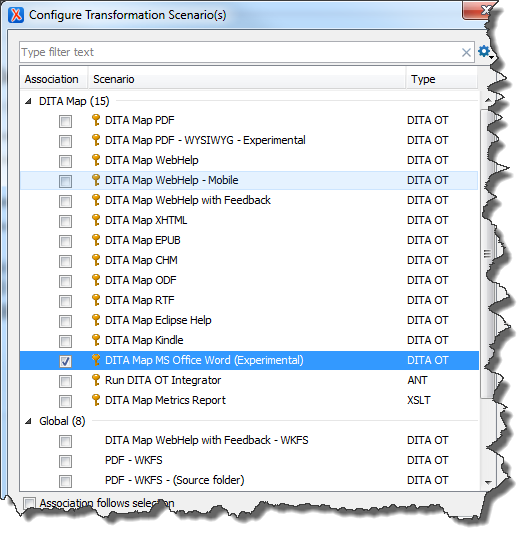
This scenario currently works only with a ditamap.
-
After the Word document has been generated and displayed, remove all content from the document that is not desired to share.
If working from the Vasont server: for the next three steps, first save the Word document to your local drive before placing in a OneDrive folder.
-
From the Word File menu, select Save As.
-
Double-click OneDrive - Wolters Kluwer.
The
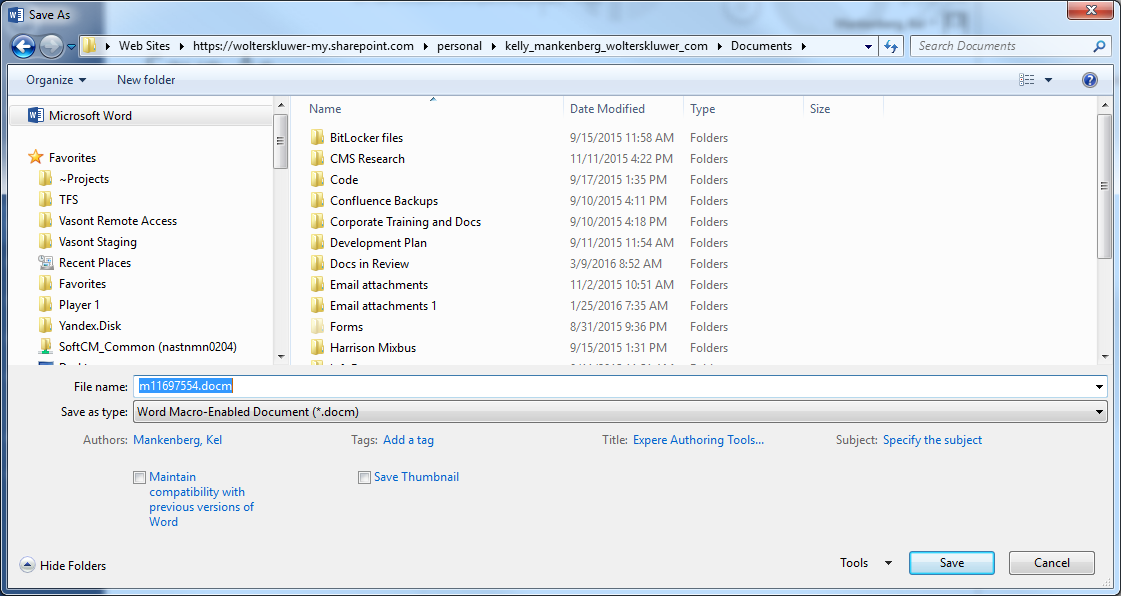
Save As dialog appears, showing your personal location on the
wolterskluwer-my-sharepoint.com site.
-
Browse to the desired folder and click Save.
For simplicity, it is recommended to create a folder that contains all files you will intend to share. In the example above, there is a Docs in Review folder. All files shared with product teams will be hosted there. As soon as all reviews are done and the PBI is Done, the file can be removed from this location.
You will receive a message stating the document will be upgraded to the newest file format. Click OK to continue.
-
Login to your OneDrive account, and browse to the folder selected in the previous step.
-
Locate the desired file and click Shared.
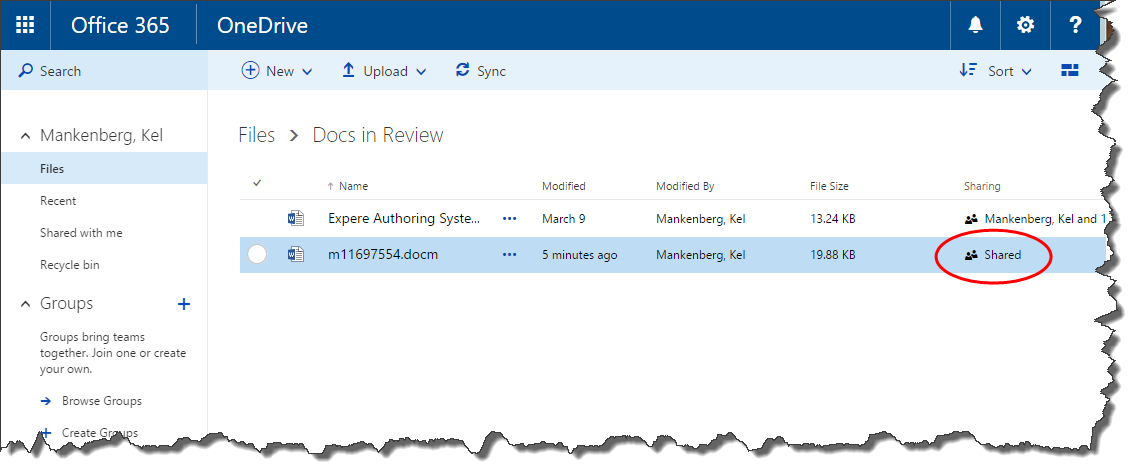
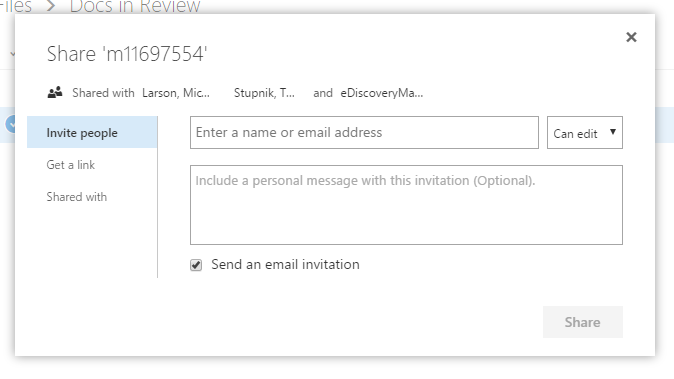
The Share dialog is displayed.
-
Click Invite People and begin entering a name. When the system recognizes the name you are typing, select it from the list.
-
Enter an invitation message and click Share.
