Before creating a new requirement file you should have available a requirements document that outlines the properties and design options for the new file.
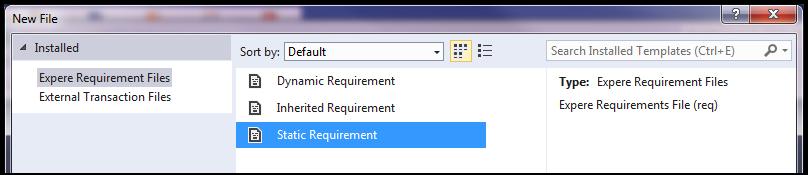
- In the New File dialog box, select Expere Requirement Files and then select Static Requirement from the list of available options.
- Complete the file by filling in the text boxes with information from the requirements document.
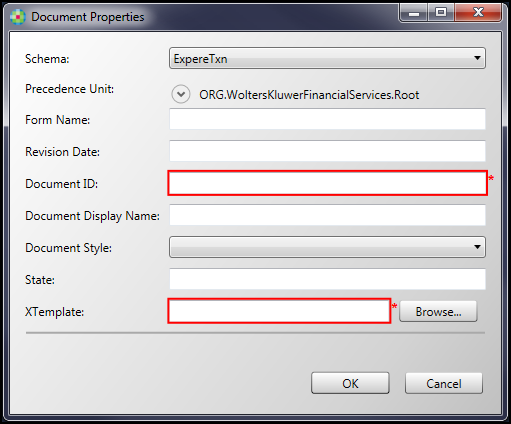 A static requirement file document must have a Document ID and XTemplate defined in order to create the file.
The static requirement file is saved and available for authoring.
