To create a Content Reference, verify that both documents are checked out through TFS (the document that is being authored as well as the source document). Right click to add the Content Reference element in the appropriate location.
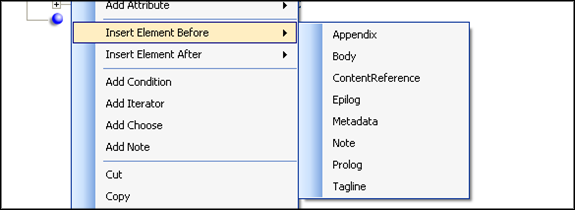
- Click Yes in the resulting dialogs.
- Navigate to the location where you saved a copy of the Content Reference source file (REQ). The tool will require you to navigate to that working folder.
- Once you select the source REQ file, a list of all the Sections and Notices in the referenced document will appear. Select the content you need and click OK. Multiple Sections or Notices can be selected by using the Ctrl and Shift keys. If multiple Sections or Notices are selected they will be inserted into the new REQ file in the same order that they appear in the source REQ file.
- The tool will prompt you to verify your selection; click OK to continue.
The ContentReference appears in Yellow when the referring document is opened; the validation of the ContentReference is Pending, signifying that the tool is verifying with the database that the ContentReference is current. If the tool is unable to contact the database, the ContentReference remains Yellow. If the tool is able to contact the database and determine if the content is current, the ContentReference appears in blue for Up to Date.
Here is a complete list of the ContentReference colors:
- Blue: connected to authoring DB and matches what is in the authoring DB
- Red: connected to authoring DB but does NOT match what is in the authoring DB
- Orange: (new color) connected to authoring DB but cannot find the reference in the authoring DB
- Yellow: not connected to Authoring DB
Content references are supported as elements that can be added to a table (through the <entry> element) as a child element. Adding a content reference tag (<ContentReference>) is supported in the list of elements permitted within a table structure. Specifically, the tag is permitted within the <entry> tag used to populate a table cell. The content reference tag is available in the Add Child Elements menu.
