Choosing the Create Renditions option from the Rendition menu brings up a dialog box that allows you to enter all the information necessary to produce a PDF rendition for review or to take the process all the way to completion and produce the final eform or preprint PDF that will be used for fulfillment.
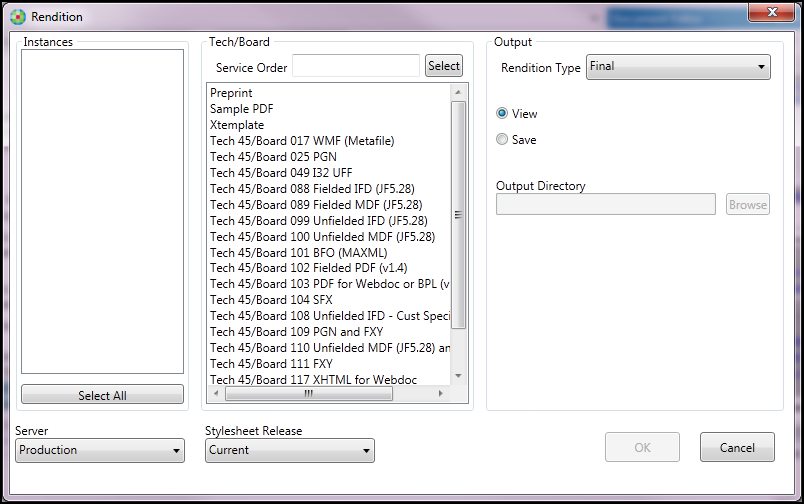
In the Instances list, you can select one instance, multiple instances, or all instances of the form to produce. Select multiple instances by holding down the Ctrl key while making your selection or click Select All to select all of the instances in the list. The selection of the Tech/Board(s) indicates which format(s) the document will be produced in for final fulfillment. A Service Order number is used to determine which Tech/Boards to select based off information stored in SAP. If a Service Order number is not available or you are creating a document that doesn’t require a Service Order (such as preprint documents), you can manually select the Tech/Boards required. Multiple items can be selected by holding down the Ctrl key while making your selection.
There is an option in the lower left hand corner of the window that allows you to change the Server used to produce the documents from Production (the default value) to Development. You would only change this setting to Development if you were running tests on pending changes to the stylesheets that have not yet been pushed to the Production server.
- Final – used to create a PDF rendition for the Attorney/CA to review for content, style, and column or page break issues. All content appears in black.
- CustomerProof – used to create a PDF rendition for an external customer to review for approval of a Menu document. The color coding indicates what content is standard (blue) and what content is based off the customer’s response to a worksheet question (pink).
- ComplianceReview – used to create a PDF rendition for the Attorney/CA to review the profiles applied to the content and the field names used. The profile applied to the content will display in black before the beginning of the content that it is applied to. The content appears in color to make it easier to differentiate between the profiles and the content.
- Transformation – used to create the final Tech/Board outputs once the PDF rendition created with one of the previous options has been approved.
Once the rendition settings are defined, click OK. At this point the request is submitted for processing and a status window appears showing the progress of the request. If multiple instances were selected, each instance is displayed as it is completed in the Detail section. Once all instances are complete the Details section displays a status of Complete.
