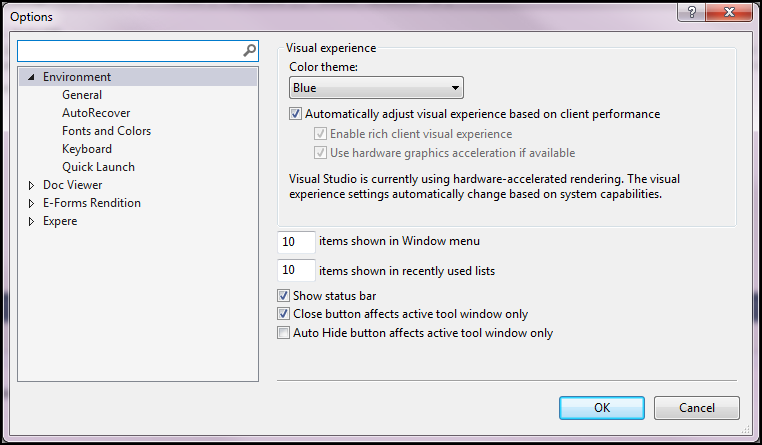
The application provides several options allowing you to define the look and feel of the interface, how toolbars are displayed, auto-recovery and start up behavior, and other features to tailor the working environment. These customization options are available in the Options dialog box (Tools > Options).
General
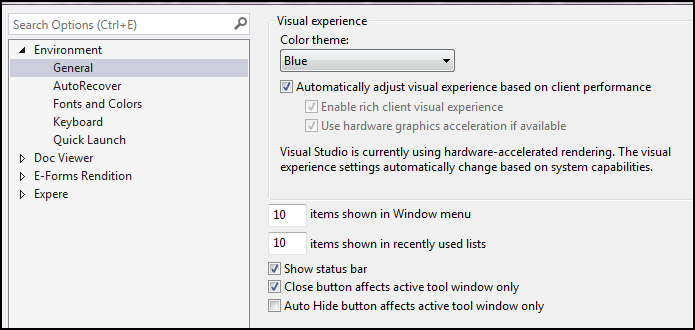
You can select a color theme to apply to the Requirements Editor. By default, the blue theme is selected. You have the option of selecting the default blue theme or either a light of dark color theme.
In addition to a color theme, the General environment options let you choose how many items to show in the Recent Files list (File > Recent Files) and in the list of available open Windows (Window menu).
Auto Recovery
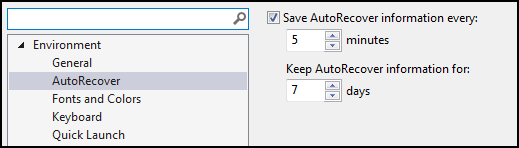
The AutoRecover feature is used in case of an unexpected system failure to ensure that any recent work is saved and can be recovered when the application is restarted.
Fonts and Colors
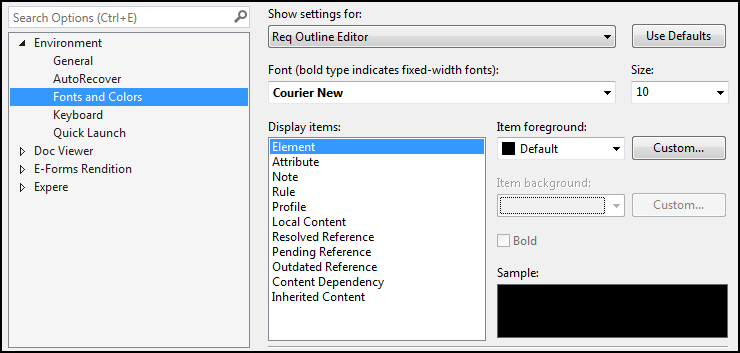
The Fonts and Colors option allows you to define how text and elements appear in the Outline Editor. You can apply a font and color settings to all text presented in the editor and define a foreground or background color to specific elements within a document.
Keyboard
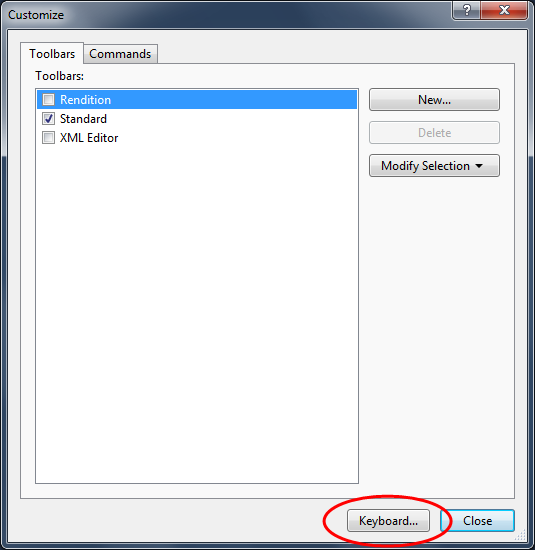
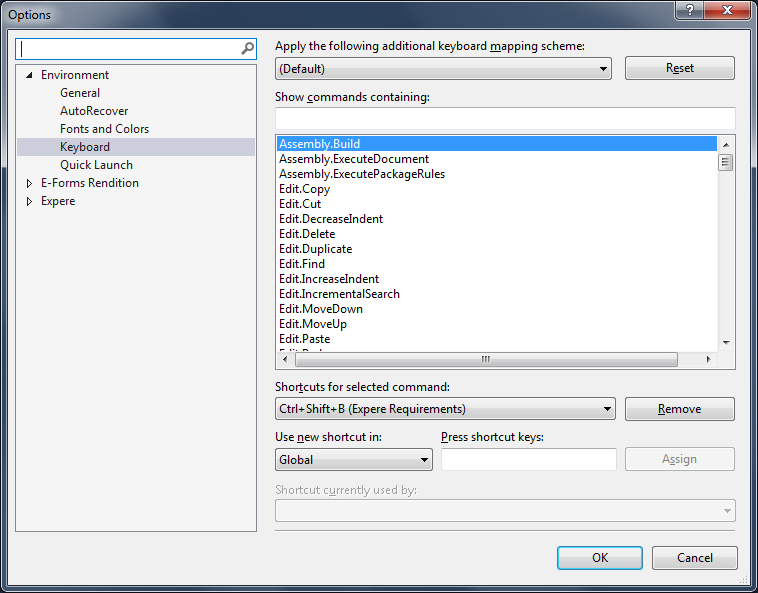
- The Keyboard options are also available by clicking the Keyboard button located at the bottom of the Customize dialog box (Tools > Customize).
- Keyboard shortcuts are retained if you install Requirements Editor over a previously installed version.
Quick Launch
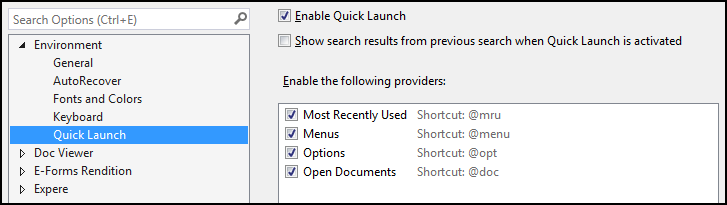
The Quick Launch option lets you enable/disable the feature as it appears in the top-right corner of the screen. The feature is enabled by default.