Per TILA-RESPA Integrated Disclosure rules, fees that are not disclosed separately must utilize the new rounding method. The following new elements and attributes have been created to support this new rounding method and are primarily used only on the Loan Estimate.
The TotalSummedRow/TotalResultEntry/SummedEntry/UseTRIDAddition elements/attributes are used to calculate Section totals on the TILA/RESPA Loan Estimate utilizing the new rounding method. The rounding method for these elements will aggregate values first, then round.
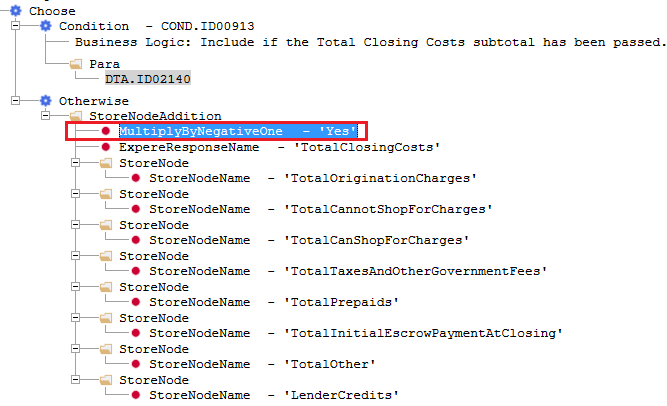
The StoreNodeAddition/StoreNode/StoreNodeName/MultiplyByNegativeOne element/attributes are used to store summed values for section totals used as input total for Subtotal sections.
- TotalSummedRow: This element is available as a child of Condition or Otherwise element within the SortByWrapper element.
- TotalResultEntry: This element is available as a child of TotalSummedRow element.
- SummedEntry: This attribute is available as a child of an Entry element. Values: Yes, No.
- UseTRIDAddition: This attribute is available for the ResultEntry and TotalResultEntry elements. Values: Yes, No. A value of ‘Yes’ indicates that the result shall use the new rounding method which aggregates the values first, then rounds.
- StoreNodeAddition: This element is available as a child of an Entry element or as a child of a Condition or Otherwise element within an entry element. This is a parent element that contains a collection of StoreNode elements which identify the calculated stored section total values to be included for summing the given Subtotal.
- StoreNode: This element is available as a child of StoreNodeAddition element. The StoreNodeName attribute is available to add to this element to specify the defined variable name to include in the subtotal addition.
- StoreNodeName: This attribute is available for Entry and TotalResultEntry elements; a text value is authored to provide a defined variable name that is then used as a container to store the corresponding value. This attribute is also available to add to the StoreNode element to specific which stored containers to in the subtotal addition. Furthermore, this attribute can be added to the StoreNodeAddition element which stores the value of the StoreNodeAddition to then be used in a different StoreNodeAddition calculation. Note: The totalResult attribute must also added to the StoreNodeAddition.
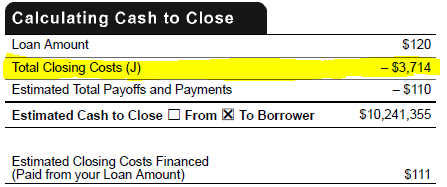
- MultipleByNegativeOne: This attribute is available for StoreNodeAddition element. Values: Yes, No. This attribute is authored to represent the sum of the StoreNodeName values as a negative value. Specifically, this new attribute is used on Loan Estimate in the ‘Calculating Cash to Close’ section for the ‘Total Closing Cost (J)’ value.
- DocViewerOnly: This attribute is available for Section & Condition/Otherwise elements. Values: True, False. When set to true, the value is suppressed from rendering on the PDF but is visible in Doc Viewer.
Usage of New Rounding Method Elements/Attributes for Fees Not Disclosed Example
Scenario: On the Loan Estimate, for disclosed fees, each of those fees are rounded first, then summed together. For fees that are not disclosed (represented in the Additional Charges item), those fees are aggregated and summed together first, then rounded (new rounding method). The disclosed fees are rounded first, then summed and that total result is added to the total of fees that are not disclosed total which are summed first, then rounded.
The example outlined is for section ‘C. Services You Can Shop For’ which has a condition to produce an addendum to print disclosed fees that exceed the threshold for that section (round, then sum method) or to not disclose these fees and summarize in an ‘Additional Charges’ line item (sum, then round method).
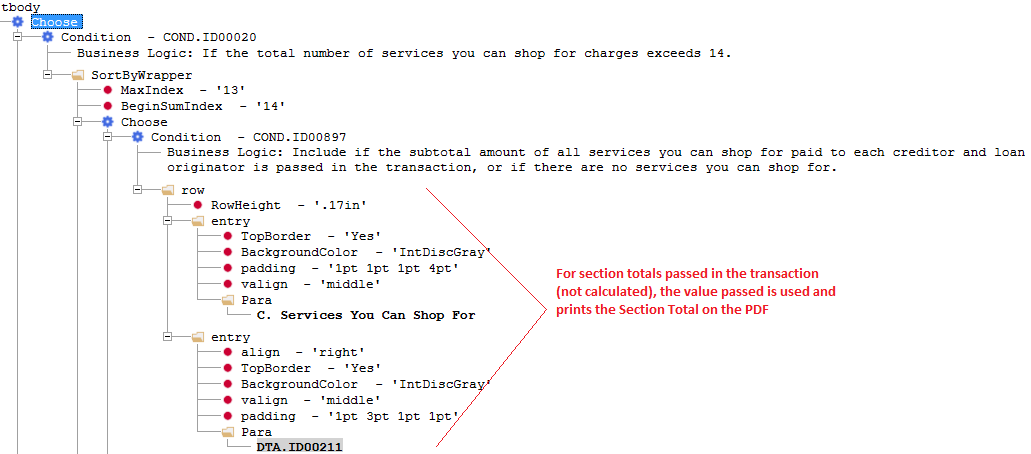
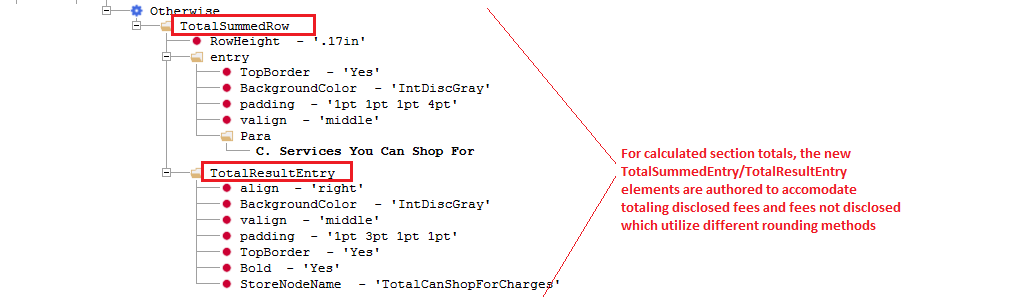
The Section Total logic utilizes new TotalSummedRow/TotalResultEntry elements to sum together results from disclosed fees and those not disclosed which utilize different rounding methods.
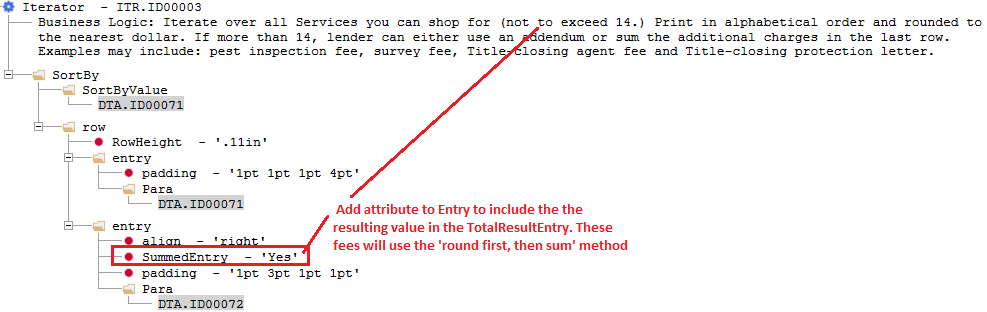
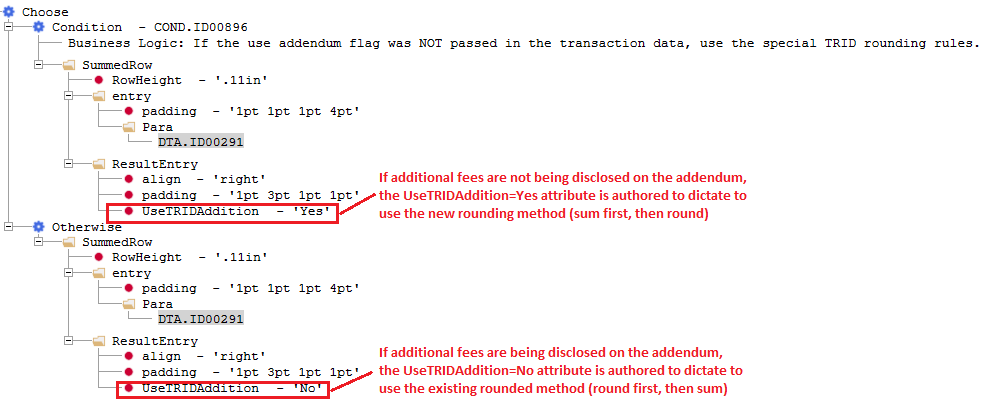
Depending upon the number of fees passed in the transaction, if there <= 14 fees, the logic below will round each fee value, then sum those fees. If there are more than 14 fees and the addendum is not being used to disclose the fees individually, then the new rounding method (sum first, then round) is used for the additional charges.
Usage of New StoreNode Elements/Attributes Example
Scenario: On the Loan Estimate, for disclosed fees, each of those fees are rounded first, then summed together. For fees that are not disclosed (represented in the Additional Charges item), those fees are aggregated and summed together first, then rounded (new rounding method). The disclosed fees are rounded first, then summed and that total result is added to the total of fees that are not disclosed total which are summed first, then rounded.
The example outlined is for section "C. Services You Can Shop For" which has a condition to produce an addendum to print disclosed fees that exceed the threshold for that section (round, then sum method) or to not disclose these fees and summarize in an Additional Charges" line item (sum, then round method).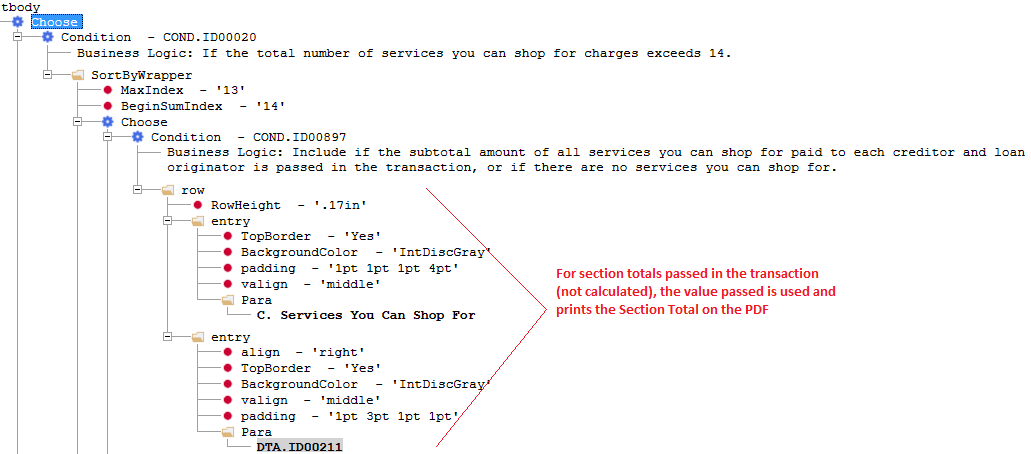
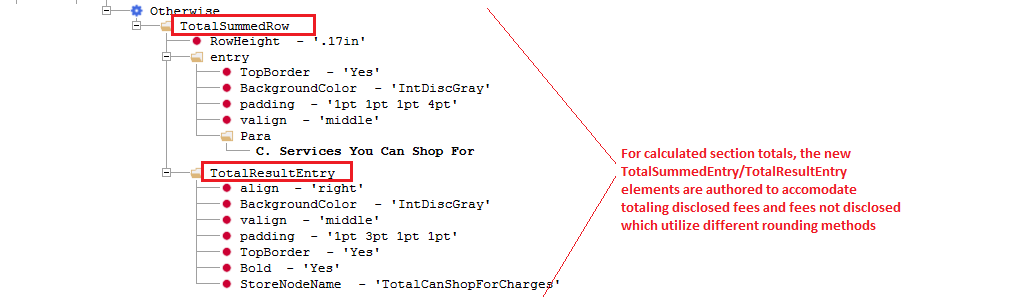
The Section Total logic utilizes new TotalSummedRow/TotalResultEntry elements to sum together results from disclosed fees and those not disclosed which utilize different rounding methods.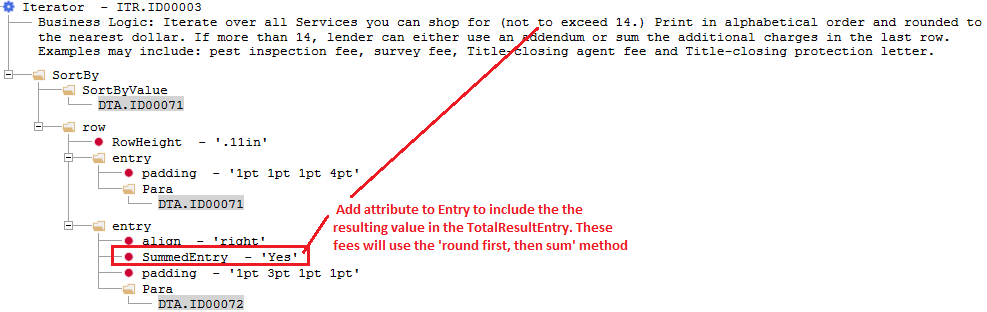
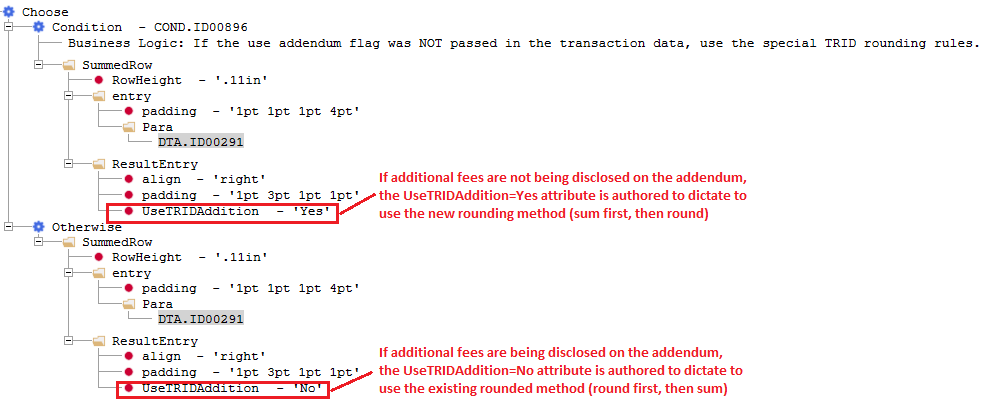
Depending upon the number of fees passed in the transaction, if there <= 14 fees, the logic below will round each fee value, then sum those fees. If there are more than 14 fees and the addendum is not being used to disclose the fees individually, then the new rounding method (sum first, then round) is used for the additional charges.
- Add the StoreNodeName attribute to the TotalResultEntry element for section totals that need to be summed together for the Subtotal section value. Specify a variable name that stores the result.
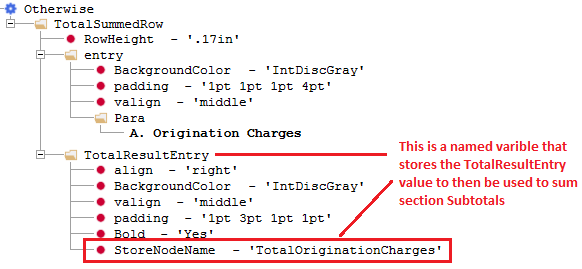
Section A. Origination Charges
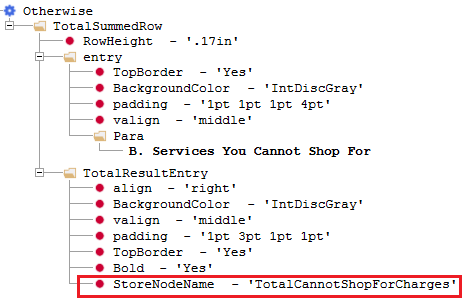
Section B. Services You Cannot Shop For
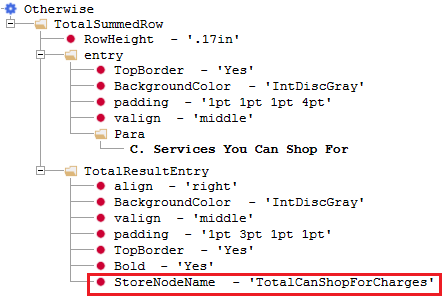
Section C. Services You Can Shop For
- Author StoreNodeAddition element for Subtotal sections that need to sum section total results together. Add StoreNode element with the StoreNodeName attribute and specify the named variable to include in the sum calculation.Note: The StoreNodeName variable name is not validated; ensure the text variable name entered matches the defined name exactly as any variation will result in the stored value to not be included in the sum calculation.
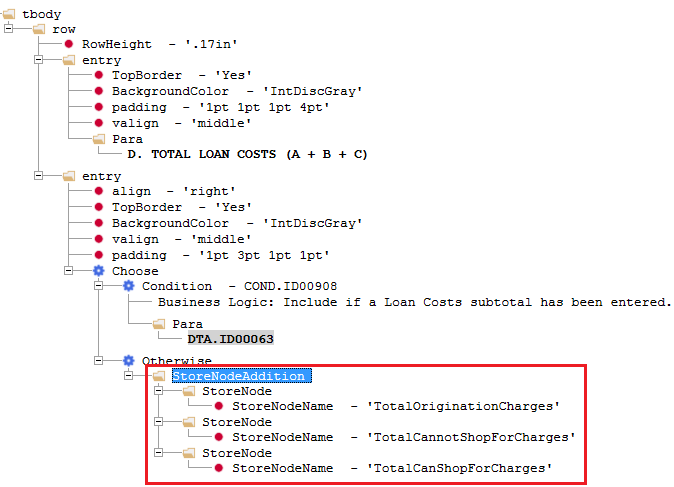
The expere engine logic identifies presence of the StoreNodeAddition element and gathers corresponding result entry values for specified stored value variables authored and sums together to arrive at the given Subtotal section value to print on the PDF.
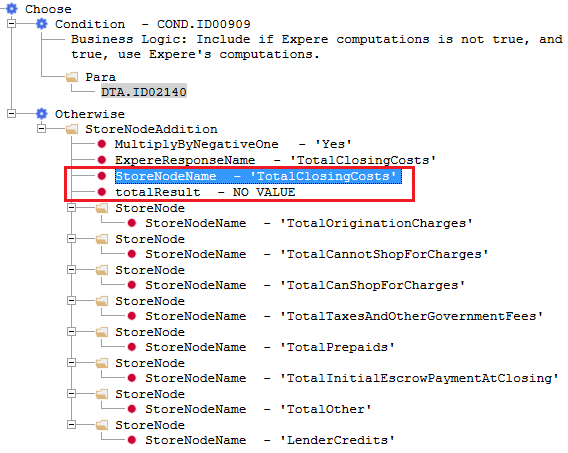
- For the StoreNodeAddition element, author StoreNodeName attribute to store a summed value that can then be used in a different StoreNodeAddition rule (note: the totalResult attribute must also added to the StoreNodeAddition). The example below demonstrates this usage of this in the Calculating Cash to Close section.Note: The StoreNodeName variable name is not validated; ensure the text variable name entered matches the defined name exactly as any variation will result in the stored value to not be included in the sum calculation.
The StoreNodeName variables are summed and stored in the StoreNodeName=TotalClosingClosts:
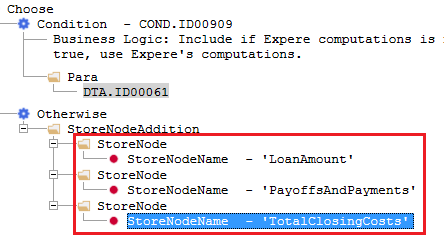
Then, in a later rule, that summed stored value is used to then be summed again with other StoreNodeName variables:
- Author the MultiplyByNegativeOne attribute in the Calculating Cash to Close section to represent the summed value for Total Closing Costs (J) as a negative value that is subtracted when there are no sellers in the transaction and creditor does not elect to use seller version of the tables.