Using Assembly

This section explains how to use the Assembly feature.
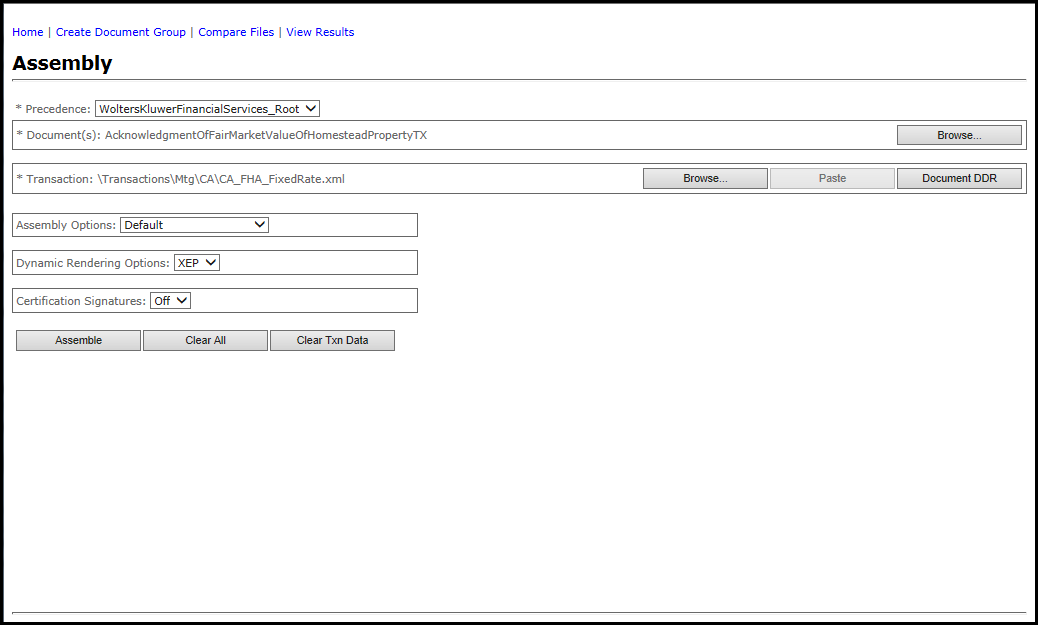
  1. Select the Precedence level to use in document assembly from the Precedence list. For more information, see Precedence.
  2. From the Document(s) box, click the Browse button. Select a phase, then a document. Click OK.
  3. From the Transaction box, select from the following:
    • Click the Browse button to access the Browser. Select an item/line of business to open its available documents. Click OK.
      Note: For information on using Browser, see Expere Testing System Browser.
    • Click the Paste button to display a text box for pasting in existing transaction data.
  4. Click the Document DDR button to display the document data items for a new transaction; click one of the following:
    • VMPMISMO DDR
    • ExpereTxn DDR
    Note: Verify you have a selected a document with the Browse function.
  5. On the Assembly page, enter data in the transaction fields.
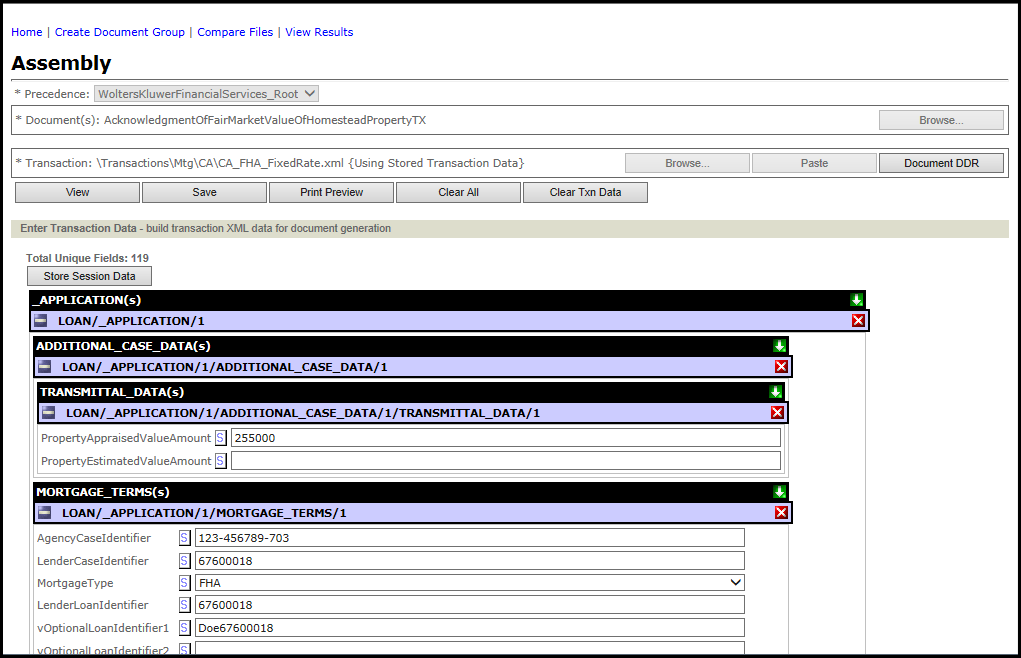

  6. Click the Store Session Data button.
  7. Select an option from the Assembly Options dropdown. See Assembly Options for more information.
  8. Select an option from the Dynamic Rendering Options dropdown.
  9. Select one of the following from the Certification Signatures dropdown:
    • Off (Default)
    • On
  10. Click the Assemble button. The screen updates the results. The Document Viewer displays the link to the assembled document(s).
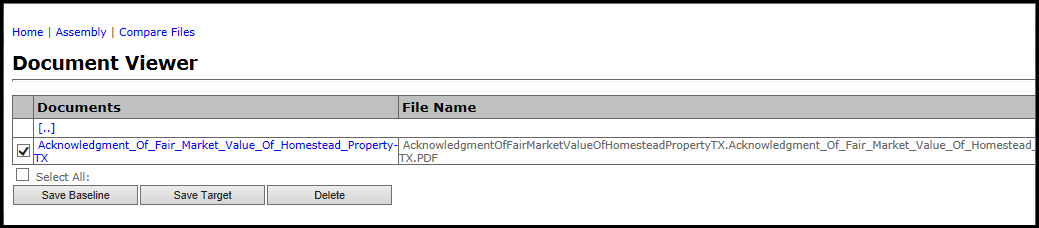

  11. Click one of the following to save the results:
    • Save Baseline
    • Save Target
    The Expere Browser allows users to save the results within the server folder structure.