- Select the desired precedence from the Precedence list. Users can select from the standard WoltersKluwerFinancialServices_Root or a custom precedence. For more information, see Precedence.
-
Select the desired package from which to create a document group.
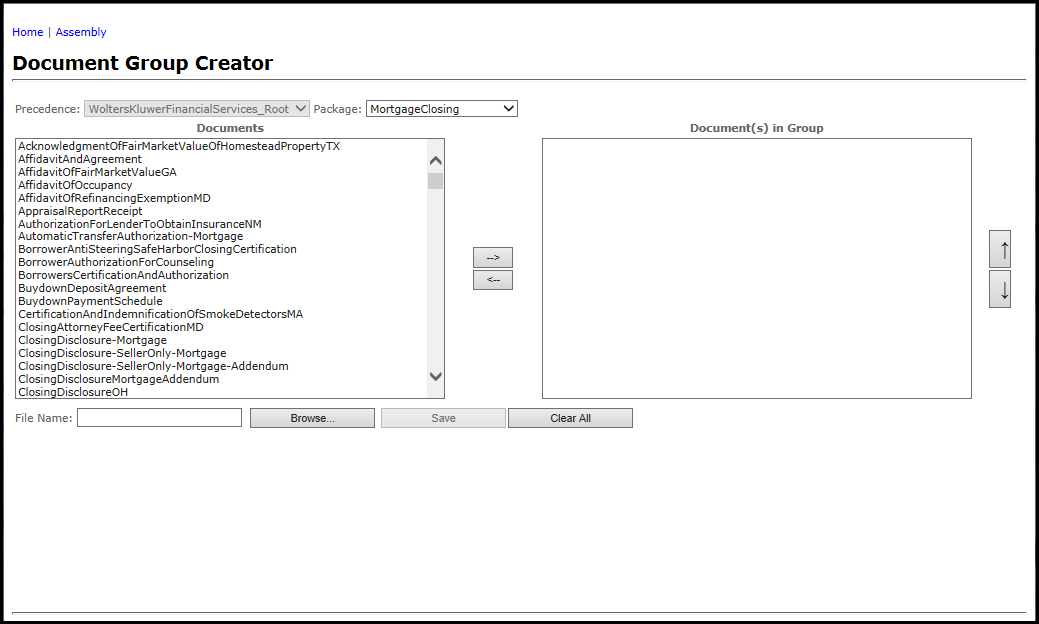
- Select one or more documents from the Documents list.
-
Click the right arrow button. The documents appear within the Document(s) in Group list.
Note: Click the Clear All button to clear the contents of the entire screen.
-
To remove a document from the Document(s) in Group list, select it and click the left arrow button.
Note: Double clicking a document will also transfer it from one list to the other.
-
Click the up arrow and down arrow to change the document save order.
Tip: This is useful when organizing documents within a single PDF document.
- Within the File Name field, type a name for the new document group.
-
Click the Save button. The new document group is saved. Select the new document from the Select Document Group list to access it.
Note: Once saved, the file appears in the current Document list within Assembly. Users can select the file to create a transaction file.
