-
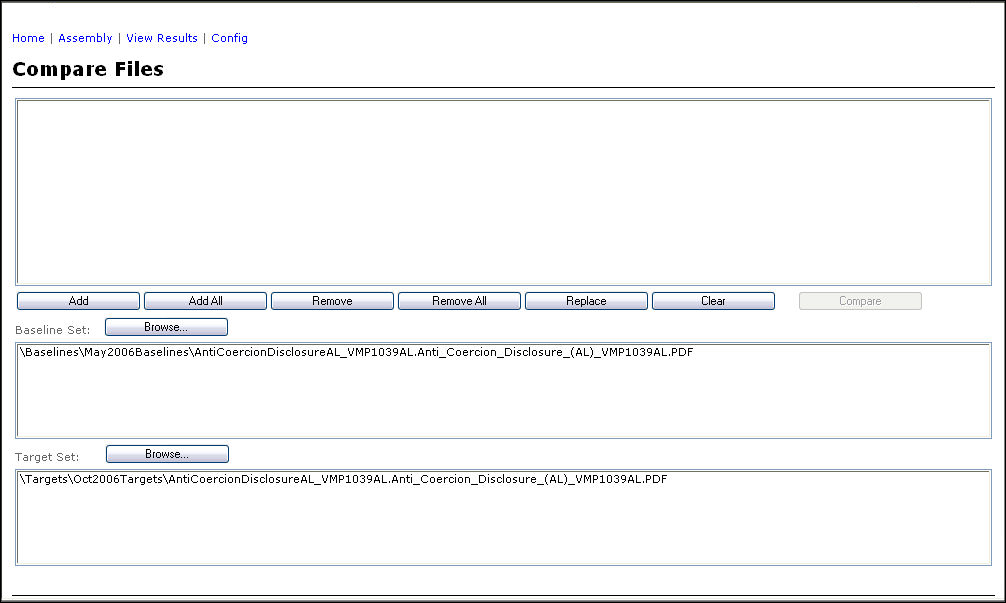
Click the Baseline Set Browse button. The Expere Testing System Browser appears. For more information on using Browser, see Expere Testing System Browser.
-
Scan the browser. Click the check box to select the baseline document(s). To select all of the documents, click the Select All check box at the bottom of the list.
-
Click the Target Set Browse button.
-
Scan the browser. Click the check box to select the target document(s). To select all of the documents, click the Select All check box at the bottom of the list.
-
Click the Add All button, or highlight both files and click the Add button. The documents previously selected are added to the main document list.
Note: Click the Add All button to pair the Baseline and Target documents. The first document in the Baseline list is paired to the first document in the Target list, the second baseline document with the second target document, etc.
-
Click the Compare button to generate a PDF or XML based on file type.
Note: This process may take a few minutes based on the size and number of the documents being compared. An error message appears if the user tries to compare mismatched document types (PDF to XML).
-
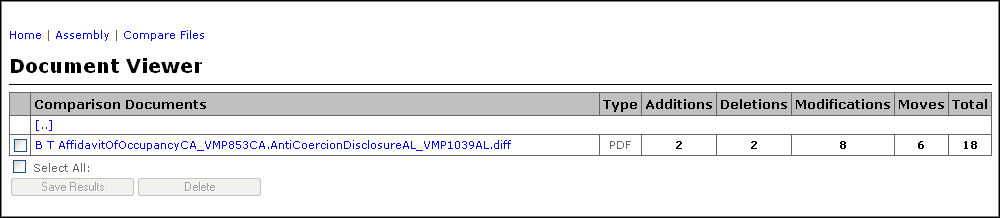
Upon successful completion, the Document Viewer page appears.
For more information see the following: