This section explains how to walk through the Data Integration Validation Tool installation procedure.
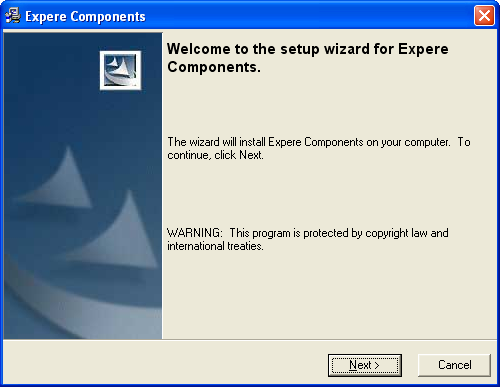
- The Welcome to the setup wizard for Expere Components screen appears. Review the information on the screen.
- Users can install any of the following:
- Expere runtime engine
- Expere Data Integration and Validation
- Expere Organization Policy and Precedence Setup Administration
Click the Expere Data Integration and Validation Tool checkbox.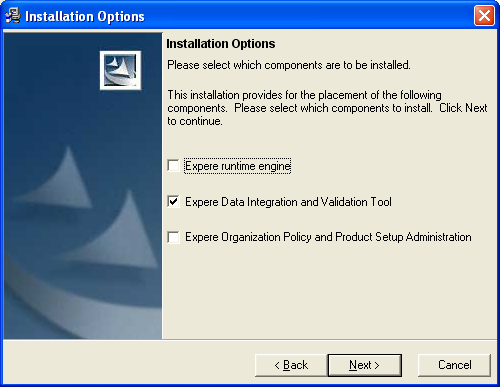
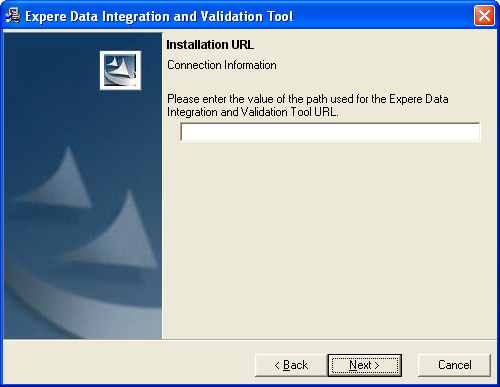
- Enter the Installation URL path in the corresponding field.
- Review the destination folder location. Click Change to select a different installation folder.
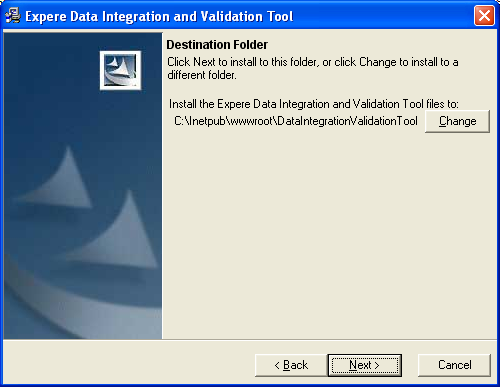
- The Setup Details screen displays a list of all applications that will be installed. Review the list; click Back through the installation screens to make any changes.
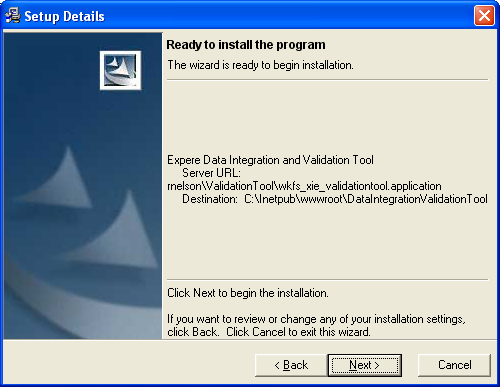
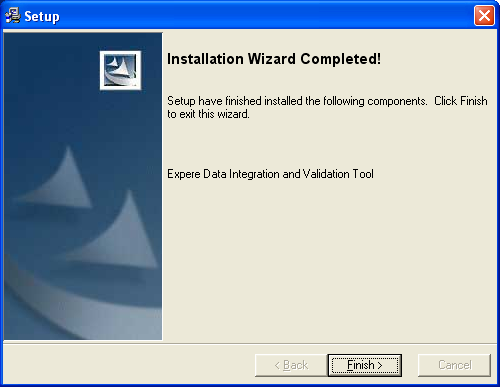
- Click Next to begin the installation. The Installation Wizard Completed screen appears, displaying a list of a installed components. Click Finish to exit the installation.