The Edit screen allows the user to view and edit the XML code and values underlying the selected transaction.
To access the Edit screen, click on the Edit button in the browser for any transaction..
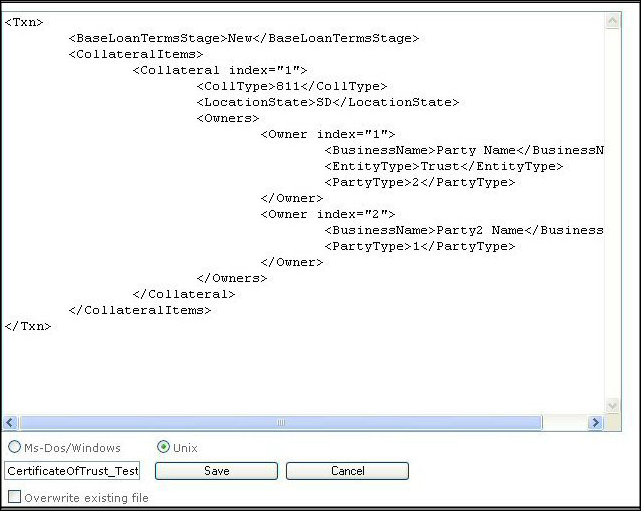
Users can directly edit the XML elements, attributes, and values within the text area.
CAUTION:
Changing the names of elements and attributes, and changing the value type for specific elements or attributes may render the element useless and the transaction unreadable to the Expere system. Use caution when editing the document contents.
- Select MS-DOS/Windows option when using a DOS- or Windows-based external editor to view the file. This option terminates the line coding with “\r\n”, as is necessary for DOS-based systems.
- Select the Unix option when using a Unix-based external editor to view the file. This option terminates the line coding with “\n”, as is necessary for Unix-based systems.
- To save a transaction, type a new name for the document in the filename text box (if desired); click Save. To overwrite the existing file, check the Overwrite existing file checkbox.
- Click Cancel to disregard any changes made to the transaction and returns the user to the Browser window.
- Selecting the Write backup feature creates a backup of the transaction as it is saved.