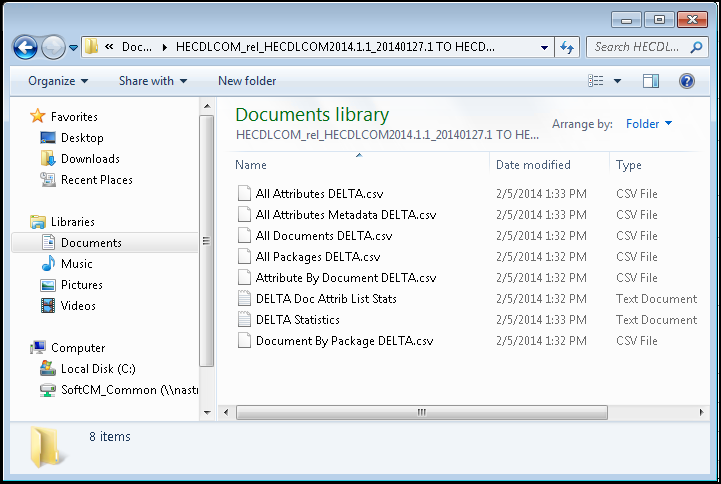
The Dictionary Compare feature allows a user to compare two dictionaries and determined changes. Several report files are generated that describe the changes to the document set as well as the transport schema data points required to select and assemble the document set.
To utilize this feature you must first open an Expere Data Dictionary. Clicking on a *.EDDV dictionary file in Windows Explorer launches the Data Dictionary Viewer and opens that dictionary. You can also launch the Dictionary Viewer from Start/All Programs/Data Management/Dictionary Viewer.
In the Data Dictionary Viewer (with one dictionary file open), you now can open the compare dictionary and define the folder to store the comparison output files. In the File menu select Open Compare Dictionary… and browse to the desired *.EDDV dictionary file that you want to compare to the baseline dictionary you first opened. Next, you must provide a folder location to store the output files generated in the compare operation.
C:\HECDLCOM_rel_HECDLCOM2014.1.1_20140127.1 TO HECDLCOM_rel_HECDLCOM2013.4.3_20131227.1