Using Autoselection & Assembly

Based on transaction data, the Autoselection & Assembly feature automatically returns a list of the recommended documents and allows the user to assemble those documents.

  1. Click either the ByPhase or ByPackage links at the top of the screen to perform autoselection and assembly using the following:
    • A specific document grouping or subset (phase group/phase)
    • An entire list of documents (package)
  2. Select the Precedence level for executing Autoselection and Assembly against the data from the Precedence list. For more information, see Precedence.
  3. If the user selected the ByPhase link, select the following:
    • Phase Group: this dropdown features the line of business
    • Phase: this dropdown consists of the phase within the line of business
    • Policy: this dropdown consists of the available policies.
    Note: The Phase field is populated with the list of phases available for the selected precedence. The ByPhase option is the default view when initially navigating to this screen.
  4. If the user selected the ByPackage link, select the following:
    • Package: this dropdown features the available packages
    • Policy: this dropdown consists of the available policies.
    Note: The Package field is populated with the list of packages available for the selected precedence.
  5. Select the Policy to use (if applicable) from the Policy dropdown.
  6. Select the OPPSA Organization dropdown box to select an applicable organization.
  7. Select the OPPSA Product dropdown box to select an applicable policy.
  8. From the Transaction box, select from the following:
    • Click the Browse button to access the Browser. Users can identify the path and filename of the transaction data to use. For information on using the Browser, see Expere Testing System Browser.
    • Click the Paste button to display a text box for pasting in existing transaction data. The following screen appears.
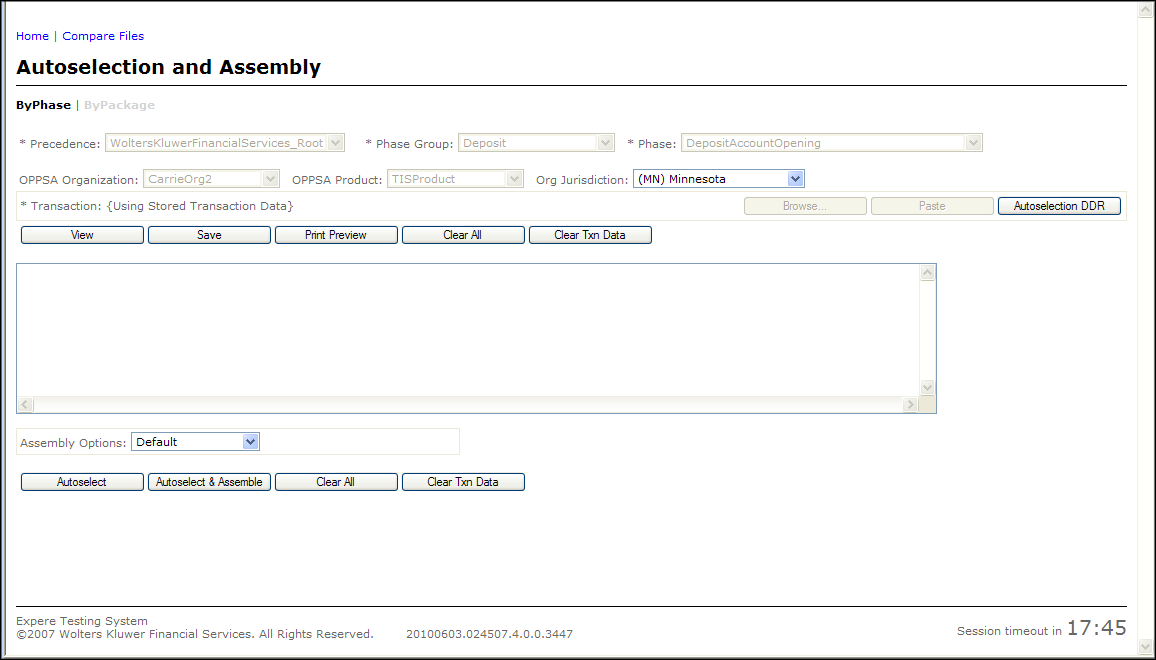

    Enter any data as necessary in the Transaction field.
  9. Click the Autoselection DDR button to display the following buttons:
    • VMPMISMO DDR
    • ExpereTxnDDR
  10. The autoselection data items form to create a new transaction or modify an existing one; the Autoselection DDR page appears. Enter the data into the form; click the Store Session Data button.
    Note: If using the Autoselection DDR feature, the Autoselect & Assemble button deactivates. Only use the Autoselect & Assemble feature with a pre-existing transaction or pasted transaction data.
  11. Within the transaction field dropdown boxes, enter data as necessary.
  12. Select an option from the Assembly Options dropdown.
    Note: See Assembly Options for more information.
  13. Click the Store Session Data button. Perform one of the following:
    • Click the Autoselect button to display the autoselected results. The following screen appears with the documents that were Autoselected listed on the right. From this screen, you can add or remove documents from the selected list to use for assembly.
    • Click the Autoselect & Assembly button to display the Document Viewer page.
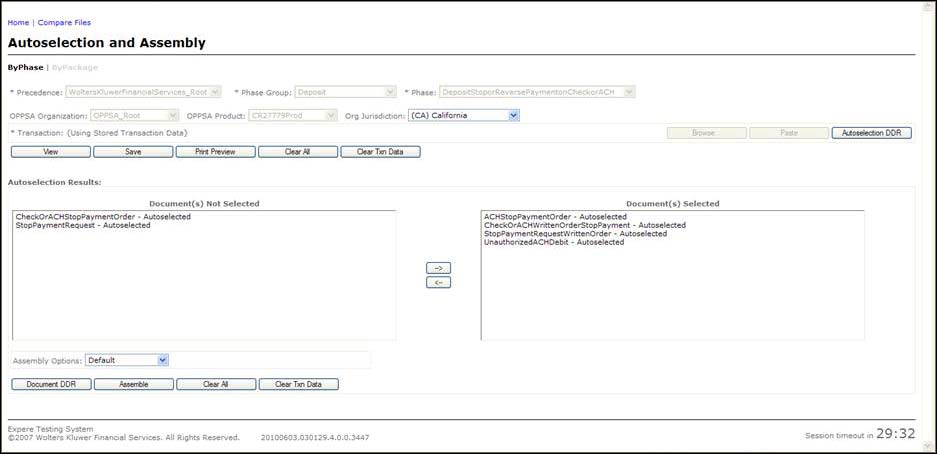

  14. If clicking the Autoselect button, the following options are available:
    • Click the Document DDR button to display the document data requirements for the documents that were selected.
      Note: When clicking on the Document DDR button, the system will display the document data requirements for the document in the right window.
    • Click the Assemble button to assemble the documents in the right window.
      Note: Problems may occur if the user made changes during the Document DDR process that contradict the transaction data applicable to autoselection. The user may discover the assembled documents differ from the documents in the right window.
  15. If clicking the Autoselect & Assembly or Assembly buttons the Document Viewer screen appears; all documents will appear under the following packets unless the document belongs to a specific packet:
    • PacketName :
    • Default ― Recipient :