In the Attribute tab, you can search for attributes and attribute values collected in the grid. The search feature, common to several tabs, provides several options for defining search criteria to help you to narrow the results of a given search.
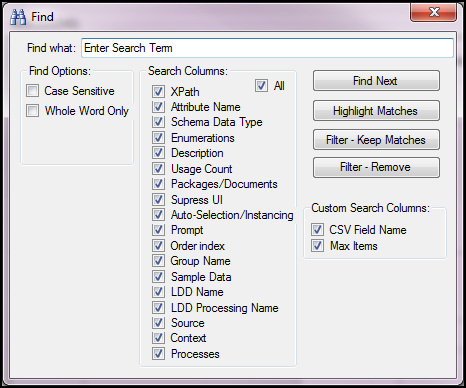
- Find What: Enter your search term in this text box.
- Find Options: Select an option to restrict the search to case sensitive and whole word matches.
- Search Columns: Select an attribute value (these are tied to the columns presented in the attribute grid) or set of values to restrict the search on.
- Custom Search Columns: Select a custom attribute value (these are tied to the columns presented in the attribute grid as custom attributes) or set of values to restrict the search on. This option will show up to 9 custom attributes.
- Find Next: Click to initiate the search within the grid so that the first match is displayed. The search runs from top to bottom based on the sort order defined in the grid. The first match is highlighted, click Find Next again to move to the next match.
- Highlight Matches: Click to highlight all matched search terms within the grid. The results are displayed in a dialog box indicating how many matches were found.
- Filter – Keep Matches: Click this option to isolate the results to all rows that contain a match and remove all other rows that do not match the search criteria. The search results are presented in the grid and the filter is saved and thereafter available in the Filters drop-down list in the toolbar.
- Filter – Remove: Click this option to removes all rows matching the search terms. This is used to perform an exclusive search (for example, to return all data excluding rows containing the search terms) as opposed to an inclusive search.
In this example, we entered credit as the search term and the first result in the grid displays with highlighting. 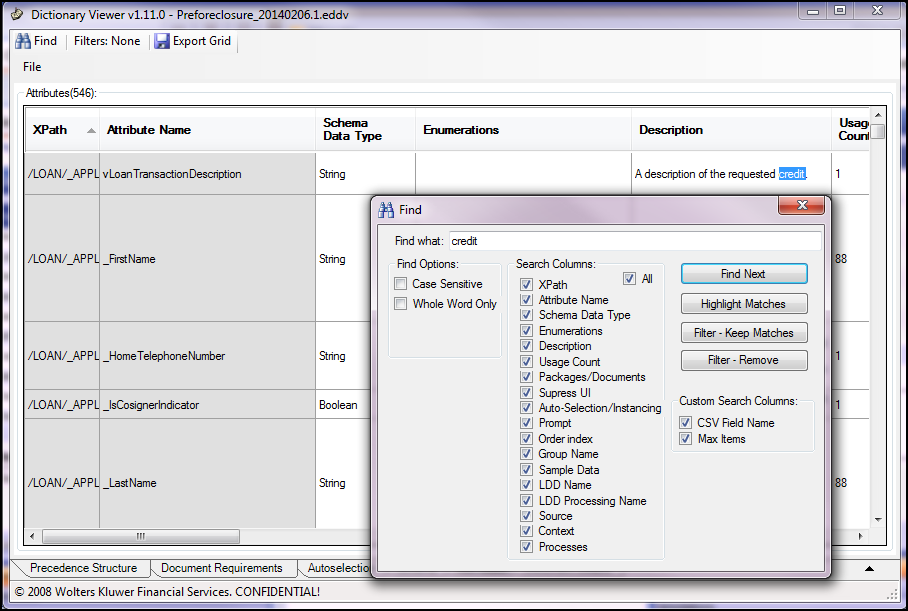
In this example, we entered Loan as the search term and, using the Highlight Matches option, all matches are highlighted in the grid and a search results dialog box indicates how many matches were found. 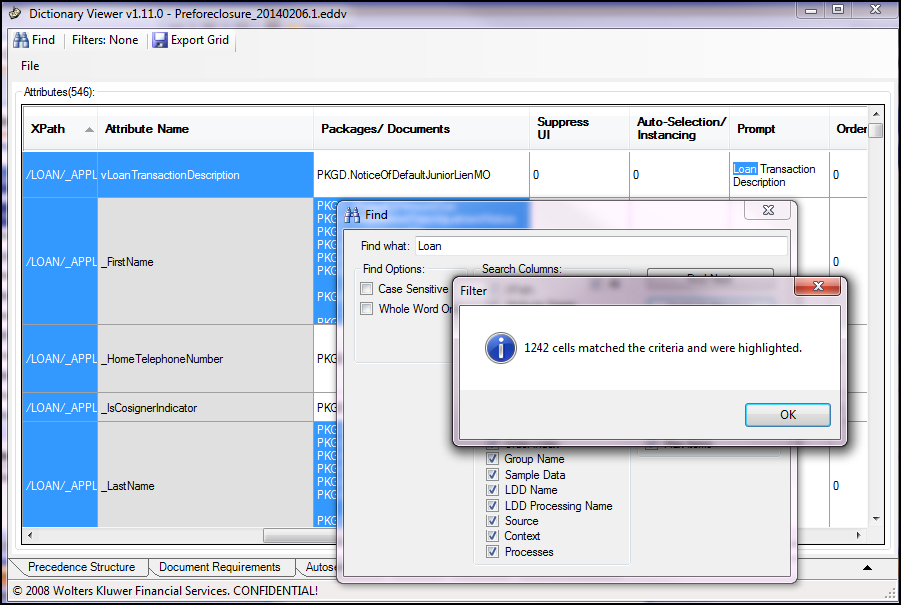
To continue the example, using the same IRS search term and the Filter – Keep Matches option, the attributes grid displays only the rows matching the search terms and removes the rest from displaying in the grid. Notice that the Filters drop-down list in the toolbar now contain 1 filter based on this example.
To remove any filters, click the Filter button in the toolbar and select Remove Filter....