This section explains how to export the data contained in the Attributes tab to an Excel spreadsheet.
This task assumes you have loaded an EDDV file and are on the Attributes tab. The task also requires that you have Microsoft Office with Excel installed or have another means to view the output (*.xls) file.
You can export data displayed in the attribute grid in its entirety or based on the results presented after running a search or filter on the grid.
- In the Open dialog box, select from one of three options.
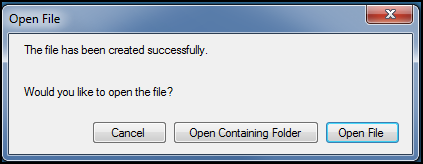
- Cancel: Select to close the dialog box. Use this option if you don't immediately want to go to the export file.
- Open Containing Folder: Select this option to open the folder location containing the exported file.
- Open File: Select this option to open the exported XLS (*.xls) file.
A XLS file containing the contents of the attributes grid is created and stored in the defined output folder.