You have opened a data dictionary file when you launched the Data Dictionary Viewer. In this example, we will compare a data dictionary from two successive releases of the same LOB.
-
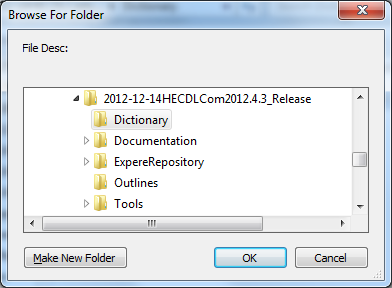
In the Browse to Folder dialog box, specify the desired location to write the report files. Note the default location is the same as the compare dictionary location. For example:
-
Click OK to create the output folder. The folder name follows the convention of using the dictionary names separated by the word TO; for example: HECDLCOM_rel_HECDLCOM2014.1.1_20140127.1 TO HECDLCOM_rel_HECDLCOM2013.4.3_20131227.1
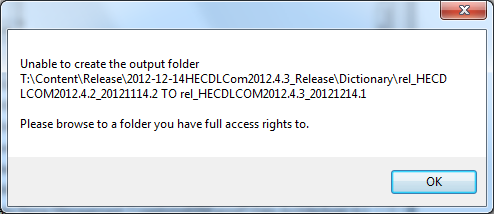
If you do not have the access rights to create that folder, an error message will appear. Click OK to return to the Browse For Folder dialog box.
The results folder will contain the following eight report files.
- All Attributes DELTA.csv
- All Attributes Metadata DELTA.csv
- All Documents DELTA.csv
- All Packages DELTA.csv
- Attribute By Document DELTA.csv
- DELTA Statistics.txt
- DELTA Doc Attrib List Stats.txt
- Document By Package DELTA.csv
