The SUPPORT page is used to view the status of requests and supporting details for troubleshooting. More information is available by looking directly in the database. Access is restricted to the production database due to the non-public information it may contain. The SUPPORT page assists users in determining the cause of issues without displaying any non-public information. An example of non-public information is Social Security Numbers that could be part of the XML transaction data.
Click the side arrow at the top of the page and select SUPPORT.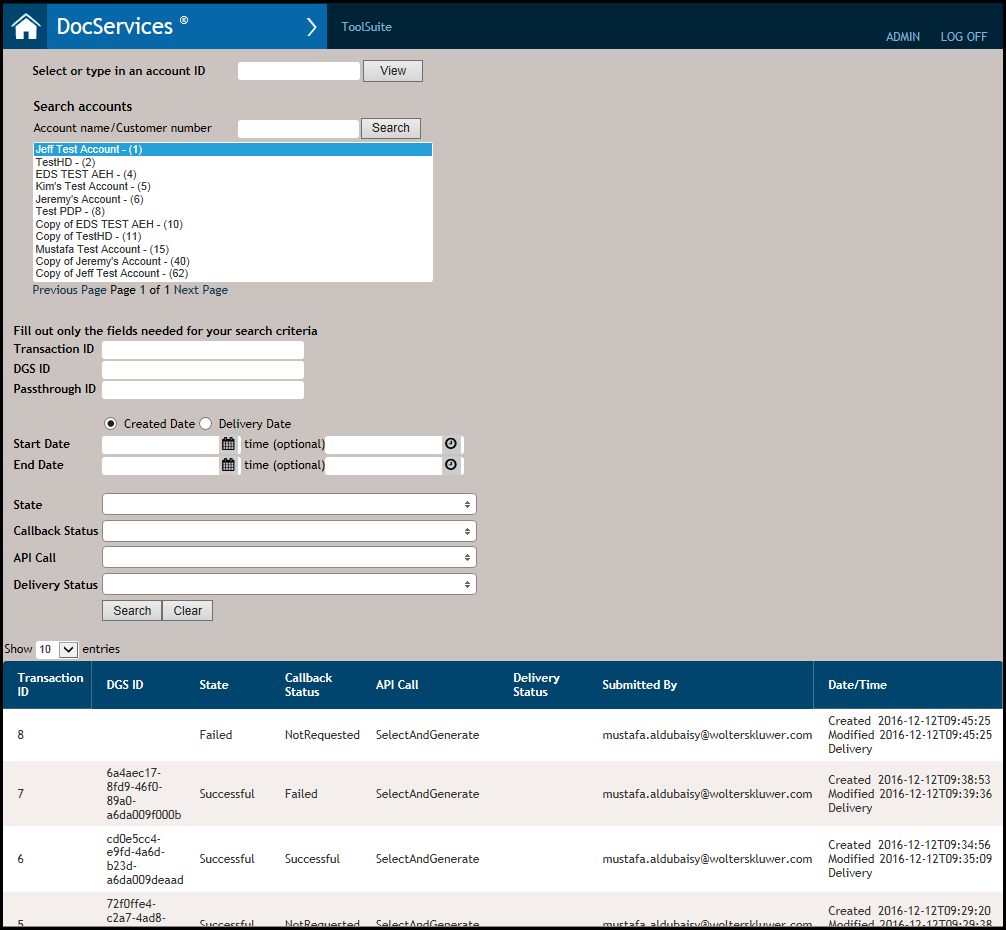
Display results
By default, the most current transactions appear at the top of the results view. To change the number of results that appear on the main page, select an option from the Show Entries dropdown.
Displaying results
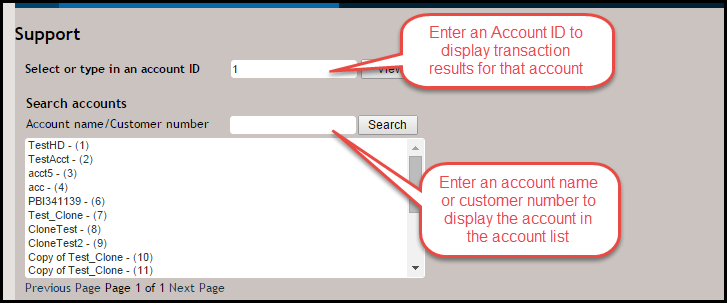
Users can display transaction results through one of the following methods:
- Enter a value in the Select or type in an account ID field; click View to display the results at the bottom of the page.
- Enter an account name or customer number in the Account name/Customer number field; click Search. The Account name/Customer number field will return an account list with all of the accounts that contain any portion of that search criteria.
- Single-click an account from your list of assigned accounts to display its tranasactions.
Searching for a transaction
You can search for a transactions through one of the following methods:
- Enter a Transaction ID, DGS ID, or PassThrough ID to return the specific transaction that matches one of the ID's for the identified account; click Search. Note that the ID must be an exact match.
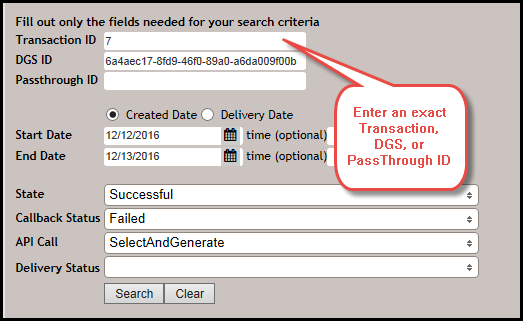 Note: It is recommended that users enter a value in one of the Transaction ID, DGS ID, or PassThrough ID fields, but not all three fields.
 - Select either the Created Date or Delivery Date option button. The Delivery Date and time represents the Delivery Status as the package moves through delivery.
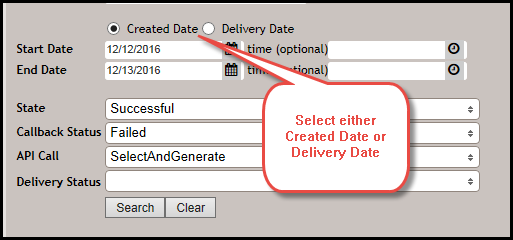 Note: For example, the Date and Time is updated when a package is received (i.e. created in the delivery process) and will be updated again when the Delivery Status is changed to Processing, etc.
 - Either directly enter a date in the Start Date field (mm/dd/yyyy) to return all transactions for the specified date or click the down arrow to select a date from the interactive calendar. For a broader search result, also enter a date in the End Date field. Click Search.
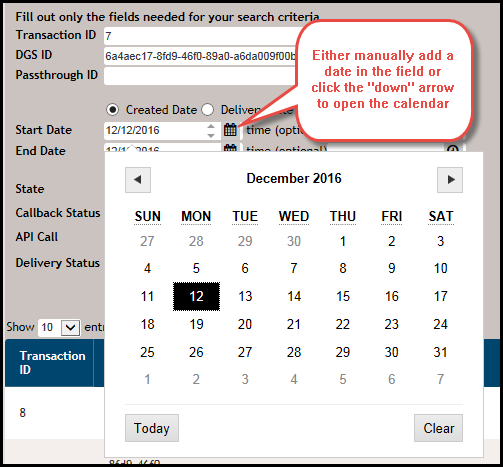 Note: When searching by date, you must enter a date in the Start Date field at a minimum. Only entering a date in the End Date field will result in an error. To narrow your search, enter an exact time in the time (optional) field. Using only Start Date will list all requests processed that day.
Advanced Transaction Results
Additional search fields allow you to enhance your transaction results. 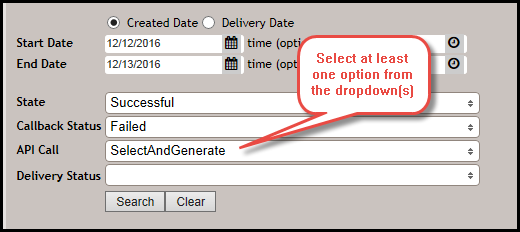
You can search by any of the Transaction list features below; click the arrows to the right of the desired field and select at least of the following options:
- State: select Successful, Failed, or Incomplete.
- Callback Status: select Successful, Failed, or NotRequested.
- API Call: select Deliver, SelectAndGenerate, or SelectGenerateAndDeliver.
- Delivery Status: select Created, Error, Mailed, Processing, or Blank.
Additionally, you can select multiple entries for each field, and can either Check All or Uncheck All by selecting either of the respective options at the top of the dropdown list. 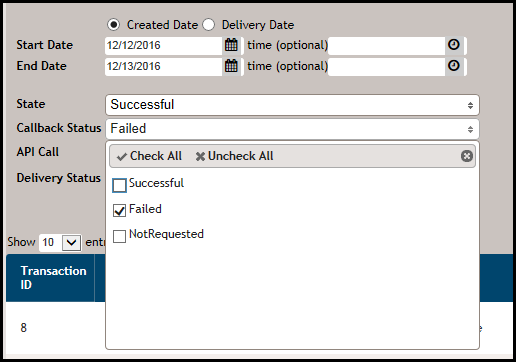
Transaction list features
The list of transactions contains the following:
- Transaction ID: The Transaction ID is generated when creating the transaction using one of the API methods.
- DGS ID: The DGS ID is created when the transaction is sent to DocGenServices for processing. Use this ID to perform any troubleshooting in DocGenServices when a transaction has failed.
- State: The State column displays either a Successful, Failed, Render_Callback_Successful, Render_Callback_Successful, or Incomplete status for the transaction.
- Callback Status: The Callback Status column displays the following statuses: Processing, Rendered, Delivering, Delivered, Error, Failed, Complete, Invalid.
- API Call: The API Call column displays the corresponding API that was used when creating the transaction.
- Delivery Status: The Delivery Status column displays either Created, Error, Mailed, Processing, or blank. A transaction with a blank Delivery Status and if the API included a delivery component (i.e. Delivery or SelectGenerateAndDeliver), indicates that fulfillment did not receive the transaction. Lastly, packages that delivery updates once the package has been mailed (i.e. USPS Status, Tracking ID, etc) will not be updated any further after the Mailed status.
- Submitted By: signifies the user who submitted the transaction.
- Date/Time: The Date/Time column displays the following:
- Date and Time the transaction was created.
- Date and Time of the last update in Delivery for those transactions that include a delivery component.
- Date and Time the transaction was last modified.
Note: Transactions not received by fulfillment will not have a Delivery Date/Time
Opening a transaction
Click anywhere on the desired row on the main page to view the details of the transaction. The transaction details opens in a new internet browser tab.
This transaction results page consists of a summary of the transaction process steps, a summary of the main Support Page, and unique Content URI and Created By user information. Users may also download and resubmit scrubbed transaction data.
Downloading transaction data
Uses can click the DOWNLOAD SCRUBBED TXN button to open the scrubbed transaction xml and review it or save the transaction to a desired location and use it for additional troubleshooting.
Resubmitting scrubbed transaction data
Uses can click the RESUBMIT WITH SCRUBBED DATA button to resubmit the transaction and review the documents returned with scrubbed data.
