Testing for a successful implementation of accessibility features require the use of a screen reader application. Adobe® Acrobat® provides features to allow playback and testing of screen reading functionality. Other testing options include the use of screen reader tools such as JAWS® Screen Reader Software from Freedom Scientific®. In addition, the Expere Testing System was enhanced to provide the option to generate a tagged PDF to aid in testing efforts.
Expere Testing System
In the Expere Testing System you can, through the Tagged PDF assembly option, specify the generation of tagged PDF output. Once selected, each time a document is executed for assembly a tagged PDF is generated.
In the Expere Testing System, on the Assembly screen the Assembly Options drop-down list includes a TaggedPDF option in the list of available options. This option is available on the Assembly screen and is not implemented in other screens that allow for selecting assembly options (for example, the Multiple Assembly and Autoselection and Assembly screens).
Adobe Acrobat Professional
Adobe Acrobat Professional offers several options for testing document accessibility. To learn how a particular document is presented, or read, by a screen reader you can use the Read Out Loud feature (View > Read Out Loud) to hear the document read according to the defined reading order and other reading settings. This is available in both Adobe Reader and Adobe Acrobat. 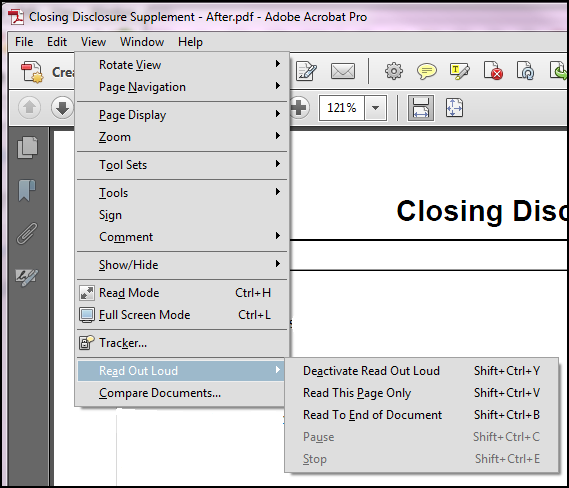
In addition to using the Read Out Loud feature, Acrobat Professional provides a number of accessibility testing options. You can use the Run Full Check feature (Tools > Accessibility > Full Check) to test the accessibility of a generated document. This feature analyzes a document to find inaccessible content and potential issues and creates a detailed error report. The report is presented in the Accessibility Checker tab in the PDF navigation pane. This feature is a valuable aid in identifying areas in your content that can be authored to improve the customer experience.