To sign a message that appears in your Inbox with a closed envelope icon and pencil
 :
:
:-
Click the associated Loan Number, Borrower Name, Subject, Received On or Tracking
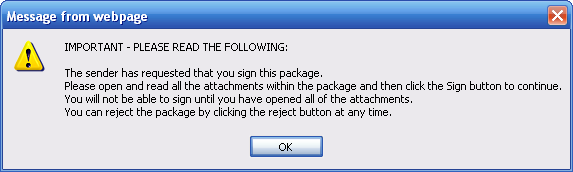
Number link to open it. An important message appears.
-
Click the associated Reference Number,
Subject, Received On or Tracking Number link to open
it. An important message appears.
-
After reading the message, click OK. The package is displayed.
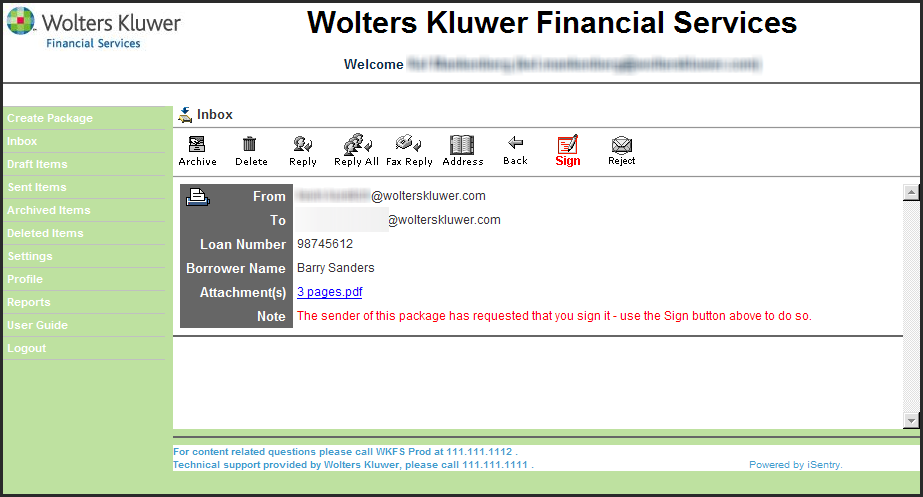
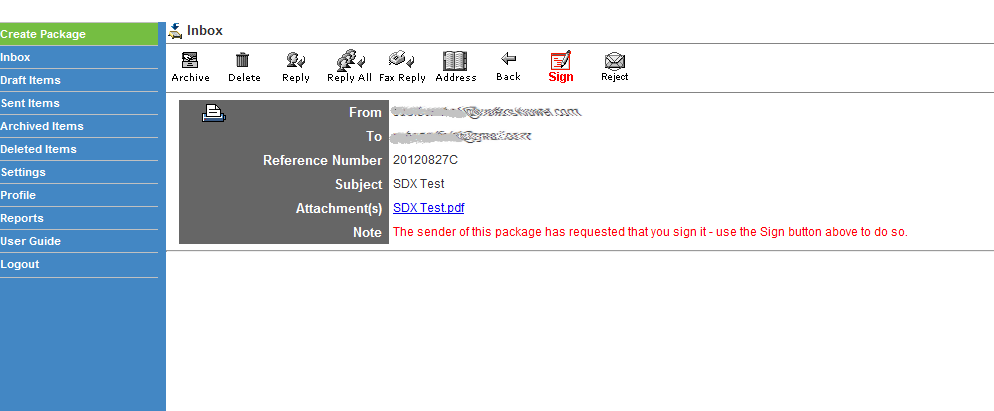
Notice the note that the sender has requested that you sign this package (red text). -
Click the Sign button to accept the package or the Reject button
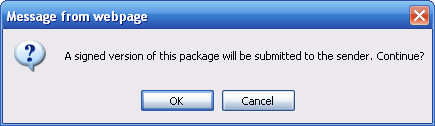
to reject it. After clicking the Sign button, a message appears that a
signed version of this package will be submitted to the sender.
-
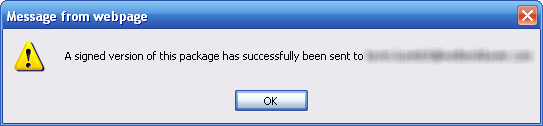
Click OK to proceed. A message is displayed indicating a signed version
of the package has been sent.
You are returned to the package.