Click Create Package on the navigation menu. the Create Package screen
is displayed.
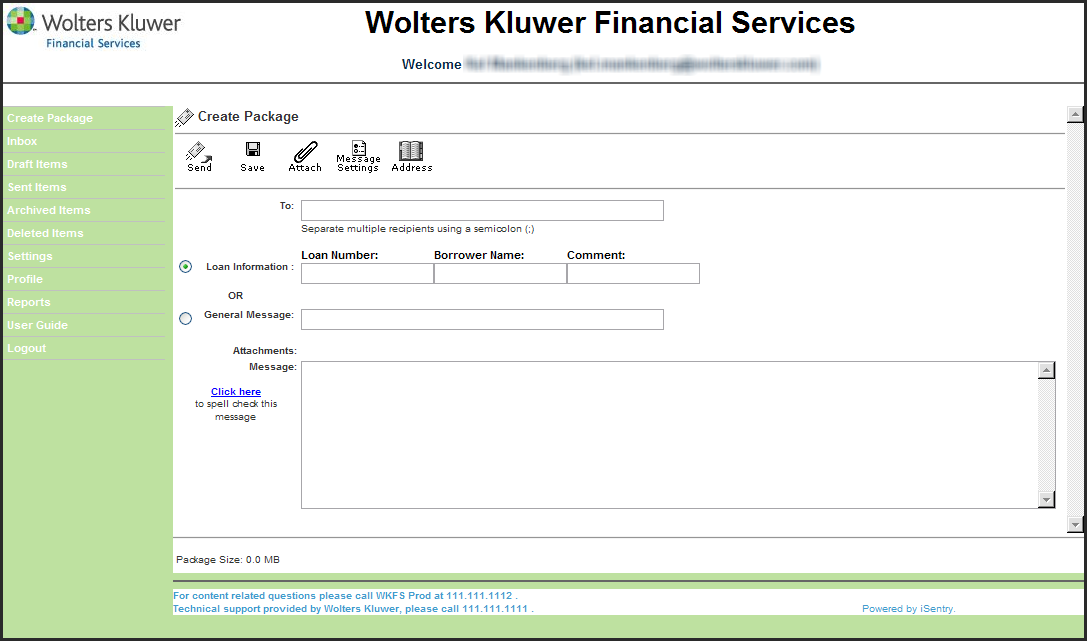
Enter the recipient's e-mail address, or multiple addresses, in the To
field.
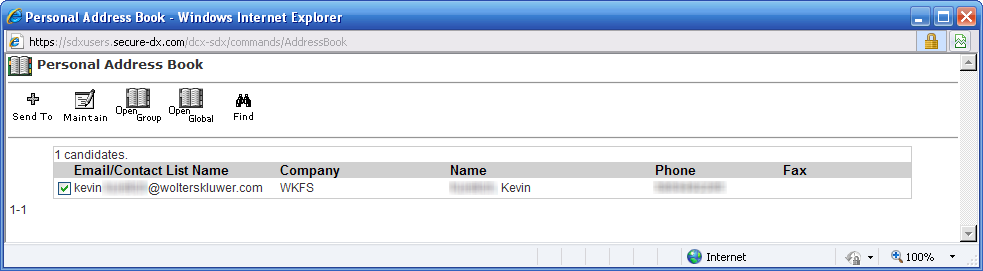
To select an e-mail address from your personal address book, click the
Address button. In the Personal Address Book window, select the check
box next to the address or addresses, and click the Send To button. The
selected e-mail addresses appear in the To field.
If you wish to request the package recipient(s) to eSign this package, check
the Request Recipient(s) eSign checkbox.
If you are sending loan information, select the Loan
Information option. Enter the appropriate package information in the
Loan Information fields, which will appear as the Subject for the message. These
fields vary based on user configuration.
If you are sending a general message, select the General Message
option. Enter text in this field for use as the Subject for the message.
If you are sending a reference number, select the
Reference Number option. Enter the appropriate package information in
the Reference Number fields, which will appear as the Subject for the message.
These fields vary based on user configuration.
If you are sending a general message, select the
General Message option. Enter text in this field for use as the
Subject for the message.
Enter the body of the e-mail in the Message field.
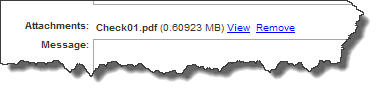
To add an attachment, click the Attach button. Select the file to attach
and click Open. The attached files appear in the Attachments section. You
can View or Remove attachments as needed.
Click the Send button to send the message. The Package Confirmation
screen is displayed.
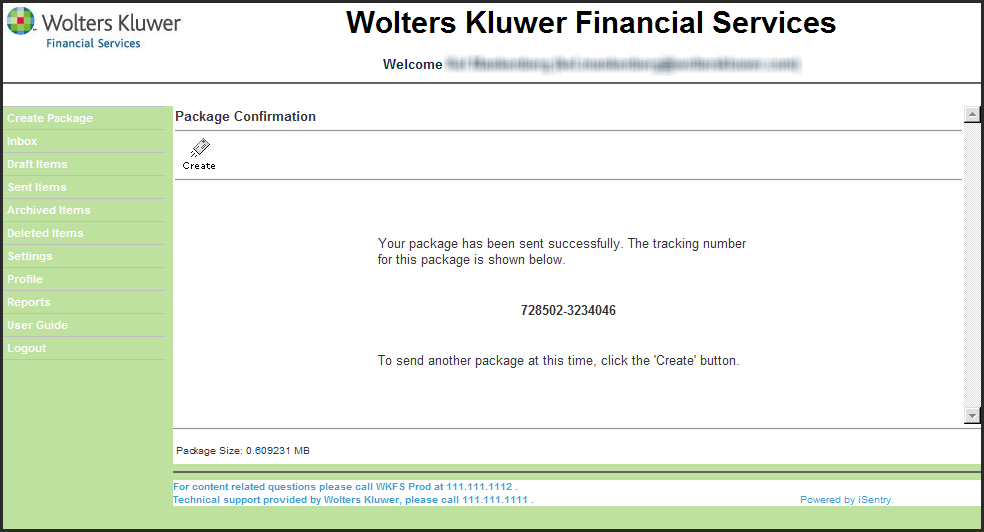
This screen contains the tracking Number for the package sent. A copy of the
e-mail also appears in your Sent Items folder.